
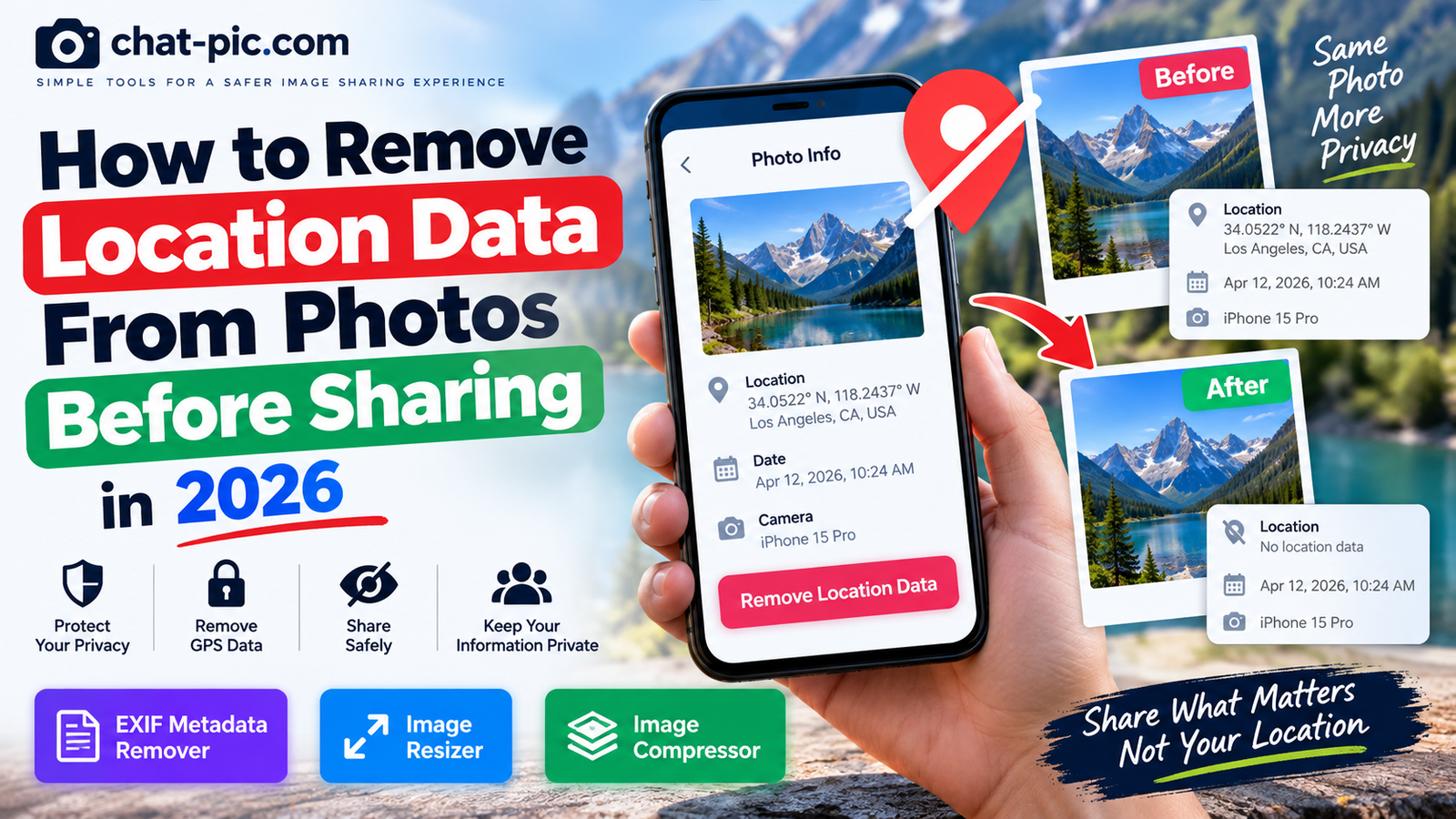
A photo can reveal more than what you see on the screen.
When you take a picture with a modern smartphone or digital camera, the image file may contain hidden information called metadata. This can include the date, time, camera model, device information, editing software, and sometimes the exact GPS location where the photo was taken.
If you plan to upload personal photos to a website, send them to strangers, post them on a forum, or share them publicly, it can be smart to remove location data from photos first.
This guide explains what photo location metadata is, when it can create privacy problems, and how to remove or prevent it on iPhone, Android, computers, and browser-based tools.
What Is Location Data in a Photo?
Many digital photos contain metadata stored with the image.
One common type is EXIF, short for Exchangeable Image File Format.
EXIF information can contain useful technical details about a photograph, including camera model, shutter speed, orientation, capture time, and sometimes GPS coordinates.
If location services were enabled when the image was captured, the file may contain latitude and longitude values.
Those coordinates can potentially point to the place where the photo was taken.
For a vacation landscape this may not matter.
But it can matter when the photo was taken at your home, a child’s school, a workplace, a private meeting location, or another place you do not want to reveal.
Why GPS Metadata Can Be a Privacy Risk
Imagine that you take a photo inside your home and send the original file to someone online.
The picture itself may show nothing that identifies your address.
However, if the original file still contains GPS coordinates, someone with the right software may be able to inspect those coordinates.
This does not mean every social network or messaging service exposes GPS metadata. Many platforms modify or remove metadata during processing.
The problem is that you cannot safely assume every website, email service, cloud drive, forum, or file-sharing service will handle the photo in the same way.
The safest approach for a sensitive photo is simple:
Clean the copy before sharing it.
How to Check Whether a Photo Contains Location Data
Before removing anything, you can first check whether the photo has a saved location.
On an iPhone, open the photo in the Photos app and view its information. Apple shows details such as camera information and, when available, the place where the image was taken. Apple also allows users to adjust or remove the saved location.
In Google Photos, open a photo and view its information. A location may come directly from your camera, may have been added manually, or may have been estimated by Google Photos. Google explains that these different location types are handled differently.
On a computer, photo-management software and metadata viewers can also reveal GPS information embedded inside the file. It is a good idea to remove location data from photos before uploading personal images to public websites.
Remove Location Data From Photos on iPhone
Apple gives iPhone users several useful privacy controls.
Remove the saved location from an existing photo
Open the Photos app.
Open the photo you want to change.
Tap the More button.
Choose Adjust Location.
Select No Location.
Apple also allows this to be done for multiple selected photos.
This is useful when you want to clean location information already associated with photographs in your library.
Share an iPhone photo without location information.
You can also prevent location information from being included during a specific share.
Select the photo in Photos.
Tap Share.
Tap Options.
Turn Location off.
Tap Done, then continue sharing.
Apple specifically provides this option so you can share a photo without sharing where it was taken.
This is one of the easiest privacy controls for iPhone users.
Stop Your iPhone Camera From Saving Location in Future Photos
If you rarely need photo geotagging, you can prevent the Camera app from recording your location in the first place.
On iPhone:
Settings → Privacy & Security → Location Services → Camera → Never
Apple confirms that camera location metadata depends on the Camera app having access to Location Services.
The benefit is simple: future photos taken with the Camera app will not automatically receive that location information from the Camera’s location permission.
However, think before disabling it permanently.
Location data can be useful for organizing travel photos and finding pictures by place.
For many users, keeping location enabled but removing it from sensitive photos before sharing is a better balance.
Remove Location Information in Google Photos
Google Photos needs a little more explanation because not every location can be removed in the same way.
Google says a photo can receive location information from your device’s camera, from a location you manually added, or from an estimated location created by Google Photos.
Estimated or manually added locations
Google Photos allows you to edit or remove certain estimated or manually added locations.
Open the photo.
Open the photo information.
Choose the location-editing option.
Where supported, select Remove location.
Camera-added GPS locations
This is the important part.
Google states that if a location was automatically added by the camera, you cannot remove that camera-added location inside Google Photos using the normal location-editing controls.
For a sensitive original file, you should therefore clean the file itself before sharing it outside Google Photos.
This is where a metadata-removal tool can be helpful.
Use Chat Pic to Remove EXIF Metadata
For a simple browser-based method, you can use the Chat Pic EXIF Metadata Remover:
The tool creates a newly processed image copy in your browser.
The basic process is:
Upload the image, click Remove Metadata, preview the clean image, and download the new copy.
Then share the newly created copy instead of the original photograph.
This can be particularly useful when you are moving a photo between different platforms and do not want to depend on each destination service’s metadata policy.
Keep your original photograph separately if you want to preserve the original capture information.
Google Photos Sharing and Location Privacy
Google Photos has its own sharing controls.
Google says location information is private by default in many normal sharing situations and users can control whether photo locations are included when creating shared albums, conversations, or links. Partner Sharing works differently and can include location details.
There is an important warning, though.
Google explains that when a photo is shared outside Google Photos, such as by downloading the original file and emailing it, device-saved location information can still be present in that file.
So hiding location inside a Google Photos sharing interface is not necessarily the same thing as removing GPS metadata from the original image file.
For sensitive content, cleaning the file itself is the safer approach.
Location Can Still Be Revealed Without EXIF Data
Removing GPS metadata improves privacy, but it does not make a photograph anonymous.
A person may still identify a location by looking at the visible content.
For example, a picture might contain a street sign, shop name, school logo, house number, recognizable building, mountain, landmark, vehicle registration plate, or computer screen.
Google itself warns that people may be able to guess a location from landmarks even when location information is not shared.
This means photo privacy has two parts:
Hidden metadata and visible information.
You should check both.
Remove Location Data Before Posting to Forums
Public forums are one situation where extra care makes sense.
You may upload a picture to ask for technical help, show a product, share a screenshot, or participate in a discussion.
The people viewing the file may be complete strangers.
Before uploading the original photo, make a sharing copy.
Remove location metadata.
Crop anything private from the image.
Resize it if full resolution is unnecessary.
Compress it if the file is very large.
You can use the other Chat Pic tools for these tasks:
Image Resizer:https://chat-pic.com/image-resizer/
Image Compressor:https://chat-pic.com/image-compressor/
This allows you to keep your high-quality original private while sharing a smaller, cleaned copy.
Should You Remove All EXIF Metadata?
Not always.
EXIF data is not automatically bad.
Photographers use metadata for useful reasons. Camera model, lens details, exposure settings, date, and other information can help organize photographs and understand how an image was created.
The real question is whether that information is useful to the person receiving the photo.
If you are sending an original photograph to a professional editor, photographer, or archive, you may want to preserve metadata.
If you are posting a casual personal picture publicly, much of that information may be unnecessary.
For privacy-sensitive sharing, creating a separate clean copy is usually better than permanently modifying your only original.
Does Screenshotting a Photo Remove GPS Metadata?
People sometimes use screenshots as a quick way to avoid sharing the original file.
A screenshot normally creates a new image rather than sending the original camera photo, so it may not preserve the original photograph’s EXIF structure.
However, screenshots are not a perfect privacy strategy.
The screenshot itself can still contain visible personal information, and different devices may create their own metadata.
A dedicated clean-copy workflow gives you more control.
Instead of relying on assumptions, process the image and inspect the copy you intend to share.
Does Social Media Remove Photo Location Data?
Many popular platforms process images when they are uploaded, and this can alter or strip some metadata.
But you should not build your privacy strategy around the assumption that every platform behaves exactly the same way forever.
Policies and processing methods can change.
You may also share the same file later by email, cloud storage, a forum, or a direct file link where different rules apply.
Removing unnecessary location data before the upload gives you control regardless of the destination.
Should You Disable Camera Location Completely?
This depends on how you use your photo library.
Location information can be useful for travel photography.
It can help you search for photos taken in a certain city or remember exactly where a picture was captured.
Microsoft’s Photos app, for example, can use embedded latitude and longitude data to help users search photos by location.
So deleting all location data from every photograph may not be necessary.
A practical approach is:
Keep geotagging for your private originals if you find it useful, but create metadata-cleaned copies for public or sensitive sharing.
That gives you organization benefits without unnecessarily distributing location information.
Important Photos That Deserve Extra Care
Location privacy matters more with certain types of images.
A landscape from a famous tourist attraction is usually less sensitive than a photo taken inside your home.
Take extra care with photos involving your home, children, school activities, private workplaces, medical visits, confidential documents, valuable property, private events, or locations that reveal personal routines.
The same applies to photographs taken during travel when you do not want to reveal your current location in real time.
Removing metadata is only one layer of protection, but it is a useful one.
How to Prepare a Photo Before Sharing
A good privacy workflow takes less than a minute.
Use this checklist:
- Keep the original photo safely stored.
- Check the image for visible addresses, documents, screens, names, license plates, or other identifying details.
- Check whether the file contains GPS or location metadata.
- Remove unnecessary EXIF metadata from the sharing copy.
- Resize the image if full resolution is not needed.
- Compress the copy if the file is unnecessarily large.
- Choose an appropriate sharing service for the sensitivity of the photo.
- Check the sharing permissions or link settings before sending it.
- Share only the cleaned copy.
- Remember that a recipient can still save or forward the photo.
This approach protects the original while giving you more control over what information leaves your device.
Frequently Asked Questions
How do I remove location data from a photo on iPhone?
Open the image in Photos, tap the More button, choose Adjust Location, and select No Location. Apple also lets you turn off Location from the sharing Options screen when sending a photo.
Can Google Photos remove GPS data added by my camera?
Google says locations automatically added by the camera cannot be removed using Google Photos’ normal location-editing feature. Estimated locations and manually added locations can be handled differently.
Can someone find my home from a photo?
It is possible if the file contains accurate GPS coordinates or if the visible image contains recognizable clues. Removing metadata reduces one risk, but you should also inspect what can be seen in the image itself.
Does removing EXIF data damage image quality?
Removing metadata itself does not need to visibly change the photograph. However, some tools create a new encoded copy, and image quality can depend on the output format and quality settings.
Should I remove metadata before posting photos online?
For ordinary public or privacy-sensitive sharing, removing unnecessary metadata is a useful precaution. For professional photography workflows, you may want to keep metadata in your private original and share a cleaned copy instead.
Can I stop my iPhone from recording photo locations?
Yes. Apple allows you to go to Settings → Privacy & Security → Location Services → Camera and set location access to Never.
Final Thoughts
Learning how to remove location data from photos is a simple privacy habit that can prevent unnecessary information from travelling with your images.
The most important thing to understand is that the image you see and the information stored inside the file are not always the same thing.
Your photograph may contain GPS coordinates even when no address is visible on the screen.
iPhone users can remove or suppress location information directly through Apple’s Photos sharing controls. Google Photos provides useful location privacy settings too, but camera-added GPS information cannot always be removed from the original file inside Google Photos itself. Learning to remove location data from photos gives you more control over what information you share online.
For public sharing, create a clean copy.
Remove metadata, inspect visible details, resize the photo if necessary, and then share the prepared version.
That gives you more control over your privacy without forcing you to delete useful information from your original photos.