
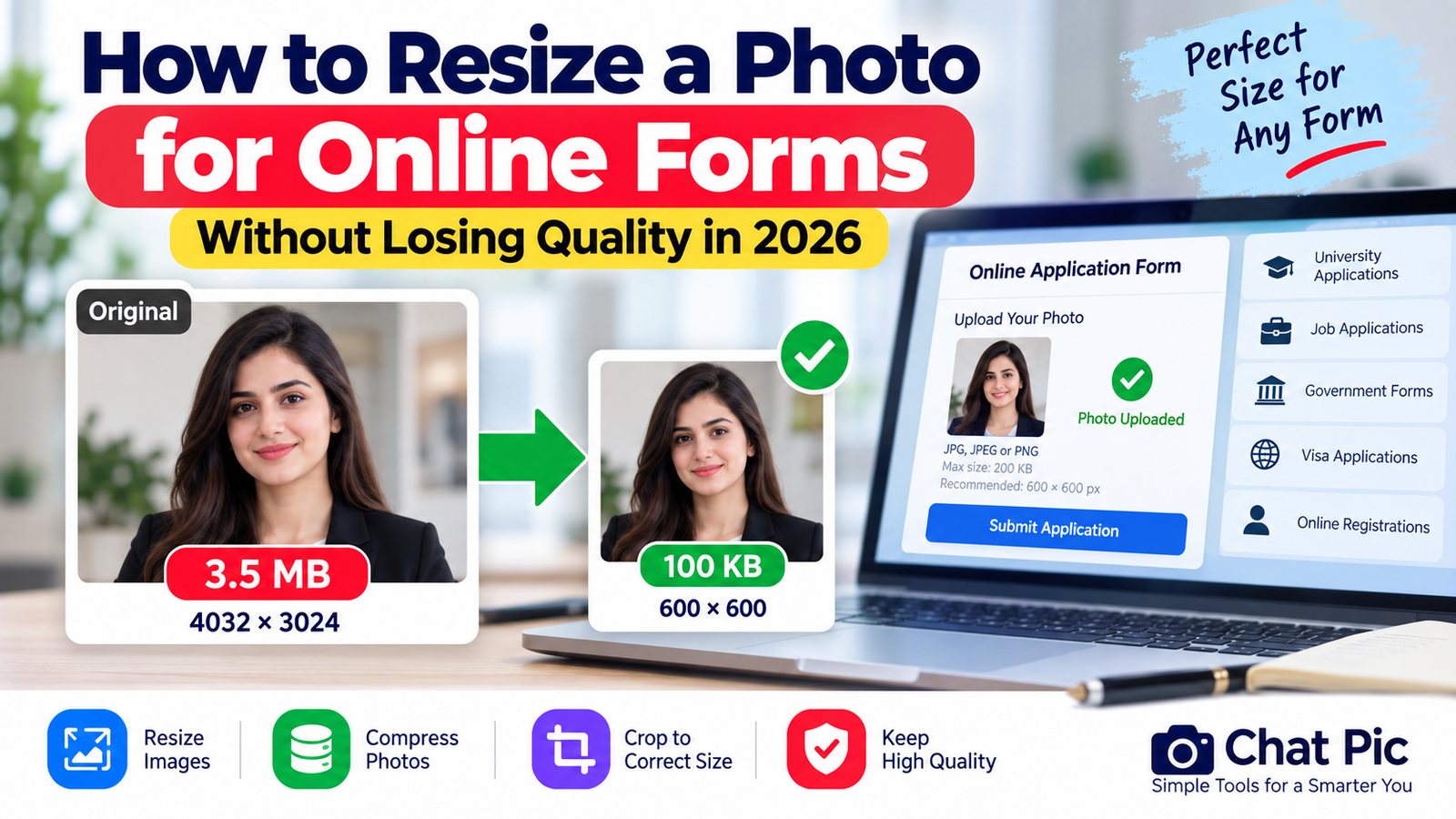
Need to resize photo for online form uploads without making the image blurry or stretched? Many websites, job portals, admission systems, government forms, visa applications, membership sites, and online registrations require photos to meet specific dimensions and file-size limits.
A photo may look perfectly fine on your phone but still be rejected because it is too large, too wide, too tall, or over the maximum file-size limit.
The safest approach is to prepare the image before uploading it.
In most cases, this means checking the required dimensions, keeping the correct aspect ratio, resizing the photo, compressing it if necessary, and saving a separate upload copy.
Chat Pic provides browser-based tools that can help you prepare images for online forms quickly.
Why Online Forms Reject Photos
Online forms often have strict upload rules.
A portal may require:
- Exact width and height
- Maximum file size
- Specific image format
- Square or portrait shape
- Minimum resolution
- Clear face visibility
- Plain background
- Recent photograph
For example, a website may ask for:
600 × 600 pixels
Maximum file size: 200KB
JPEG format
If your photo is:
3000 × 4000 pixels
3.5MB
the system may reject it even though the image looks fine.
You need to resize and optimize it first.
What Does Resizing a Photo Mean?
Resizing means changing the pixel dimensions of an image.
For example:
Original:
3000 × 4000 pixels
Resized:
600 × 800 pixels
The image becomes much smaller in dimensions while keeping the same general appearance.
Resizing is different from compression.
Resizing changes width and height.
Compression reduces file size.
For online forms, you may need both.
How to Resize Photo for Online Form Uploads
A simple workflow is:
Check requirements → Resize → Compress → Check quality → Upload
You can use Chat Pic’s Image Resizer:
and Image Compressor:
The most important thing is to follow the exact instructions shown by the website or portal.
Step 1: Read the Upload Requirements
Before editing the image, check what the form actually requires.
Look for information such as:
- Maximum file size
- Image dimensions
- Allowed formats
- Aspect ratio
- Background requirements
Example:
Photo size: 600 × 600 pixels
Maximum: 100KB
Format: JPG
If the website gives exact requirements, follow those numbers rather than using a general recommendation.
Step 2: Check Your Current Photo Dimensions
Most phone and camera photos are much larger than online forms require.
A modern smartphone photo might be:
4032 × 3024 pixels
or:
4000 × 3000 pixels
This is useful for photography, but unnecessary for many application forms.
Reducing the dimensions can make the upload much easier.
Step 3: Choose the Correct Aspect Ratio
Aspect ratio is the relationship between image width and height.
Common ratios include:
- 1:1
- 4:3
- 3:2
- Passport-style portrait ratios
- Custom portal-specific dimensions
If the form requires 600 × 600 pixels, the image is square.
If your original photo is rectangular, simply changing it to 600 × 600 without cropping may stretch the face.
Instead:
Crop first → Resize second
This keeps the photo natural.
Step 4: Crop the Photo When Necessary
Cropping removes unwanted parts of the image.
Suppose the original photo is:
1600 × 1200
but the form requires:
600 × 600
A direct resize would distort the image.
A better approach is:
Crop to square → Resize to 600 × 600
This preserves facial proportions.
Step 5: Resize the Photo
After choosing the correct shape, resize the image.
You can use Chat Pic’s free Image Resizer.
Internal link:
Enter the required width and height.
If the portal does not require exact dimensions, keep the aspect ratio locked.
Step 6: Compress the Image
After resizing, check the file size.
Example:
600 × 600 image → 240KB
but the form requires:
Maximum 100KB
Now use compression.
Chat Pic’s Image Compressor can help:
Reduce the file gradually.
Avoid extreme compression if the image starts looking blurry.
Step 7: Check the Final Photo
Before uploading, confirm:
- Correct dimensions
- Correct format
- File size below the limit
- Face is clear
- Image is not stretched
- Text or details remain readable
- Background meets requirements
This final check can prevent upload errors.
Resize Photo to 100KB for Online Form
Many portals require photos below 100KB.
If your dimensions are already correct, you may only need compression.
For example:
600 × 600 — 250KB
can potentially become:
600 × 600 — 95KB
without changing dimensions.
We already have a detailed guide:
Suggested anchor:
compress image to 100KB without losing quality
Resize Photo to 200KB
A 200KB limit is easier to reach.
A good workflow is:
- Resize to required dimensions.
- Save as JPEG or WebP if allowed.
- Apply moderate compression.
- Keep the final file under 200KB.
Try not to reduce quality more than necessary.
Resize Photo to 50KB
A 50KB limit can be more difficult.
To reach it, you may need:
- Smaller dimensions
- Stronger compression
- JPEG format
- Less metadata
Do not force a detailed photo to 50KB if the portal allows a larger file.
Always use the highest practical quality within the stated limit.
Exact Dimensions vs Maximum Dimensions
Some forms say:
Required: 600 × 600
Others say:
Maximum: 1200 × 1200
These are different.
If exact dimensions are required, match them precisely.
If the site gives only a maximum, you can use a smaller image as long as it remains clear.
Best Image Format for Online Forms
The most common formats are:
JPEG
JPEG is usually the safest choice for photos.
Advantages:
- Small file size
- Good photo quality
- Wide compatibility
PNG
PNG is better for:
- Screenshots
- Graphics
- Transparent images
But PNG photos may be too large.
WebP
WebP can be efficient, but some older portals may not accept it.
If the website specifically asks for JPG or JPEG, use that format.
Why JPEG Is Common for Application Photos
JPEG works well for photographs because it provides good quality at relatively small file sizes.
This makes it useful for:
- Job applications
- Admission forms
- Profile photos
- Visa forms
- Registration systems
If the site accepts JPEG, it is usually a good choice.
Avoid Uploading HEIC Photos
Some iPhones save images as HEIC.
Many modern systems support HEIC, but some online forms do not.
If the portal accepts only JPG or PNG, convert the photo first.
Then resize and compress it.
Resize Photos for Job Applications
Job portals often request:
- Profile photo
- Resume photo
- ID document
- Certificate scan
Follow the portal’s requirements carefully.
For profile photos:
- Keep the face clear
- Avoid overcompression
- Use a clean crop
- Use appropriate dimensions
If the portal only needs a small headshot, full camera resolution is unnecessary.
Resize Photos for University Applications
Admission portals may require:
- Passport-style photo
- ID scan
- Certificates
- Transcripts
A clear image matters more than extreme compression.
Text on certificates and documents must remain readable.
Do not reduce documents so much that important details become unclear.
Resize Photos for Government Forms
Government websites may have strict upload requirements.
Always follow:
- Exact dimensions
- File-size limit
- File format
- Photo background rules
Do not rely on general image-size advice when the portal gives exact instructions.
Resize Passport-Style Photos
Passport-style photos often require:
- Portrait orientation
- Plain background
- Centered face
- Specific crop
- Exact dimensions
Do not stretch the photo to fit.
Crop the image first, then resize it.
Resize Profile Photos
Profile photos are often square.
Example:
500 × 500
If your original image is portrait-shaped, crop it to square before resizing.
This helps prevent distorted faces.
Resize ID Documents
ID card images must remain readable.
Do not compress them excessively.
Check:
- Name
- Numbers
- Dates
- Photo
- Fine text
If the portal accepts a larger file, use enough quality to preserve all details.
Resize Scanned Documents
Scanned documents may be much larger than necessary.
A scanned page may be:
2500 × 3500 pixels
If the portal only needs a readable online copy, resizing and compression can reduce file size significantly.
However, keep text sharp.
For document images, excessive JPEG compression can make letters fuzzy.
Online Form Says “Image Too Large”
This usually means one of two things:
- Pixel dimensions are too large
- File size is too large
Check both.
Example:
Dimensions: 4000 × 3000
File size: 5MB
You should resize first and then compress.
Online Form Says “File Size Exceeded”
If dimensions are already correct but the file is too large, compress the image.
Example:
Required:
600 × 600
Max 100KB
Your file:
600 × 600
230KB
Do not resize again.
Compress it instead.
Online Form Says “Invalid Dimensions”
This means the width or height does not match requirements.
For example, the form requires:
600 × 600
but your photo is:
600 × 800
You need to crop or resize it to the required dimensions.
Online Form Says “Unsupported Format”
The site may accept only:
- JPG
- JPEG
- PNG
If your file is:
- HEIC
- TIFF
- BMP
- WebP
you may need to convert it first.
How to Keep Image Quality After Resizing
To avoid quality problems:
- Start with the original image
- Do not enlarge a small image
- Keep the correct aspect ratio
- Resize once
- Use moderate compression
- Save a separate copy
Repeated resizing and compression can gradually reduce quality.
Avoid Upscaling Small Photos
Suppose your original photo is:
300 × 300
but the form requires:
800 × 800
Enlarging it may make the image blurry.
Try to use a larger original image instead.
Upscaling cannot recreate missing detail perfectly.
Keep the Aspect Ratio Locked
If you resize freely without maintaining aspect ratio, people may look:
- Too wide
- Too thin
- Too tall
- Stretched
Only unlock the aspect ratio if you know the portal requires exact dimensions and you have already cropped appropriately.
Compress After Resizing
This is usually the best order:
Resize first → Compress second
Why?
Resizing removes unnecessary pixels.
Compression then works on a smaller image.
This usually gives better results.
Do Not Compress Before Cropping
If you compress first, then crop and resize, you may need to recompress again.
Repeated compression can reduce image quality.
Better workflow:
Original → Crop → Resize → Compress → Upload
Remove EXIF Metadata Before Uploading
Photos can contain hidden metadata such as:
- Camera model
- Capture date
- Editing software
- GPS location
For application portals, this metadata is usually unnecessary.
If privacy matters, you can use Chat Pic’s EXIF Metadata Remover:
This creates a cleaner upload copy.
Does Metadata Affect File Size?
Metadata usually makes up only a small part of the image.
Removing it may reduce file size slightly.
The biggest reductions usually come from:
- Resizing
- Compression
- Format conversion
Metadata removal is more useful for privacy than major file-size reduction.
Check File Size Before Uploading
Do not rely on how large the image looks on screen.
A small-looking image can still be several megabytes.
Check the actual file properties.
Example:
600 × 600 PNG — 1.2MB
may look small but still exceed the portal’s limit.
Why PNG Photos Can Be Too Large
PNG uses lossless compression.
This is excellent for graphics but can create large photographic files.
If the online form accepts JPEG, converting a photo from PNG to JPEG may reduce the file size substantially.
Example: Resize a Job Application Photo
Original:
3000 × 4000
4.5MB JPEG
Required:
600 × 800
Maximum 200KB
Workflow:
- Crop if necessary.
- Resize to 600 × 800.
- Compress JPEG moderately.
- Final file: around 120KB.
- Check face clarity.
- Upload.
Example: Resize a Square Profile Image
Original:
3024 × 4032
Required:
500 × 500
Workflow:
- Crop photo to square.
- Resize to 500 × 500.
- Compress.
- Check file size.
- Upload.
This avoids stretching the image.
Example: Reduce an ID Scan
Original:
2500 × 1600 PNG
3MB
Portal limit:
1MB
If text is important:
- Reduce dimensions moderately.
- Use high-quality JPEG if accepted.
- Check text readability.
- Keep final file under 1MB.
Example: 100KB Photo Upload
Required:
600 × 600 JPG
Under 100KB
Original:
600 × 600 JPG
260KB
Since dimensions are correct:
Do not resize.
Compress to approximately:
90–98KB
This gives some safety margin below the upload limit.
Why Leave a File-Size Margin?
If the portal says:
Maximum 100KB
do not aim for exactly 100.0KB.
Try for:
90–98KB
Different systems may calculate file size slightly differently.
Leaving a small margin can prevent rejection.
Mobile Photo Upload Problems
Phone photos can cause upload errors because they are often:
- Very large
- HEIC format
- High resolution
- Rich in metadata
Before uploading:
- Convert to accepted format.
- Resize.
- Compress.
- Check orientation.
Rotated Photo After Upload
Sometimes a photo appears rotated after upload.
This can happen because some images rely on EXIF orientation metadata.
If metadata is removed or interpreted differently, the image may rotate unexpectedly.
Before uploading:
- Open the final image
- Confirm orientation
- Save the correct rotation
Blurry Photo After Upload
A photo may become blurry if:
- It was resized too small
- It was overcompressed
- A tiny image was enlarged
- The portal applies additional compression
Use the largest dimensions allowed when clarity matters, while staying within the file-size limit.
Should You Use an Online Image Tool?
Browser-based tools can make the process easier.
You can resize, compress, and clean metadata without installing large editing software.
Use:
Image Resizer:https://chat-pic.com/image-resizer/
Image Compressor:https://chat-pic.com/image-compressor/
EXIF Metadata Remover:https://chat-pic.com/exif-metadata-remover/
Best Workflow for Online Form Photos
Use this simple workflow:
1. Read the portal requirements
Note dimensions, format, and file-size limit.
2. Keep the original image
Do not overwrite it.
3. Crop if necessary
Match the required shape.
4. Resize
Use exact dimensions when required.
5. Compress
Reduce the file below the maximum limit.
6. Check quality
Make sure the face or document is clear.
7. Remove unnecessary metadata
If privacy matters.
8. Upload
Confirm that the portal accepts the file.
Common Mistakes
Ignoring Exact Requirements
Always read the portal’s instructions first.
Stretching Photos
Crop instead of changing the aspect ratio incorrectly.
Compressing Too Much
Important details may become blurry.
Uploading Full Camera Files
Large originals may exceed limits unnecessarily.
Using the Wrong Format
Make sure the portal supports your file type.
Deleting the Original
Keep the original high-quality image.
Repeated Compression
Repeated JPEG saves can reduce quality.
Frequently Asked Questions
How do I resize photo for online form?
Check the required dimensions, crop the image if necessary, resize it to the correct width and height, then compress it to meet the file-size limit.
What size should an online application photo be?
There is no universal size. Use the exact dimensions specified by the application portal.
How do I make a photo under 100KB?
Resize it first if dimensions are too large, then apply compression until the file is below 100KB.
Should I resize or compress first?
Resize first when the dimensions are too large, then compress the resized image.
Can I reduce photo size without losing quality?
You can often reduce file size significantly while keeping good visual quality, but very strong compression may cause some visible loss.
Why is my photo rejected even though it looks small?
The file may still have large pixel dimensions, exceed the file-size limit, or use an unsupported format.
How do I resize a photo to exact dimensions?
Crop the image to the correct aspect ratio first, then resize it to the required width and height.
Should I use JPEG or PNG for online forms?
Use the format requested by the portal. JPEG is commonly used for photographs because it offers smaller file sizes.
Can I use WebP for online forms?
Only if the portal accepts WebP. Many forms still specifically request JPG, JPEG, or PNG.
Can I remove metadata before uploading?
Yes. Removing unnecessary EXIF metadata can create a cleaner upload copy and may improve privacy.
Final Thoughts
Learning how to resize photo for online form uploads can prevent many common application errors.
The most important rule is to follow the portal’s exact requirements.
Do not guess the dimensions or file-size limit.
A reliable workflow is:
Read requirements → Crop → Resize → Compress → Check quality → Upload
If the image dimensions are already correct but the file is too large, compress it instead of resizing it again.
If the file is several thousand pixels wide, resize first before applying strong compression.
With Chat Pic’s Image Resizer, Image Compressor, and EXIF Metadata Remover, you can prepare clearer, smaller, and more privacy-friendly images for online application forms.