
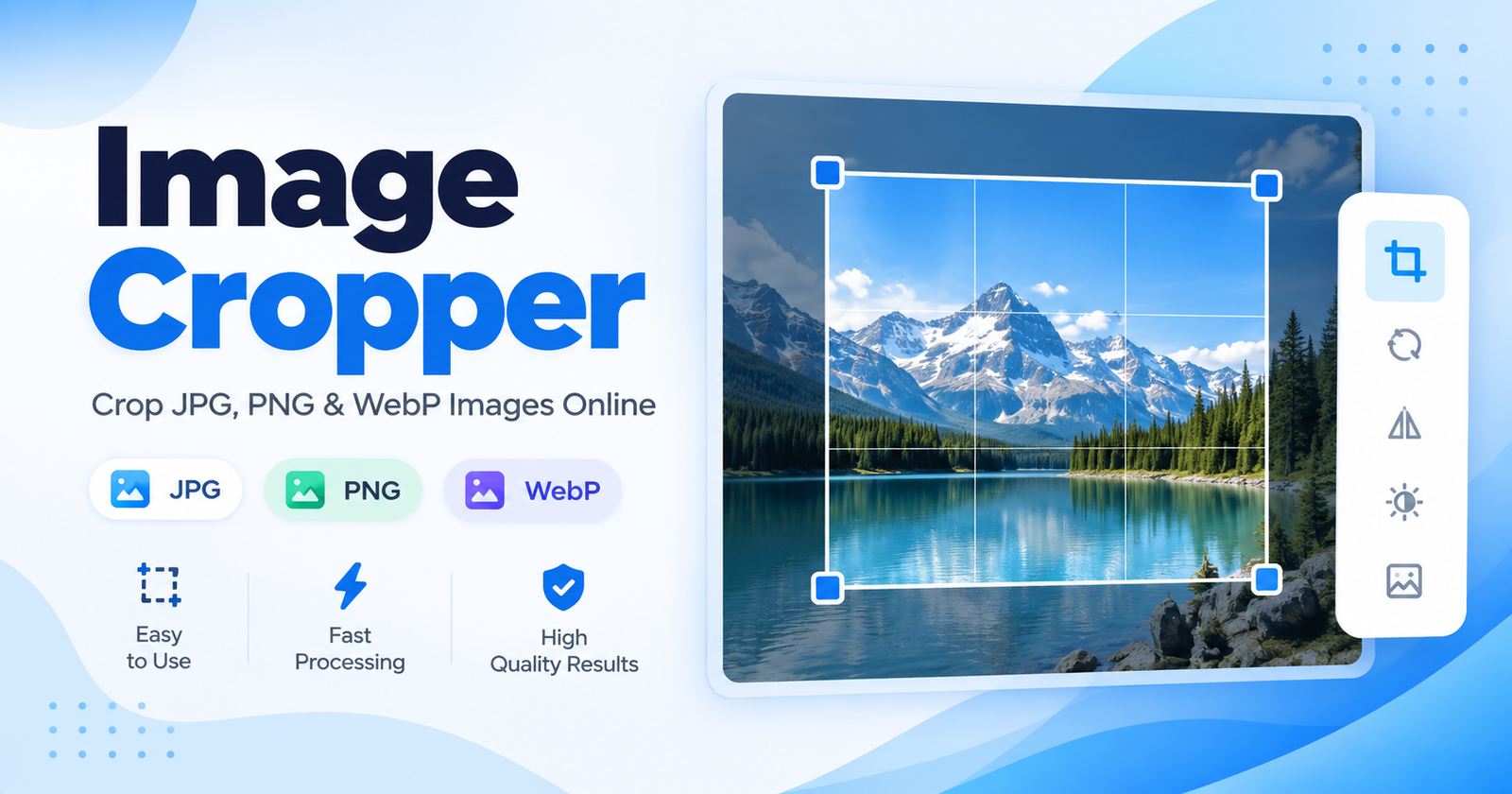
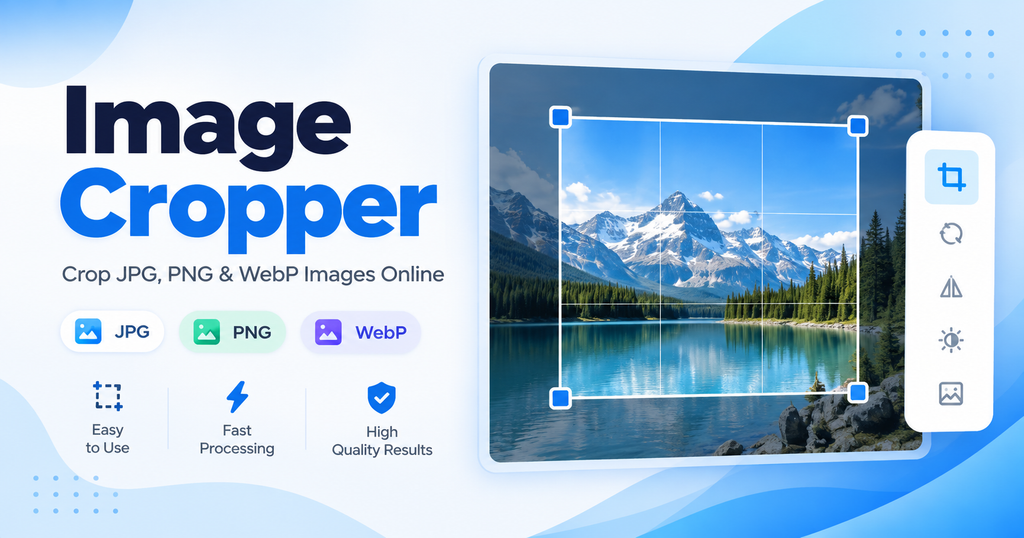
Use this free image cropper to crop photos quickly without uploading them to a server. You can crop JPG, PNG and WebP images, choose different aspect ratios, zoom, rotate and download the finished image directly from your browser.
Upload an Image to Crop
Choose a JPG, PNG or WebP image from your device.
🔒 Your image stays in your browser and is not uploaded to a server.
How to Use This Image Cropper
Choose an image: Click the Choose Image button and select a JPG, PNG or WebP photo from your device. The image is processed directly in your browser, so it does not need to be uploaded to an external server.
Select a crop ratio: Use Free crop for a custom shape, or choose 1:1, 4:3 or 16:9 depending on where you want to use the image. A square crop is useful for profile photos, while wider ratios work well for websites and social media.
Adjust the image: Drag the crop area to select the part of the photo you want to keep. You can also zoom the image, rotate it left or right, and reset the crop at any time.
Download the result: When the image looks right, click Crop & Download. The cropped photo will be created in your browser and saved to your device.
Need to prepare the image further? Use our Image Resizer to change its dimensions or try the Image Compressor to reduce the file size before sharing it online.
For more information about common web image formats, see MDN’s guide to image file types.
Why Use This Free Image Cropper?
This image cropper is designed for people who need a quick way to crop photos without installing software. Everything runs directly in your web browser, making it useful for laptops, desktops and supported mobile browsers.
You can use the tool to remove unwanted areas from a photo, improve composition, create square profile pictures or prepare images for websites and social media. The built-in aspect ratio options make it easier to create consistent image sizes without guessing.
Because the cropping process happens in your browser, the selected image does not need to be sent to an external image-processing server. This can be useful when working with personal photos or other images you would prefer to process locally.
The tool supports common image formats including JPG, PNG and WebP. You can also rotate the image, zoom in or out and move the crop area until the result looks right.
Common Uses for an Image Cropper
You can use an image cropper for profile pictures, website images, product photos, blog graphics, social media posts and online forms. Cropping can also help remove unnecessary background areas so the main subject becomes more visible.
For example, a 1:1 crop works well when you need a square image, while 16:9 is useful for wider graphics. The Free option lets you choose your own crop dimensions when a fixed ratio is not required.