
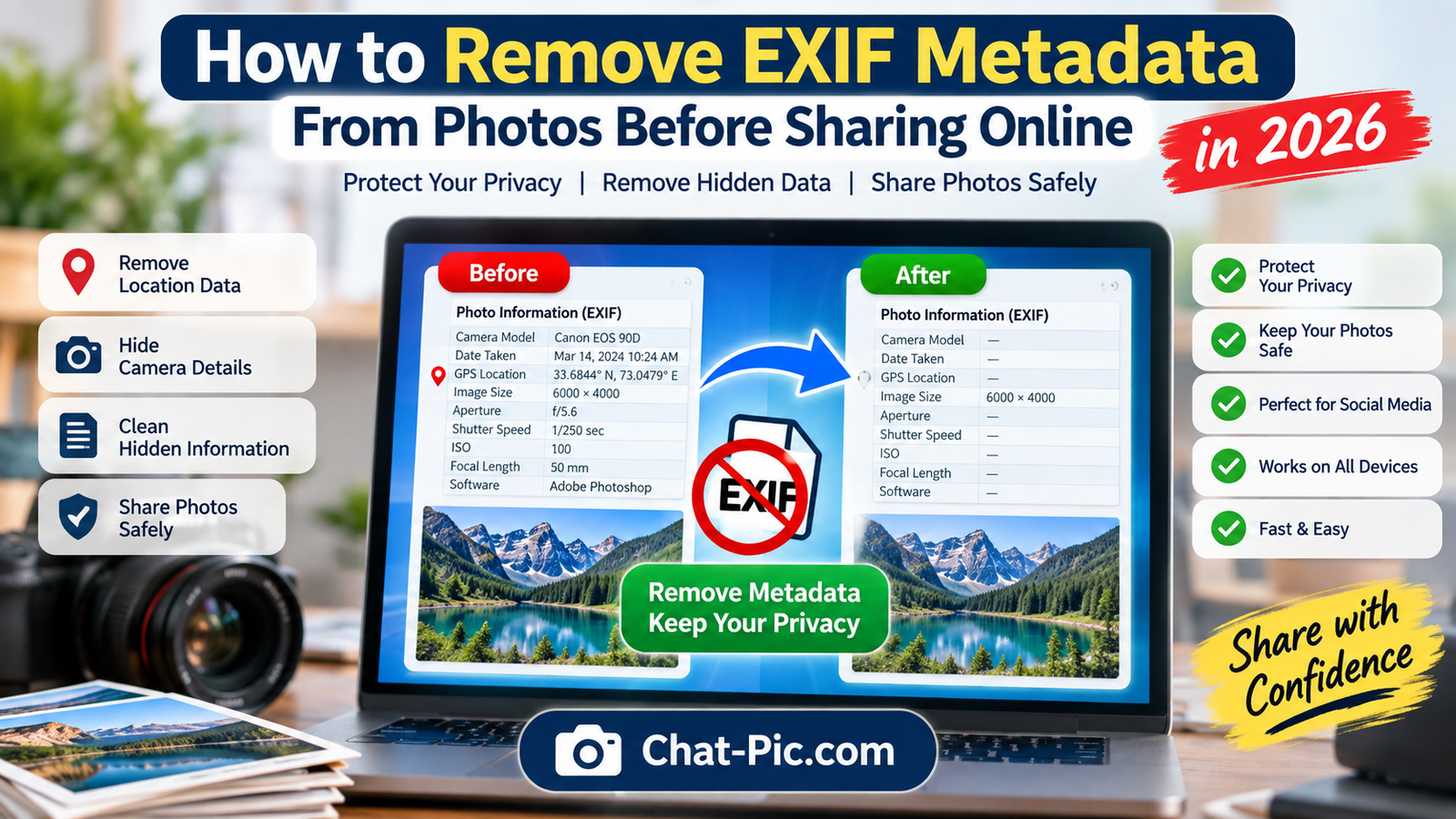
Need to remove EXIF metadata from photos before sharing them online? Many image files can contain hidden information such as camera model, capture date, editing software, and in some cases GPS location data.
Most people focus only on how a photo looks, but the invisible data inside an image can also matter. If privacy is important, creating a clean sharing copy without unnecessary metadata can be a useful step before uploading photos to websites, forums, social media, marketplaces, or messaging platforms.
Chat Pic provides a browser-based EXIF Metadata Remover that can help you clean unnecessary photo metadata before sharing.
What Is EXIF Metadata?
EXIF stands for Exchangeable Image File Format.
It is a type of metadata that can be stored inside image files, especially photos created by phones and digital cameras.
EXIF data may include information such as:
- Camera manufacturer
- Camera model
- Date and time the photo was taken
- Exposure settings
- ISO
- Shutter speed
- Aperture
- Focal length
- Orientation
- Editing software
- GPS latitude and longitude in some cases
Not every photo contains all of this information.
The exact metadata depends on the device, camera settings, software, and how the image was exported.
Why Remove EXIF Metadata From Photos?
There are several reasons someone may want to remove image metadata before sharing.
Protect Location Privacy
Some photos may contain GPS coordinates.
If location information is stored in the image and preserved during sharing, it could potentially reveal where the photo was taken.
This may matter when sharing:
- Photos taken at home
- Family photos
- Travel photos
- Workplace images
- Marketplace listings
- Personal documents
- Images uploaded to public forums
Remove Device Information
Photos can sometimes contain details about the camera or phone used to capture them.
This information is not always sensitive, but some users prefer to share only the image itself.
Create a Cleaner Sharing Copy
Removing unnecessary metadata can create a simpler file for public sharing.
This can be useful when you want to keep the original photo privately while sharing a cleaned version online.
How to Remove EXIF Metadata From Photos
The simplest method is to use a dedicated metadata-removal tool.
You can use Chat Pic’s free EXIF Metadata Remover to create a cleaner sharing copy.
Add this internal link:
Anchor text: free EXIF Metadata Remover
URL: https://chat-pic.com/exif-metadata-remover/
A basic workflow is:
- Keep your original photo.
- Upload or select the image in the metadata-removal tool.
- Remove unnecessary metadata.
- Save the cleaned copy.
- Share the cleaned copy instead of the original.
This way, you still keep the original photo with all its information if you need it later.
Does Every Photo Contain EXIF Data?
No.
Some images contain a lot of metadata, while others contain very little.
For example, a photo directly from a smartphone may contain camera and time information.
A screenshot may contain little or no traditional camera EXIF data.
An image downloaded from a social platform may already have some metadata removed.
A photo edited and exported through certain apps may also lose part of its metadata automatically.
You should not assume that every image contains GPS data, but you also should not assume that metadata is absent.
What Kind of Location Data Can Be Stored?
Some devices can store GPS information in photo metadata.
This may include:
- Latitude
- Longitude
- Altitude
- Direction
- Time
- GPS processing information
Whether location data is stored depends on the camera settings and device permissions.
If location tagging is disabled, GPS metadata may not be present.
If location tagging is enabled, some photos may include it.
How to Check Whether a Photo Contains GPS Data
Before sharing an image, you can inspect its metadata.
On some operating systems, image properties may show details such as:
- Date taken
- Camera model
- Dimensions
- Location information
However, the information shown by default may not include every metadata field.
A dedicated EXIF viewer can provide a more complete inspection.
If you do not need the metadata, removing it from the sharing copy can be simpler than manually checking every field.
Step 1: Keep the Original Photo
Before removing metadata, keep a copy of the original image.
This is important because EXIF data can sometimes be useful.
Photographers may rely on information such as:
- Camera settings
- Lens information
- Capture time
- Exposure details
- GPS location for organizing photos
Instead of permanently replacing the original, create a separate cleaned version for sharing.
Step 2: Remove Metadata From the Sharing Copy
Once you have the original saved safely, remove unnecessary metadata from the copy you plan to upload.
This allows you to keep:
Original file: full metadata retained
Sharing file: unnecessary metadata removed
This is a simple privacy-friendly workflow.
Step 3: Check Image Quality
Metadata removal should not normally require visible changes to the image itself.
The photo should still look the same because EXIF data is separate from the visual pixel data.
However, if the tool also recompresses or converts the image, file size and quality may change.
Always preview the output if image quality is important.
Does Removing EXIF Metadata Reduce Image Quality?
Normally, removing metadata alone does not reduce image quality.
EXIF information is stored separately from the visible picture.
Deleting metadata does not require changing the pixels.
However, if the software re-encodes the image during export, there may be some quality change depending on the format and compression settings.
A well-designed metadata removal process should preserve the visible image while removing unwanted data.
Does Removing EXIF Metadata Reduce File Size?
Sometimes, but usually only slightly.
Metadata may take up some storage space, but the image data itself is usually much larger.
For example:
| File Component | Typical Impact |
|---|---|
| Pixel/image data | Largest portion |
| EXIF metadata | Usually small |
| Thumbnail data | Small |
| Color/profile information | Small to moderate |
If your main goal is reducing file size, image compression and resizing usually have a much bigger effect.
You can internally link:
compress images → https://chat-pic.com/image-compressor/
and
resize images → https://chat-pic.com/image-resizer/
Remove EXIF Metadata From Photos Before Social Media Uploads
Social media platforms often process images after upload.
Some platforms may remove or alter metadata automatically, while others may preserve certain information.
Because platform behavior can vary and change over time, you should not rely entirely on a social network to remove sensitive metadata for you.
If privacy matters, remove unnecessary metadata before uploading.
This gives you more control over what is contained in the file before it reaches the platform.
Remove Metadata Before Posting Marketplace Photos
Marketplace listings often involve photos taken at home.
For example:
- Furniture
- Electronics
- Vehicles
- Clothing
- Collectibles
- Household items
If a photo contains GPS information, a privacy-conscious seller may prefer to remove it before uploading.
You can also check the background of the photo for visible clues such as:
- House numbers
- Street signs
- Documents
- License plates
- Family photos
Metadata removal helps with hidden information, but visible details also matter.
Remove EXIF Metadata From Photos Sent by Email
Email is another situation where metadata may be preserved.
If you attach the original image file directly, EXIF data may remain inside the attachment.
If you are sharing a photo publicly or with someone you do not know well, you may prefer to send a cleaned copy.
This is especially useful when the photo was taken at a private location.
Remove EXIF Data From Photos for Websites
Website owners often upload images directly from cameras or phones.
These images may contain metadata that is unnecessary for visitors.
Removing extra metadata can create cleaner web assets.
For website optimization, a good workflow is:
Original image → Resize → Compress → Remove unnecessary metadata → Upload
This can help reduce unnecessary information while also improving loading performance.
Is EXIF Metadata Dangerous?
EXIF metadata is not inherently dangerous.
It exists for useful reasons.
Photographers use it to understand camera settings.
Photo management software uses it to organize images.
Location metadata can help users remember where a photo was taken.
The privacy concern depends on what information is stored and where the image is shared.
A private photo stored on your own device is very different from a photo posted publicly on a website.
The important point is to understand what data may be included and decide whether it is necessary for the sharing context.
EXIF Metadata vs IPTC vs XMP
EXIF is not the only type of metadata.
Images can also contain:
IPTC Metadata
IPTC data is often used by photographers, publishers, and news organizations.
It may contain:
- Creator name
- Copyright details
- Description
- Keywords
- Location
- Contact information
XMP Metadata
XMP is used by various editing applications and can contain information about:
- Editing history
- Labels
- Ratings
- Copyright
- Descriptions
- Software
A privacy-focused metadata cleaner may remove more than just basic EXIF fields depending on how it is designed.
Can Screenshots Contain EXIF Metadata?
Screenshots usually behave differently from camera photos.
They may not contain traditional camera EXIF details such as aperture, shutter speed, or lens information.
However, screenshots can still include other metadata depending on the device and software.
Also remember that screenshots can reveal sensitive information visually, such as:
- Usernames
- Notifications
- Email addresses
- Account balances
- Browser tabs
- Personal messages
Metadata removal does not hide visible information.
Always check the image itself before sharing.
Can Edited Photos Still Contain Metadata?
Yes.
Editing an image does not automatically guarantee that all metadata is removed.
Some editing apps may preserve original metadata.
Others may remove part of it.
Some may add their own software information.
If you need a predictable result, use a dedicated metadata-removal step before sharing.
Does Converting an Image Remove EXIF Metadata?
Sometimes, but not always.
For example, converting a JPEG to another format may remove some metadata depending on the tool.
But you should not rely on format conversion alone as a privacy method.
Some software preserves metadata during conversion.
Others discard it.
If your goal is specifically to remove metadata, use a tool designed for that purpose.
Does Compression Remove EXIF Metadata?
Not necessarily.
Some image compressors remove metadata as part of optimization.
Others preserve it.
This depends on the software.
That means you should not assume that a compressed image is automatically free of EXIF data.
If metadata privacy matters, verify the result or use a dedicated metadata remover.
Does Resizing Remove Metadata?
Again, not necessarily.
An image resizer may preserve metadata, remove it, or partially rewrite it.
The result depends on the application.
Resizing should be treated as a separate process from metadata cleaning.
Best Privacy Workflow Before Sharing Photos
A practical workflow is:
Original photo → Check visible details → Resize if needed → Compress if needed → Remove unnecessary metadata → Share
This helps with both performance and privacy.
For example, if you are uploading a photo to a public website:
- Keep your original file.
- Crop out visible sensitive details.
- Resize it to appropriate dimensions.
- Compress it for faster loading.
- Remove EXIF metadata.
- Upload the cleaned version.
How to Remove EXIF Metadata From Photos on Windows
Windows provides some built-in options for viewing and removing file properties.
Depending on the Windows version, you may be able to:
- Right-click the image.
- Open Properties.
- Open the Details tab.
- Look for an option to remove properties or personal information.
The exact interface can vary.
A browser-based metadata remover can be simpler if you want one consistent workflow across devices.
How to Remove EXIF Metadata From Photos on Mac
macOS tools can display some photo information, and various applications can export images without certain metadata.
The exact method depends on the application being used.
If you want a straightforward cross-platform method, using a dedicated browser tool can avoid different operating-system steps.
How to Remove Photo Metadata on Mobile
Mobile phones often make it easy to share photos, but the available metadata controls vary by device and app.
Some phones allow users to disable location data when sharing.
Others let users turn off location tagging in camera settings.
These features can be helpful, but removing metadata from a dedicated sharing copy can provide an additional layer of control.
Prevent GPS Data From Being Added to Future Photos
Instead of cleaning every photo later, you can also review your camera location settings.
On many devices, you can disable location permission for the camera app.
This may prevent GPS coordinates from being added to new photos.
However, this also removes useful location-based organization features.
Choose the setting that fits your needs.
Should You Remove All Metadata?
Not always.
Some metadata is useful.
For example, professional photographers may want to preserve:
- Copyright information
- Creator name
- Camera settings
- Licensing information
If you are publishing professional work, removing every metadata field may not be ideal.
The goal should be to remove information that is unnecessary or sensitive for the intended use.
Metadata Removal for Photographers
Photographers often have different needs from casual users.
EXIF data can help analyze:
- ISO
- Aperture
- Shutter speed
- Lens
- Focal length
- Capture time
Copyright metadata can also be valuable.
A professional workflow may involve preserving the full original and exporting a separate web version with selected metadata removed.
This gives photographers both privacy control and record keeping.
Metadata Removal for Bloggers
Bloggers often upload many images to WordPress.
Photos taken directly from phones may contain unnecessary metadata.
Before upload, bloggers can:
- Resize images
- Compress them
- Convert them to a web-friendly format
- Remove unnecessary metadata
This helps create lighter and cleaner website images.
Metadata Removal for Businesses
Businesses may share photos of:
- Offices
- Staff
- Products
- Documents
- Events
- Warehouses
- Work sites
Before public sharing, it can be useful to check both visible content and hidden metadata.
For example, a photo of a product may also contain location or device details that are unrelated to the marketing purpose.
Common Mistakes When Removing EXIF Metadata
Deleting the Only Original
Always keep the original if the metadata may be useful later.
Assuming Social Media Removes Everything
Platform processing varies.
Remove sensitive data before upload if privacy matters.
Focusing Only on Metadata
Visible information can be more sensitive than EXIF data.
Always inspect the actual photo.
Assuming Compression Removes Metadata
It may or may not.
Use a dedicated cleaner when necessary.
Forgetting About Other Metadata Types
EXIF is only one category of metadata.
Files may contain IPTC, XMP, and other information too.
How to Remove EXIF Metadata Without Losing Image Quality
To remove EXIF metadata from photos without affecting the visible image, use a process that strips metadata without unnecessarily recompressing the photo.
If the image must also be resized or compressed, perform those steps carefully and check the final result.
A clean workflow is:
Resize → Compress → Remove metadata → Final quality check
This gives you a sharing-ready image that is smaller and contains less unnecessary information.
Frequently Asked Questions
How do I remove EXIF metadata from photos?
Use a dedicated metadata-removal tool to create a cleaned copy of the photo. Keep the original file if you may need its metadata later.
Can EXIF metadata reveal my location?
Yes, some photos may contain GPS coordinates if location tagging was enabled when the image was taken.
Does deleting EXIF metadata damage the image?
Removing metadata alone should not change the visible pixels. The photo should look the same.
Does WhatsApp remove EXIF metadata?
Messaging platforms often process images, but behavior can change and may depend on how files are sent. If privacy matters, remove metadata before sending rather than relying on a platform.
Does Facebook remove photo metadata?
Large platforms commonly process uploaded images, but users should not rely on platform behavior as their only privacy measure.
Can screenshots contain location data?
Screenshots usually do not contain camera GPS EXIF in the same way as photos, but they may contain other metadata and visible sensitive information.
Does resizing a photo remove EXIF data?
Not always. Some resizing tools preserve metadata while others remove it.
Does converting JPEG to WebP remove EXIF metadata?
It depends on the conversion software. Some tools preserve metadata and others do not.
Should photographers remove EXIF data?
Not necessarily. EXIF is useful for photography workflows. A better approach is often to preserve the original and remove unnecessary metadata only from public sharing copies.
Final Thoughts
Learning how to remove EXIF metadata from photos gives you more control over the information contained inside the images you share.
EXIF data can be useful, but some fields—especially location information—may be unnecessary when posting images publicly.
The safest approach is to keep the original photo, create a separate sharing copy, resize and compress it if needed, and remove unnecessary metadata before uploading.
This does not mean every photo is dangerous or every piece of metadata must be deleted. It simply gives you the choice to share only the information you actually want to share.
With Chat Pic’s browser-based image tools, you can resize, compress, and clean photo metadata before sharing images online.