
Need to resize image without losing quality? Changing image dimensions sounds simple, but using the wrong settings can make a photo look blurry, stretched, pixelated, or unnecessarily large.
The best way to resize an image is to understand the relationship between pixel dimensions, aspect ratio, image format, and the final place where the picture will be used.
For most websites, social media posts, online forms, email attachments, and everyday sharing, you do not need the full resolution produced by a modern smartphone or camera. Reducing unnecessary dimensions can make an image easier to upload and faster to load while keeping it visually clear.
Chat Pic provides a browser-based Image Resizer that can help you change image dimensions quickly without complicated editing software.
What Does Resizing an Image Mean?
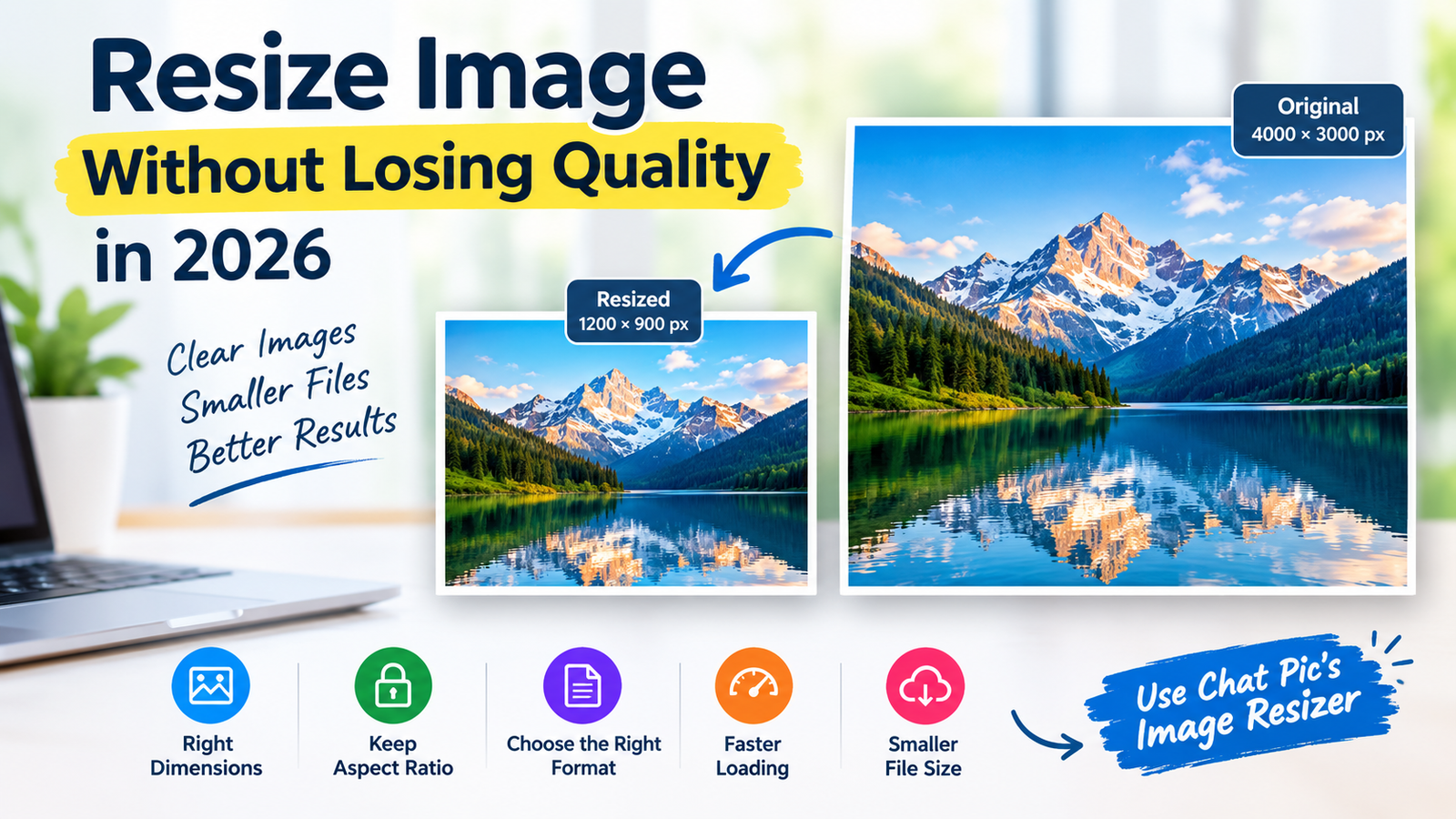
Image resizing means changing the width and height of an image.
For example, an original photo might be:
4000 × 3000 pixels
After resizing, it might become:
1200 × 900 pixels
The smaller version contains far fewer pixels and usually requires less storage.
Resizing is different from compression.
Resizing changes the number of pixels in the image.
Compression reduces the amount of data used to store those pixels.
Both techniques can reduce file size, but they work differently.
For the best results, many images should be resized first and compressed afterward.
Why Resize Images Before Uploading?
Modern cameras and smartphones create large images because they are designed to preserve detail for printing, cropping, and editing.
But a website may only display an image at 800 or 1200 pixels wide.
Uploading a 5000-pixel-wide image when it will only appear at 1000 pixels wide means the browser may download much more image data than necessary.
Resizing images can help with:
- Faster website loading
- Smaller upload sizes
- Reduced storage usage
- Faster email attachments
- Easier social media sharing
- Better mobile performance
- More efficient WordPress media libraries
- Meeting online form requirements
The key is to reduce unnecessary dimensions without reducing the image more than necessary.
How to Resize Image Without Losing Quality
The safest method is to resize proportionally and avoid enlarging small images beyond their original dimensions.
If the original image is 3000 × 2000 pixels, reducing it to 1500 × 1000 pixels can usually maintain very good visual quality.
However, taking a 500 × 300 pixel image and enlarging it to 3000 × 1800 pixels will not magically create new detail.
The enlarged image may look blurry or pixelated.
To resize image without losing quality, focus mainly on:
- Maintaining the original aspect ratio
- Reducing rather than enlarging when possible
- Choosing appropriate dimensions
- Using the correct image format
- Avoiding repeated resizing
- Using good compression settings afterward
Step 1: Check the Original Image Dimensions
Before resizing, check the width and height of the original image.
For example:
| Original Size | Possible Web Size |
|---|---|
| 6000 × 4000 px | 1600 × 1067 px |
| 4000 × 3000 px | 1200 × 900 px |
| 3000 × 2000 px | 1200 × 800 px |
| 1920 × 1080 px | 1280 × 720 px |
These are only examples.
The correct size depends on where the image will appear.
A small profile image does not need the same dimensions as a full-width website banner.
Step 2: Keep the Aspect Ratio Locked
Aspect ratio describes the relationship between the width and height of an image.
For example, an image that is 1200 × 800 pixels has a 3:2 aspect ratio.
If you change the width to 600 pixels while keeping the same ratio, the height should become 400 pixels.
If you change only one dimension incorrectly, the photo may become stretched or squeezed.
That is why image resizing tools normally include an option to maintain or lock the aspect ratio.
Keep this option enabled unless you specifically need to crop or reshape the image.
Step 3: Choose the Right Target Dimensions
Do not resize an image randomly.
Think about where it will be used.
Website Blog Images
For many blog images, a width somewhere around 1000 to 1600 pixels may be enough.
The exact requirement depends on the website layout and theme.
If your content area is approximately 900 pixels wide, uploading a 5000-pixel image provides little practical benefit.
Social Media Images
Social media platforms use different display dimensions.
Some platforms automatically resize uploaded images, but preparing an image close to the intended dimensions may reduce unnecessary processing.
Profile Images
Profile pictures are usually displayed relatively small.
Huge camera-resolution images are rarely necessary.
Online Forms
Some application portals specify exact dimensions such as:
- 600 × 600 pixels
- 800 × 800 pixels
- 300 × 400 pixels
Always follow the platform’s stated requirements.
Step 4: Use the Chat Pic Image Resizer
You can use the Chat Pic Image Resizer to change image dimensions directly in your browser.
Add this internal link:
Anchor text: free Image Resizer
URL: https://chat-pic.com/image-resizer/
A typical resizing process is simple:
Choose your image, enter the dimensions you need, maintain the aspect ratio when appropriate, resize the image, and check the result before downloading or sharing it.
If the resized image is still too large in file size, you can compress it afterward.
Why Images Become Blurry After Resizing
There are several reasons an image may become blurry.
Enlarging a Small Image
This is one of the most common causes.
Suppose an image is only 500 pixels wide.
If you enlarge it to 2000 pixels, the resizing software has to estimate additional pixel information.
It cannot recreate details that were not present in the original image.
Using Very Small Dimensions
If you reduce a detailed image to a tiny size and later display it much larger, it will appear blurry.
Heavy Compression
Sometimes people blame resizing when compression is actually the problem.
If a resized JPEG is saved using extremely low quality, compression artifacts may appear.
Repeated Editing
Repeatedly resizing and saving a JPEG can slowly reduce its quality.
It is better to keep the original image and create new optimized versions from that original whenever needed.
Downsizing vs Upscaling
Downsizing means making an image smaller.
Upscaling means making an image larger.
These two processes produce very different results.
Downsizing
Downsizing usually works very well.
When a large image is reduced, there is plenty of original information available to create the smaller version.
This is why reducing a 4000-pixel photo to 1200 pixels can still look excellent.
Upscaling
Upscaling is more difficult.
When an image is enlarged, software must create new pixels based on the existing ones.
Modern AI upscaling methods can sometimes improve results, but they still cannot perfectly reconstruct information that was never captured.
For general web use, avoid enlarging images unnecessarily.
What Is the Best Image Size for Websites?
There is no single universal answer.
The correct size depends on the page layout.
A small thumbnail may only need a few hundred pixels.
A blog image may need around 1000–1600 pixels.
A full-width hero image may require larger dimensions depending on the site’s design and display density.
The most important principle is:
Serve an image close to the size at which it will actually be displayed.
This can reduce unnecessary downloads and improve page speed.
Does Image Resizing Reduce File Size?
Usually, yes.
Reducing image dimensions means the image contains fewer pixels.
Fewer pixels usually require less storage.
For example, imagine a photograph that is:
5000 × 3500 pixels — 5MB
After resizing to:
1200 × 840 pixels
the resulting file may become significantly smaller even before additional compression.
The exact size depends on the format and image content.
Resize First or Compress First?
In most cases, resize first.
A good workflow is:
Original image → Resize → Compress → Check quality → Share
Why?
Because there is little reason to spend data compressing millions of pixels that you do not need.
Reducing dimensions first allows the compression stage to work with a smaller image.
This can often produce better visual quality at a smaller final file size.
You can internally link the phrase compress images to:
JPEG, PNG or WebP: Which Is Best After Resizing?
The right format depends on the image.
JPEG
JPEG works well for photographs.
It provides relatively small file sizes and broad compatibility.
PNG
PNG is useful for graphics, logos, screenshots, and images that need transparency.
However, photographic PNG files can become very large.
WebP
WebP can provide good visual quality at relatively small file sizes.
It is commonly used for modern websites.
For web use, WebP is often worth considering when compatibility with the destination is not a concern.
Can You Resize a JPEG Without Losing Quality?
Reducing the dimensions of a JPEG can preserve excellent visible quality when done carefully.
However, JPEG is a lossy image format.
Every time it is recompressed, some image information can be discarded.
That does not mean the result will visibly look bad.
The key is to avoid repeated saves and excessively low quality settings.
Keep your original file and generate the resized version from it.
Can You Resize PNG Images?
Yes.
PNG images can be resized just like JPEG images.
This is especially useful for:
- Logos
- Screenshots
- Interface graphics
- Transparent graphics
- Icons
However, large PNG photographs may remain relatively heavy even after resizing.
For photographs, another format may produce a smaller file size.
Can You Resize WebP Images?
Yes.
WebP images can also be resized.
Because WebP can store photographs and graphics efficiently, it is frequently used for websites where loading speed matters.
If you are optimizing images for WordPress, resized WebP images can be a practical choice.
How to Resize Images for WordPress
WordPress websites can become slow when large original photos are uploaded unnecessarily.
Suppose a blog layout displays an image at approximately 800 pixels wide.
Uploading a 6000-pixel image may waste bandwidth and storage.
A better process is:
- Check the maximum display width.
- Resize the image close to that width.
- Compress the image.
- Use an appropriate format.
- Upload the optimized version.
WordPress can create additional image sizes automatically, but starting with a reasonably sized source image can still reduce storage and processing requirements.
How to Resize Images for Faster Website Loading
Image dimensions can directly affect page weight.
Large images often contribute significantly to slow-loading pages.
To improve performance:
Use appropriately sized images, avoid unnecessarily large originals, consider WebP, compress after resizing, and use responsive images where supported.
A faster page is better for mobile visitors and may improve overall user experience.
How to Resize Photos for Email
Large photos can make email attachments slow or difficult to send.
If the photo only needs to be viewed on a screen, full camera resolution is usually unnecessary.
Reducing a large photo to around 1200–1600 pixels wide can often make the attachment much smaller while keeping it clear.
Do not reduce important professional images more than necessary.
How to Resize Images for Online Forms
Online forms often specify both file size and dimensions.
For example, a site may require:
Maximum file size: 200KB
Required dimensions: 600 × 600 pixels
In this situation, resizing should come first.
After the dimensions are correct, compress the image until it fits the file-size requirement.
Always check whether the form requires JPG, PNG, or another format.
Avoid Stretching Images
Stretching happens when the width and height are changed independently.
For example, turning a 1200 × 800 image into 1200 × 1200 without cropping will distort the photo.
People may appear wider or taller than normal.
Instead, maintain the aspect ratio or crop the image appropriately.
Cropping vs Resizing
Cropping and resizing are not the same.
Cropping removes part of an image.
Resizing changes the overall pixel dimensions.
If you need a square profile photo from a rectangular image, cropping may be necessary before resizing.
For example:
Original:
1600 × 1000
Crop:
1000 × 1000
Then resize:
600 × 600
This creates the correct shape without stretching the photo.
Should You Resize Before Sharing Photos Online?
In many cases, yes.
Sharing the full original file may be unnecessary.
Smaller copies can be faster to upload and easier to send.
However, if you are sending a photo to someone who needs the original resolution for printing or professional editing, keep the full-size version.
Create a separate sharing copy rather than replacing the original.
Protect Privacy When Sharing Photos
Image dimensions are not the only thing worth checking.
Photos can contain metadata such as:
- Camera model
- Capture date
- Camera settings
- Software details
- GPS location in some cases
If privacy matters, consider checking the image metadata before sharing.
You can use Chat Pic’s EXIF Metadata Remover to create a cleaner sharing copy.
Internal link:
Common Image Resizing Mistakes
Some mistakes can quickly reduce image quality.
Enlarging Low-Resolution Images
Avoid making tiny images dramatically larger.
Ignoring Aspect Ratio
This can distort the image.
Resizing Multiple Times
Always return to the original image if you need a new size.
Using the Wrong Format
Saving a photograph as a very large PNG may not be efficient.
Overcompressing After Resizing
A correctly resized image can still look bad if saved at extremely low quality.
Best Workflow for High-Quality Resizing
A simple workflow is:
Keep original → Decide final use → Choose target dimensions → Maintain aspect ratio → Resize → Compress if needed → Check image quality → Remove unnecessary metadata → Share
This gives you more control over both image quality and file size.
Frequently Asked Questions
How can I resize image without losing quality?
To resize image without losing quality, maintain the original aspect ratio, avoid enlarging low-resolution images, choose suitable target dimensions, and use good export settings.
Does making an image smaller reduce quality?
Reducing dimensions removes pixels, but a properly downsized image can still look visually excellent at its intended display size.
Why does my resized image look blurry?
The image may have been enlarged beyond its original resolution, resized to dimensions that are too small, or saved using excessive compression.
What is the best format after resizing an image?
JPEG is commonly used for photos, PNG is useful for graphics and transparency, and WebP can provide efficient compression for web use.
Should I resize or compress an image first?
Usually resize first, then compress. Removing unnecessary pixels before compression can produce a smaller file while maintaining better visual quality.
Can I resize an image for WordPress without losing quality?
Yes. Resize the image to dimensions appropriate for your website layout and avoid enlarging smaller images. Then apply moderate compression.
Does resizing remove EXIF metadata?
Not necessarily. Metadata handling depends on the software or tool being used. If privacy matters, use a dedicated metadata-removal tool.
What happens if I resize an image too small?
If the image is later displayed larger than its new dimensions, it may look blurry or pixelated.
Final Thoughts
Learning how to resize image without losing quality is mostly about choosing the correct dimensions rather than simply making every image smaller.
Start with the original image, determine where the image will be displayed, maintain the aspect ratio, and avoid unnecessary enlargement.
For websites, forms, email, and social media, reducing oversized images can make uploads faster and reduce file size without creating an obvious loss of visual quality.
The best workflow is to resize first, compress second, and keep the original file safely stored.
With Chat Pic’s browser-based tools, you can resize, compress, and prepare images before uploading or sharing them online.
1 thought on “How to Resize an Image Without Losing Quality in 2026”