
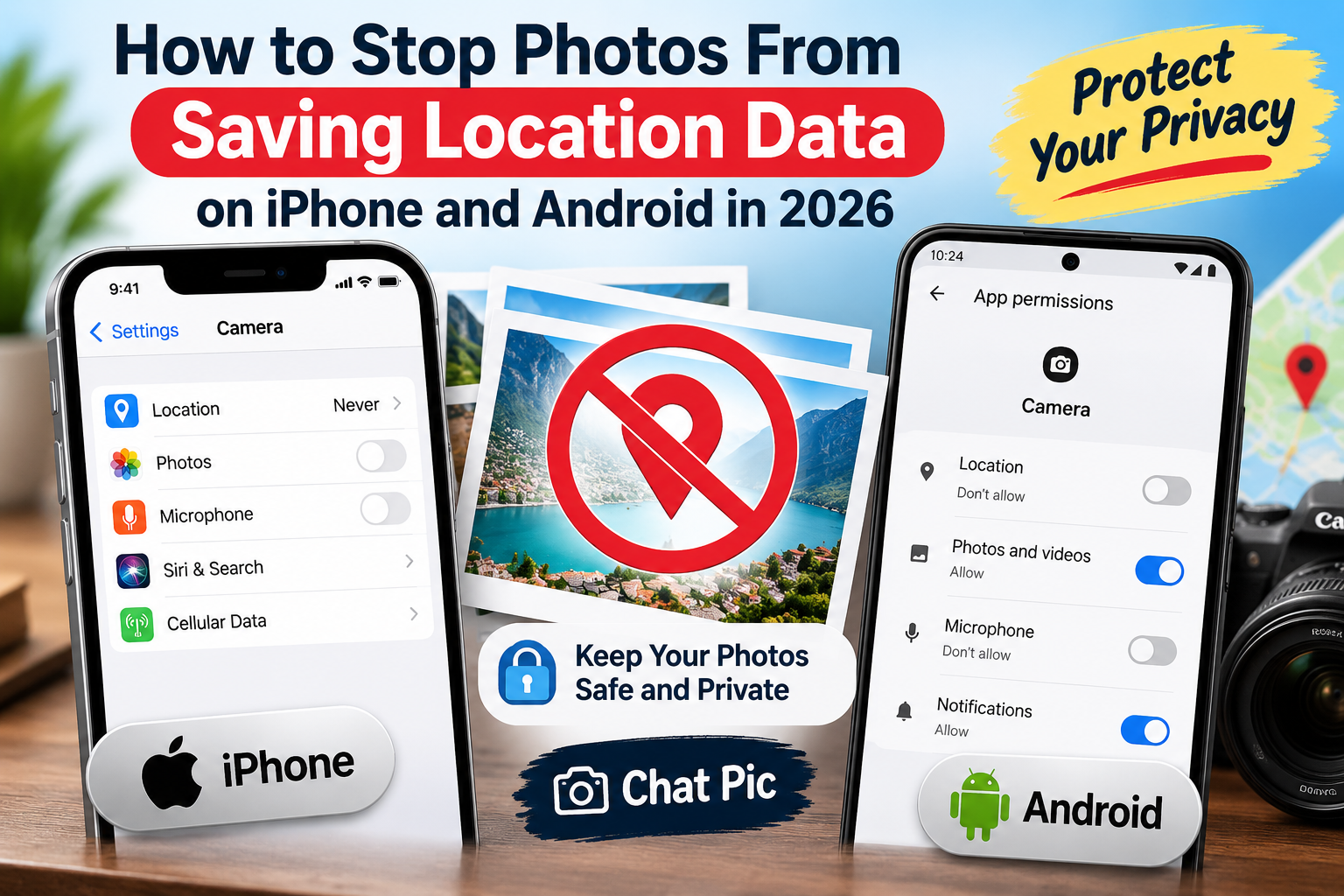
Want to stop photos from saving location data before you take and share them? Smartphones can use location services to attach geographic information to photos. This can be useful for organizing travel pictures, remembering where an image was taken, or searching a photo library by place.
However, not everyone wants location information stored with every photo.
If privacy matters, you can review your camera’s location permissions, create cleaner sharing copies, and remove unnecessary metadata before uploading images online.
The best approach is to understand the difference between preventing location data from being saved and removing location data from photos that already exist.
Chat Pic provides an EXIF Metadata Remover for creating cleaner photo copies before sharing.
What Is Photo Location Data?
Photo location data is geographic information that may be stored with an image.
Depending on the device and settings, this can include:
- Latitude
- Longitude
- GPS altitude
- Capture location
- GPS timestamp
- Direction information
This information may be stored as part of image metadata.
Metadata is information saved alongside the visible image.
You normally cannot see it just by looking at the photo.
Why Do Phones Save Location With Photos?
Location tagging can be useful.
Your phone may use location information to help you:
- Search photos by city
- Find vacation pictures
- Create location-based albums
- Display photos on a map
- Remember where an image was taken
For example, a photo app may let you search for:
Dubai
and show images taken there.
The feature is convenient, but it also means location data may be associated with some photos.
Should You Turn Off Photo Location Data?
That depends on how you use your photos.
Keeping location information can be useful for:
- Travel photography
- Personal organization
- Professional photography
- Property documentation
- Field work
Turning it off may make sense when you frequently take photos at:
- Home
- School
- Workplace
- Private events
- Children’s locations
- Confidential work sites
There is no need to fear photo metadata.
The goal is simply to understand what is being stored and decide what you want to share.
How to Stop Photos From Saving Location Data
There are two main methods.
You can:
Disable location permission for the camera
or
Allow location while taking photos but remove it before sharing
The first method prevents future camera photos from receiving GPS location information.
The second method lets you keep useful location information privately while creating cleaner copies for public sharing.
Stop Photos From Saving Location on iPhone
On an iPhone, camera location information depends on Location Services permissions.
A typical process is:
- Open Settings.
- Go to Privacy & Security.
- Open Location Services.
- Find Camera.
- Change location access.
If you do not want the Camera app to use your location, choose a setting that prevents location access.
The exact wording may vary depending on the iOS version.
After changing this setting, new photos should no longer receive camera GPS location information from the Camera app.
Stop Photos From Saving Location on Android
Android phones can also control camera location permissions.
The exact menus vary because Samsung, Google Pixel, Xiaomi, OnePlus, and other manufacturers use different interfaces.
A typical method is:
- Open Settings.
- Open Apps.
- Select the Camera app.
- Open Permissions.
- Find Location.
- Disable location access if you do not want the camera to record it.
Some Android camera apps also have a setting called:
- Save location
- Location tags
- Geo-tagging
- GPS tag
Turning this option off can prevent new photos from receiving location information.
Does Turning Off Location Remove GPS From Old Photos?
No.
Changing camera permissions affects future photos.
It does not automatically remove location information from images already stored on your device.
For existing photos, you need to:
- Remove location metadata
- Export a clean copy
- Use a metadata-removal tool
You can use Chat Pic’s EXIF Metadata Remover for this.
Internal link:
Suggested anchor:
remove EXIF metadata from photos
Preventing Location vs Removing Location
These are two different actions.
Preventing Location
This stops the camera from adding GPS information to future photos.
Removing Location
This cleans GPS or other metadata from photos that already exist.
A strong privacy workflow can use both.
For example:
Camera location disabled for everyday photos
and:
Metadata removal before public sharing
How to Check Whether a Photo Has Location Data
Before sharing a photo, you can inspect its metadata.
Depending on your device, you may be able to see:
- Location
- Date
- Camera model
- Dimensions
- Other technical information
We already have a detailed guide:
Suggested anchor:
check EXIF data on a photo
If you see GPS latitude and longitude, the image contains location metadata.
Does Every Phone Photo Have GPS Data?
No.
A photo may not contain location information because:
- Camera location permission was disabled
- Location Services were off
- GPS was unavailable
- Metadata was removed
- The image was edited
- A social platform processed the file
- The image was a screenshot rather than a camera photo
Do not assume every image contains GPS information.
Check when privacy matters.
Can Screenshots Contain Location Data?
Screenshots usually do not contain normal camera GPS metadata in the same way as photos taken with a camera.
However, screenshots can reveal sensitive information visually.
Examples include:
- Home address
- Browser tabs
- Account names
- Email addresses
- Notifications
- Maps
- Financial information
- Messages
Metadata removal cannot hide visible information.
Always inspect the screenshot itself before sharing.
Can Photos Reveal Your Exact Home Location?
Potentially, if GPS coordinates are stored and preserved.
But location data is only one privacy consideration.
A photo can also reveal location visually through:
- House numbers
- Street signs
- Store names
- Landmarks
- Vehicle plates
- Maps
- Documents
Removing GPS metadata does not remove visible clues.
For sensitive images, inspect both the metadata and the photo itself.
Should You Remove Location From Photos Before Social Media?
If you do not want location information included in the original file, removing it before upload gives you more control.
Some platforms process or strip certain metadata.
However, you should not rely entirely on a third-party service to protect privacy.
Platform behavior can change.
A safer approach is:
Prepare the file before uploading it.
Stop Location Data Before Sharing Family Photos
Family photos deserve careful handling.
A picture may contain:
- GPS location
- Home background
- School information
- Children’s uniforms
- Street names
Before posting publicly:
- Check visible details.
- Inspect metadata.
- Remove unnecessary location information.
- Share a cleaned copy.
Keep the original privately if you want location information for your own photo library.
Stop Location Data in Marketplace Photos
Marketplace photos are often taken at home.
Examples include pictures of:
- Furniture
- Electronics
- Vehicles
- Clothing
- Collectibles
Before uploading, consider removing unnecessary location metadata.
Also check for visible clues such as:
- House numbers
- Personal documents
- Family pictures
- Vehicle plates
Stop GPS Tags for Work Photos
Businesses may take photos at:
- Warehouses
- Construction sites
- Offices
- Customer locations
- Private facilities
Some of these locations may be sensitive.
If the location is not necessary for the public image, consider disabling camera location or cleaning metadata before publishing.
Photo Location Data and Travel
Travelers often benefit from photo location tagging.
It can help organize images by destination.
For example, you may want to preserve GPS data for:
- Vacation albums
- Hiking photos
- Road trips
- Photography portfolios
A good approach is:
Keep original with location data
then:
Create a cleaned sharing copy
This gives you both convenience and privacy.
Photo Location Data for Photographers
Professional photographers often use metadata.
Location can help document:
- Shoot locations
- Events
- Wildlife photography
- Landscape photography
Camera metadata also includes useful technical information.
Photographers should usually preserve original files.
When sharing publicly, they can export a separate version with selected metadata removed.
Does Image Compression Remove Location Data?
Not necessarily.
Some compressors remove metadata during optimization.
Others preserve it.
Do not assume that a smaller image is automatically free of GPS data.
If privacy matters, check the final file.
Chat Pic’s Image Compressor is useful for reducing file size:
But use a dedicated metadata-removal step when you specifically want to clean EXIF information.
Does Resizing Remove GPS Location?
Not always.
Some image resizers preserve metadata.
Others discard it.
Resizing and metadata removal are separate tasks.
You can use Chat Pic’s Image Resizer when you need smaller dimensions:
Then remove unnecessary metadata before sharing.
Can Converting PNG, JPEG or WebP Remove Location?
It depends on the conversion tool.
Some software strips metadata during conversion.
Other tools preserve metadata.
Do not depend on format conversion alone for privacy.
If removing location is important, use a tool specifically designed to clean metadata.
Does Editing a Photo Remove Location?
Not necessarily.
Editing applications behave differently.
Some may preserve:
- GPS
- Date
- Camera model
Others may remove or replace metadata.
Always check the exported version rather than assuming the metadata is gone.
How to Keep Location Privately but Remove It Before Sharing
This is often the best balance.
Use this workflow:
Original photo → Keep full metadata privately → Create sharing copy → Remove location data → Share clean version
You retain useful information without publishing it unnecessarily.
Turn Off Location Only for the Camera
You do not necessarily need to disable location services for your entire phone.
Most modern phones let you control permissions per app.
This means you can keep location enabled for:
- Maps
- Weather
- Navigation
while disabling it specifically for the Camera app.
This gives you more control.
What Happens When Camera Location Is Off?
Your photos can still include:
- Date
- Time
- Camera model
- Exposure settings
- Dimensions
Turning off location does not necessarily remove all metadata.
It mainly prevents the Camera app from attaching location information.
If you want to remove all unnecessary metadata, use a metadata cleaner.
Location Information vs Camera Information
EXIF metadata can contain more than GPS.
For example:
Location information
- Latitude
- Longitude
- GPS altitude
Camera information
- Camera model
- ISO
- Aperture
- Shutter speed
- Lens
Turning off location only affects location-related information.
Other EXIF fields may remain.
Remove GPS Without Removing Useful Metadata
In some workflows, you may want to preserve:
- Copyright
- Camera settings
- Creator information
while removing only GPS coordinates.
This is common for professional photographers.
A metadata editor that allows selective removal can be useful.
For casual users, creating a fully cleaned public copy may be simpler.
Does Removing Location Reduce Image Quality?
No, removing GPS metadata alone should not reduce visible image quality.
Metadata is stored separately from the image pixels.
The photo should look the same.
If an application recompresses the image during export, quality could change because of the export process rather than metadata removal itself.
Does Removing GPS Reduce File Size?
Usually only slightly.
GPS metadata is very small compared with image pixel data.
If you want major file-size reduction, use:
- Resizing
- Compression
- Efficient image formats
For privacy, metadata removal is still useful even if the file-size difference is small.
Stop Photos From Saving Location Before Emailing
If you frequently email photos from private locations, disabling camera GPS may simplify your workflow.
For existing images:
- Keep the original.
- Create an email copy.
- Resize/compress if needed.
- Remove metadata.
- Attach the cleaned version.
This is especially useful when emailing photos to people you do not know well.
Stop Location Data Before Uploading to WordPress
Website owners may upload photos directly from phones.
These files may include unnecessary EXIF metadata.
A better workflow is:
Original → Resize → Compress → Remove metadata → Upload
This can help with:
- Privacy
- File size
- Website performance
- Cleaner media files
Stop GPS Data Before Uploading Property Photos
Real-estate and rental photos are often taken at specific addresses.
GPS data may be unnecessary if the property address is already provided separately.
When privacy matters, remove location metadata before uploading.
Also inspect:
- Windows
- Street numbers
- Documents
- Keys
- Security systems
Visible information may be more revealing than EXIF data.
Can Someone Recover Removed EXIF Data?
If metadata is properly removed from the shared copy, the removed fields are no longer stored in that copy.
However, the original image may still contain them.
This is another reason to share the cleaned version rather than the original.
Never assume deleting metadata from one copy changes every duplicate stored elsewhere.
Best Photo Privacy Workflow
A practical workflow is:
1. Decide whether you need camera location
If not, disable it.
2. Keep important originals
Do not destroy useful information unnecessarily.
3. Check visible information
Look for sensitive clues.
4. Check EXIF data
Confirm whether GPS exists.
5. Resize if needed
Prepare the image for the destination.
6. Compress if needed
Reduce file size.
7. Remove unnecessary metadata
Create a clean public copy.
8. Share the clean version
Keep the original privately.
Common Mistakes
Assuming Location Is Automatically Removed
Different apps behave differently.
Turning Off GPS After Taking the Photo
This does not remove GPS data from old images.
Deleting Useful Originals
Keep original photos if the metadata may be useful later.
Ignoring Visible Location Clues
Removing metadata does not hide street signs or house numbers.
Assuming Compression Removes GPS
It may or may not.
Disabling All Phone Location Services
Usually you can change Camera permissions without disabling location for every app.
Frequently Asked Questions
How do I stop photos from saving location data?
Disable location permission for your Camera app or turn off the camera’s location-tagging feature.
Does turning off location remove GPS from old photos?
No. It only affects future photos. Existing images must be cleaned separately.
Can iPhone photos contain GPS coordinates?
Yes, if the Camera app had appropriate location access when the photo was taken.
Can Android photos contain location information?
Yes. Many Android cameras can save location tags when the feature and permissions are enabled.
Does disabling location affect image quality?
No. GPS metadata does not control visible image quality.
Can I keep location on my private photos but remove it before sharing?
Yes. Keep the original and create a metadata-cleaned sharing copy.
Does WhatsApp remove photo location?
Messaging services may process images differently depending on how they are sent. For privacy, clean sensitive metadata before sharing rather than relying on a platform.
Does Facebook remove GPS data?
Platforms may process uploaded images, but behavior can change. Remove sensitive metadata before uploading if it matters to you.
Does resizing remove photo location?
Not necessarily. Some resizing tools preserve metadata.
Does compression remove GPS metadata?
Not always. Use a dedicated metadata-removal process when you specifically want to remove it.
Final Thoughts
Learning how to stop photos from saving location data gives you more control over what information your phone stores inside future images.
If you do not need GPS tags, you can disable camera location permissions.
If you enjoy location-based photo organization, keep location enabled and create clean copies before public sharing.
The important distinction is:
Preventing location data affects new photos.
Removing location data cleans existing photos.
For the best balance, keep your originals safely stored and prepare separate copies for public sharing.
With Chat Pic’s Image Resizer, Image Compressor, and EXIF Metadata Remover, you can prepare smaller, cleaner, and more privacy-focused images before sharing them online.