
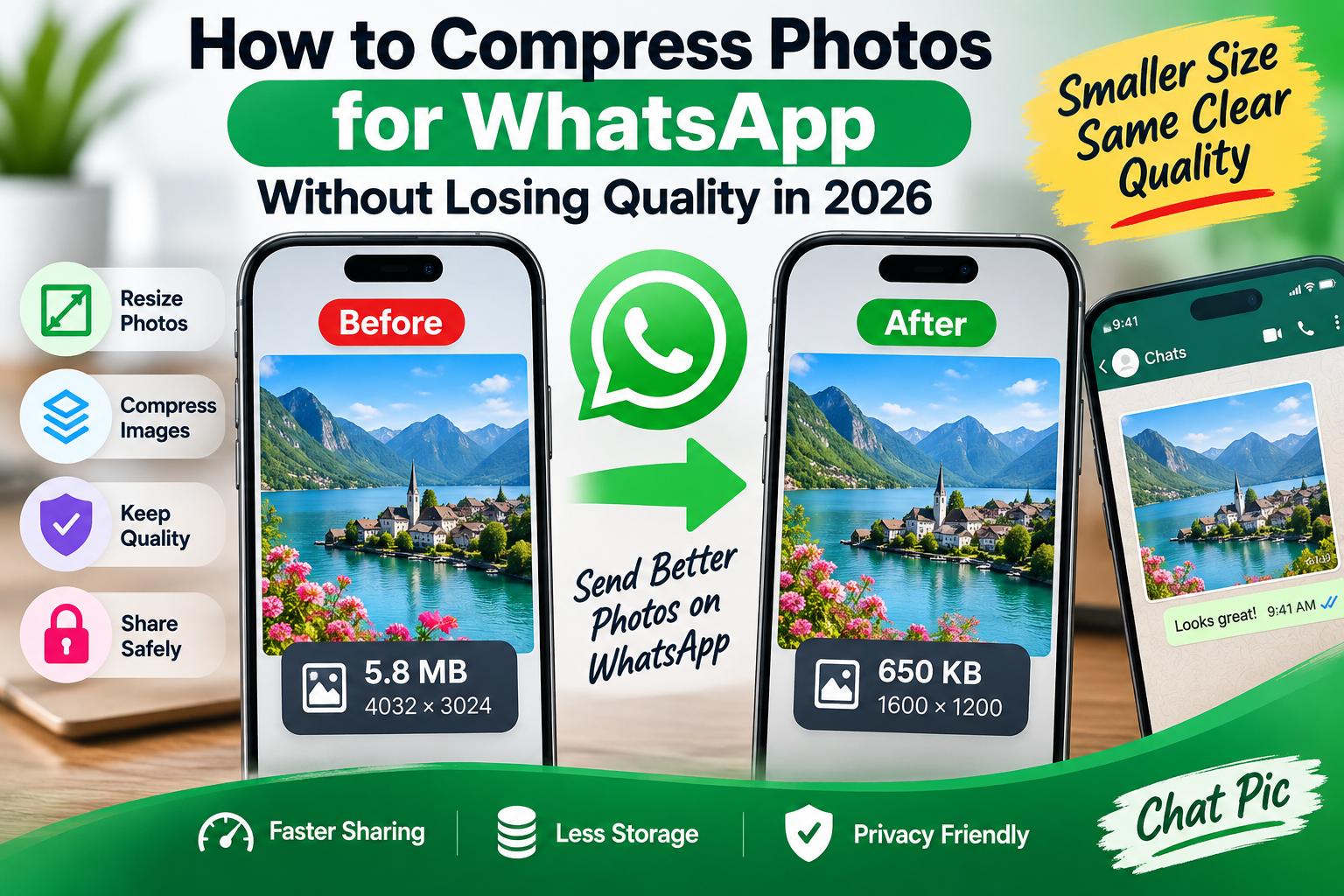
Want to compress photos for WhatsApp without losing quality before sending them to friends, family, customers, or groups?
Large smartphone photos often contain far more pixels and file data than you need for everyday messaging. A modern phone can create an image several megabytes in size, while the same photo may still look excellent after careful resizing and compression.
The important part is choosing the right balance.
If you compress too aggressively, the image can become blurry, soft, blocky, or difficult to read. If you do nothing, the file may remain unnecessarily large and take longer to upload or download.
A better approach is to prepare a clean sharing copy before sending it.
You can resize oversized photos, compress unnecessary file weight, check the final image, and keep the original safely stored on your device.
Chat Pic’s browser-based tools can help you prepare photos for WhatsApp without permanently changing your original file.
Why Photos Can Lose Quality When Shared on WhatsApp
Photos taken by modern phones are often designed for editing, printing, cropping, and long-term storage.
That means they can be much larger than what is necessary for messaging.
For example, your camera may create an image that is:
- 4032 × 3024 pixels
- 12 megapixels or more
- Several megabytes in size
- Filled with camera metadata
- Saved at high JPEG quality
When a messaging app processes a large image, it may reduce dimensions, recompress the file, or create a smaller sharing version.
This is useful for faster transfers, but repeated compression can affect clarity.
That is why preparing the photo yourself can give you more control.
What Does Compressing a Photo Actually Mean?
Image compression reduces the amount of data required to store an image.
There are two main ways to make a photo smaller:
1. Reduce Its Dimensions
A 4000-pixel-wide photo contains far more pixels than a 1600-pixel-wide photo.
Reducing dimensions can dramatically lower file size while keeping the image visually clear on a phone screen.
2. Compress the Image Data
Compression makes the file more efficient without necessarily changing its width and height.
For JPEG images, this usually means saving the photo with a carefully chosen quality level.
For many WhatsApp photos, combining moderate resizing with moderate compression works better than extreme compression alone.
How to Compress Photos for WhatsApp Without Losing Quality
A simple workflow is:
Original photo → Resize if oversized → Compress carefully → Preview → Send
Do not repeatedly edit and resave the same compressed image.
Instead, keep the original untouched and create a separate WhatsApp copy.
This gives you a backup if you later need the full-resolution version.
Step 1: Check the Original Image Size
Before compressing anything, check:
- Pixel dimensions
- File size
- File format
For example:
Original image
4032 × 3024 pixels
5.8 MB
JPEG
For normal messaging, those dimensions may be larger than necessary.
You may be able to reduce the photo substantially without making a visible difference on a typical smartphone display.
Step 2: Resize Oversized Photos
If the photo is extremely large, start by reducing its dimensions.
You can use Chat Pic’s Image Resizer:
Suggested anchor:
Image Resizer
For general WhatsApp sharing, the ideal dimensions depend on the photo and how it will be used.
You may not need a 4000-pixel-wide image for:
- Family pictures
- Food photos
- Product previews
- Event photos
- Group chat images
- Casual travel pictures
Reducing unnecessary dimensions can lower the file size before compression even begins.
Step 3: Compress the Resized Image
After resizing, use Chat Pic’s Image Compressor:
Suggested anchor:
Image Compressor
The goal is not to make the smallest file possible.
The goal is:
Small enough for easy sharing + clear enough to look good
Always preview the final image before sending it.
Pay particular attention to:
- Faces
- Hair
- Text
- Fine lines
- Product labels
- Screenshots
- Documents
These areas can reveal compression damage quickly.
What Is a Good File Size for WhatsApp Photos?
There is no single perfect file size for every image.
The best size depends on:
- Image dimensions
- Photo complexity
- Format
- Amount of detail
- How the recipient will use it
A casual image may look excellent at a few hundred kilobytes.
A detailed photograph may need more.
Instead of forcing every photo into the same target, reduce the file gradually.
For example:
Original: 6 MB
First optimized version: 1.2 MB
Second optimized version: 650 KB
If the 650 KB image still looks excellent, there may be no reason to send the 6 MB version for everyday chat.
Should You Compress a Photo to 100KB for WhatsApp?
Usually, you do not need to force every WhatsApp image down to 100KB.
A 100KB target is more useful when:
- A website has a strict limit
- You are sending many photos
- Mobile data is limited
- Storage matters
- The image is simple
Compressing a highly detailed photo to 100KB may reduce quality too much.
If you specifically need a very small file, see:
Suggested anchor:
compress an image to 100KB without losing quality
For WhatsApp, use the smallest file that still looks good for your purpose.
Best Image Dimensions for WhatsApp Sharing
There is no universal dimension that works for every type of image.
The best dimensions depend on what you are sending.
Casual Photos
A moderately resized version is often enough for phone viewing.
Product Photos
Keep enough resolution to show:
- Texture
- Labels
- Details
- Product condition
Screenshots
Text must remain readable.
Avoid reducing screenshots too aggressively.
Documents
Documents may require more resolution than normal photographs.
Small writing can become difficult to read after heavy compression.
Professional Images
If the recipient needs the image for printing or editing, send a higher-resolution version instead of aggressively compressing it.
Resize vs Compress for WhatsApp
These two actions are related but different.
Resizing
Changes pixel dimensions.
Example:
4000 × 3000
to
1600 × 1200
Compression
Reduces file data.
Example:
2.4 MB
to
650 KB
For oversized smartphone photos, resizing first often produces better results.
Then compression can reduce the remaining file size.
Why Resizing First Can Protect Quality
Imagine trying to compress a 12-megapixel image down to a very small file.
The compressor has to remove a large amount of data.
But if you first resize the photo to the dimensions actually needed for messaging, the compressor has less unnecessary information to remove.
That can produce a cleaner result.
A practical workflow is:
Large original → Appropriate dimensions → Moderate compression
rather than:
Large original → Extreme compression
How to Compress WhatsApp Photos on Android
Android phones produce photos in different sizes depending on:
- Camera settings
- Phone model
- Resolution mode
- HDR
- Editing apps
Before sending a large image:
- Keep the original.
- Open an image resizing tool if necessary.
- Reduce excessive dimensions.
- Compress the resized copy.
- Preview it.
- Send the optimized version through WhatsApp.
This approach works especially well when you are sending several photos.
How to Compress WhatsApp Photos on iPhone
Modern iPhones can also create large, detailed photos.
For everyday WhatsApp sharing, you may not need the full original resolution.
Create a sharing copy rather than permanently reducing your original.
You can:
- Select the photo.
- Prepare a resized copy.
- Compress it.
- Check the result.
- Send the optimized copy.
Keep the full-resolution original in your photo library if you may need it later.
Should You Use JPEG, PNG or WebP?
For photographs, JPEG is still a practical sharing format because it can provide good visual quality at relatively small file sizes.
PNG is more useful for:
- Graphics
- Logos
- Screenshots
- Images requiring transparency
However, PNG photos can become very large.
WebP can also provide efficient image compression, but compatibility and workflow requirements vary depending on where the image will be used.
For normal photo sharing, use a widely supported format that preserves the quality you need.
JPEG Quality for WhatsApp Photos
JPEG compression uses a quality setting.
Higher quality usually means:
- Larger file
- More detail
- Less compression
Lower quality usually means:
- Smaller file
- More compression
- Greater chance of visible artifacts
There is no perfect percentage for every photo.
A portrait, landscape, screenshot, and product photo can react differently to the same compression setting.
Use preview-based optimization rather than choosing a number blindly.
How to Compress Portrait Photos for WhatsApp
Portraits require careful compression because faces contain important details.
Watch:
- Eyes
- Hair
- Skin texture
- Eyelashes
- Clothing patterns
If the face begins looking soft or unnatural, increase the quality.
Portrait images often benefit from moderate resizing before compression.
Compress Product Photos for WhatsApp Business
WhatsApp is commonly used for sharing product photos with customers.
Product images should remain clear enough to show:
- Color
- Texture
- Size
- Labels
- Features
- Condition
A heavily compressed product photo can reduce trust because customers cannot inspect details properly.
A better approach is to create a web-friendly version that loads quickly but remains sharp.
If the customer later requests a full-resolution image, you can send the original separately.
Compress Food Photos for WhatsApp
Food photographs contain:
- Fine textures
- Shadows
- Highlights
- Small ingredients
- Color gradients
Over-compression can make food appear flat or unnatural.
Use moderate compression and compare the optimized image against the original before sending.
Compress Travel Photos for WhatsApp
Travel photos often contain a large amount of detail.
Examples include:
- Mountains
- Trees
- Buildings
- Beaches
- City skylines
Because these photos contain many fine details, extremely low file sizes can create visible artifacts.
Resize the image first, then compress it gradually.
Compress Screenshots for WhatsApp
Screenshots require a different approach from photographs.
Text is usually more important than photographic detail.
Before compressing a screenshot:
- Remove unnecessary areas
- Crop empty space
- Keep text large enough
- Avoid excessive JPEG compression
If the screenshot contains small writing, heavy compression can make it difficult to read.
Cropping may reduce file size more effectively than aggressive compression.
Compress Documents Before Sending on WhatsApp
If you photograph documents such as:
- Forms
- Receipts
- Certificates
- Letters
- Notes
clarity is more important than making the file extremely small.
Ensure that:
- Text remains readable
- Signatures remain visible
- Numbers remain clear
- QR codes are not damaged
- Stamps and seals remain recognizable
Do not aggressively compress an important document just to save a small amount of storage.
Compress Multiple Photos for WhatsApp
When sending many images, file size becomes more important.
For example:
20 photos × 5 MB = 100 MB of original data.
If each image is optimized to around 700 KB:
20 × 700 KB = about 14 MB.
The exact result will vary, but the difference can be significant.
This can help with:
- Upload speed
- Mobile data
- Download time
- Device storage
Can Compression Make WhatsApp Upload Faster?
Smaller files generally require less data to upload.
This can help when:
- Mobile internet is slow
- Network coverage is weak
- You are sending many images
- The recipient has limited bandwidth
However, compression should still preserve enough quality for the intended use.
How to Avoid Blurry WhatsApp Photos
Blurriness can come from several sources.
Excessive Resizing
Do not reduce dimensions below what the recipient needs.
Heavy JPEG Compression
Very low quality settings remove too much information.
Repeated Saving
Repeatedly editing and recompressing a JPEG can gradually reduce quality.
Starting With a Poor Original
Compression cannot restore a blurry photo.
Always start with the best original available.
Avoid Compressing the Same File Repeatedly
Suppose you:
- Compress a JPEG.
- Edit the compressed file.
- Save it again.
- Compress it again.
- Upload it.
- The messaging app processes it again.
Each lossy compression stage can reduce quality.
Keep your original photo untouched.
Create new sharing copies from the original whenever possible.
How to Preserve Text in Photos
Some WhatsApp images contain:
- Menus
- Posters
- Prices
- Instructions
- Notices
- Screenshots
Before compressing, zoom in and inspect the smallest text.
If letters become fuzzy, increase quality or resolution.
Text readability matters more than achieving the smallest possible file.
Should You Sharpen a Photo After Compression?
Light sharpening can sometimes improve the appearance of a resized image.
But excessive sharpening can create:
- Halos
- Noise
- Artificial edges
Do not use sharpening as a substitute for adequate resolution.
Start with proper resizing and moderate compression.
Keep the Original Photo
One of the most important rules is:
Never replace your only original with a heavily compressed copy.
Store the original separately.
Use compressed versions for:
- Websites
- Social media
- Online forms
Keep high-resolution originals for:
- Printing
- Editing
- Archiving
- Future use
Remove Unnecessary Photo Metadata
Photos may contain metadata such as:
- Camera model
- Date
- Camera settings
- GPS information
If privacy matters, consider checking and cleaning metadata before sharing.
You can use Chat Pic’s:
Suggested anchor:
Compression and metadata removal are separate processes.
Do not assume that reducing file size automatically removes all metadata.
Does Removing Metadata Affect Photo Quality?
Normally, removing metadata does not alter the visible pixels of the photo.
Metadata is additional information stored with the file.
However, the tool or export process used to create the new image may also perform compression, so always inspect the final copy.
Compress Photos Before WhatsApp or Let WhatsApp Handle Them?
Preparing the image yourself can give you more control over:
- Dimensions
- File size
- Quality
- Metadata
- Final appearance
You can see the optimized photo before sending it.
That is useful when image quality matters.
For a quick casual image, you may not need to optimize manually.
For business photos, documents, detailed images, or large batches, preparation can be more useful.
WhatsApp HD Photos and Manual Compression
Some versions of messaging apps provide higher-quality photo sharing options.
Even when a higher-quality option is available, manually preparing oversized photos can still be useful.
A 6000-pixel image may contain much more resolution than the recipient needs.
A carefully optimized version can:
- Upload faster
- Use less data
- Take less storage
- Still look excellent
Use high-resolution delivery when the recipient actually needs the original detail.
When You Should Not Compress the Photo
Avoid aggressive compression if the recipient needs the file for:
- Professional printing
- Graphic design
- Photo editing
- Legal documentation
- Medical documentation
- Detailed technical inspection
- Archiving
In these cases, preserve the original or provide a high-quality copy.
Best Workflow for WhatsApp Photos
A practical workflow is:
1. Keep the original
Never overwrite your source image.
2. Check dimensions
Determine whether the photo is unnecessarily large.
3. Resize if needed
Use the Image Resizer.
4. Compress carefully
Use the Image Compressor.
5. Preview the image
Inspect faces, text, and fine details.
6. Check privacy
Remove unnecessary metadata if required.
7. Send the optimized copy
Keep the original stored separately.
Example 1: Large Smartphone Photo
Original:
4032 × 3024
5.6 MB
Optimized:
1600 × 1200
620 KB
For normal phone viewing, the optimized version may still appear very clear while using much less data.
Example 2: Product Photo
Original:
4000 × 4000
7 MB
Optimized:
1800 × 1800
900 KB
The optimized version can retain enough detail for customer viewing while being easier to send.
Example 3: Screenshot
Original:
1440 × 3200
1.8 MB
Instead of extreme compression:
Crop unnecessary areas first.
Then reduce file size only enough to make sending easier while keeping text readable.
Example 4: Group of Vacation Photos
Suppose you want to send 30 vacation pictures.
Rather than sending 30 full-resolution originals, create WhatsApp copies.
This can dramatically reduce total upload size while preserving the originals in your gallery.
Common Compression Mistakes
Making Every Image 100KB
Different images need different file sizes.
Compressing Before Resizing
Oversized images may require excessive compression.
Ignoring Text
Screenshots and documents can become unreadable.
Recompressing Compressed Files
Always return to the original when possible.
Deleting Originals
Keep full-resolution source files.
Assuming Smaller Always Means Better
The smallest file is not automatically the best file.
Frequently Asked Questions
How do I compress photos for WhatsApp without losing quality?
Resize oversized images first, then apply moderate compression and preview the final photo before sending.
Does compressing a photo reduce its quality?
Lossy compression can reduce quality, but careful compression may make the file much smaller without an obvious visual difference.
Should I resize before compressing?
For very large smartphone images, resizing first is often a good approach because it removes unnecessary pixel dimensions before compression.
Is 100KB good for WhatsApp?
It depends on the image. Simple photos may look fine at 100KB, while detailed images may need a larger file.
Why do my WhatsApp photos look blurry?
Possible causes include excessive compression, low resolution, repeated JPEG saving, or starting with a blurry original.
Should I send full-resolution photos on WhatsApp?
Only when the recipient needs the additional detail. For normal chat, a carefully optimized copy may be sufficient.
Does compression remove EXIF data?
Not necessarily. Use a dedicated metadata-removal tool if you specifically want to remove metadata.
Can I compress several WhatsApp photos?
Yes. Optimizing multiple images before sending can significantly reduce total upload size.
Is JPEG good for WhatsApp photos?
JPEG is widely used for photographs and can produce small files while maintaining good visual quality when compressed carefully.
Can I compress screenshots?
Yes, but prioritize readability. Crop unnecessary areas first and avoid compression levels that make text fuzzy.
Final Thoughts
Learning how to compress photos for WhatsApp without losing quality is mostly about avoiding unnecessary image data while preserving the detail people actually need.
Do not focus on making every image as small as possible.
Instead, use a balanced workflow:
Resize oversized photos → Compress moderately → Preview the result → Keep the original → Send the optimized copy
For everyday WhatsApp images, this can make photos easier to upload, download, and store without creating visibly poor results.
Chat Pic’s Image Resizer, Image Compressor, and EXIF Metadata Remover can help you prepare cleaner and more efficient photo copies before sharing them online.