
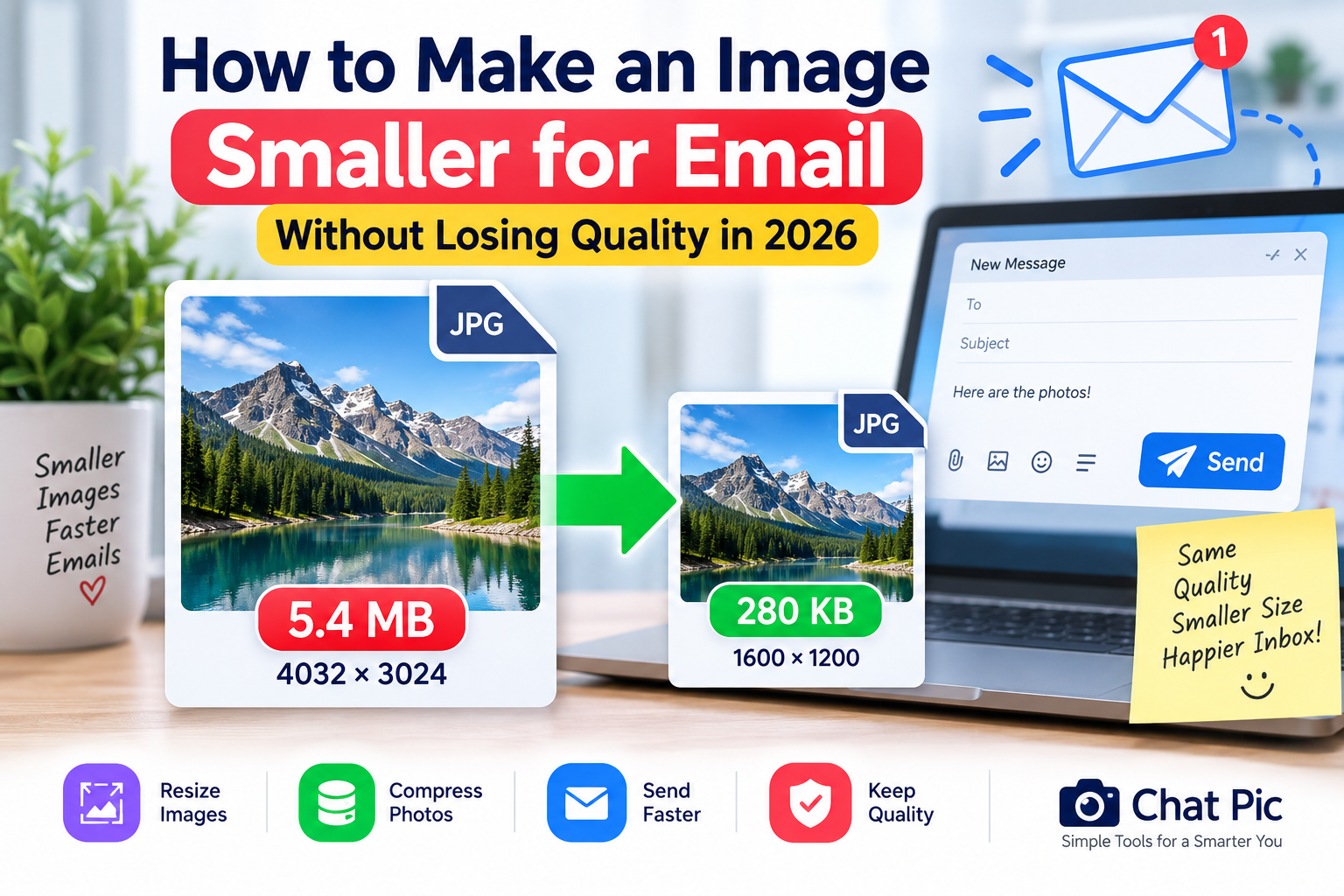
Need to make an image smaller for email without making the photo look blurry or heavily compressed? Large images can be difficult to attach, slow to upload, and may cause problems when an email service has a file-size limit.
Modern phones and cameras often create photos that are several megabytes in size. A single high-resolution image can easily be 4MB, 8MB, or even larger. If you try to send several of these photos in one email, the total attachment size can quickly become too large.
The good news is that you usually do not need to send the full original camera file. In many cases, resizing and compressing the image can make the attachment much smaller while keeping it visually clear.
Chat Pic provides browser-based image tools that can help you prepare photos before sending them by email.
Why Are Email Photos So Large?
Digital cameras and smartphones are designed to capture a lot of detail.
A photo may be:
4000 × 3000 pixels
5MB or more
This size is useful for printing, cropping, and editing.
However, if the recipient only needs to view the photo on a phone or computer screen, sending the full original file may be unnecessary.
Large email attachments can cause:
- Slow upload times
- Slow downloads
- Failed sends
- Attachment limit errors
- Higher mobile data usage
- Full inbox storage
- Difficulty sending multiple images
Reducing the image before sending can solve many of these problems.
What Is the Best Image Size for Email?
There is no single perfect size for every email photo.
The right dimensions depend on why you are sending the image.
For normal viewing, a width of around 1200 to 1600 pixels is often enough.
For example:
Original:
4032 × 3024
Email version:
1600 × 1200
The smaller version may still look excellent on normal screens but use much less storage.
If the recipient needs the original photo for printing or editing, send the full-resolution file instead.
How to Make an Image Smaller for Email
The best approach usually involves two steps:
Resize the image if the dimensions are larger than needed.
Then:
Compress the image to reduce file size further.
You can use Chat Pic’s Image Resizer and Image Compressor for this workflow.
Internal links:
A simple process is:
Original photo → Resize → Compress → Check quality → Attach to email
Step 1: Check the Current Image Size
Before changing anything, check:
- Pixel dimensions
- File size
- Image format
For example:
Dimensions: 4000 × 3000
File size: 6.2MB
Format: JPEG
If the image is already 1200 × 900 but still 2MB, you may only need compression.
If the image is 6000 × 4000, resizing will probably give the biggest reduction.
Step 2: Resize Large Photos
Resizing removes unnecessary pixels.
Suppose you have:
5000 × 3333 — 7MB
If the image only needs to be viewed in an email, you might reduce it to:
1600 × 1067
This can dramatically reduce file size even before compression.
Use Chat Pic’s free Image Resizer:
Keep the aspect ratio locked to avoid stretching the photo.
Step 3: Compress the Image
After resizing, compress the image to reduce file size further.
You can use Chat Pic’s Image Compressor:
Start with moderate compression.
Check:
- Faces
- Text
- Product details
- Fine textures
- Gradients
If the image still looks clear, the compressed version is usually suitable for email.
How Small Should an Email Image Be?
A good target depends on how many images you are sending.
For example:
| Number of Images | Suggested Size Per Image |
|---|---|
| 1 image | 200–500KB |
| 3 images | 150–300KB |
| 5 images | 100–250KB |
| 10 images | 80–200KB |
These are only practical examples, not strict rules.
The more images you attach, the smaller each one should ideally be.
Email Attachment Limits
Email services usually have maximum attachment sizes.
The exact limit depends on the provider.
If you attach several large images, the total size may exceed the allowed limit.
Also remember that email encoding can increase the effective size of attachments.
That means a set of files totaling 20MB on your computer may become somewhat larger when sent.
If you regularly send many photos, consider reducing each image before attaching it.
Make an Image Smaller for Gmail
If you are sending photos through Gmail, large attachments can quickly use up the message limit.
A practical workflow is:
- Resize large images.
- Compress them.
- Keep each file reasonably small.
- Attach the optimized copies.
If the files are still too large, Gmail may offer a Google Drive link instead of attaching them directly.
Make an Image Smaller for Outlook
Outlook users can also run into attachment limits.
For normal photos, reducing dimensions and compression can make sending easier.
If a photo is 8MB but only needs to be viewed on a screen, there is usually little benefit in attaching the full-resolution original.
Create a smaller copy for email instead.
Make an Image Smaller for Apple Mail
Apple Mail users can also reduce attachment size before sending.
Depending on the device and workflow, you may be given options to send images at different sizes.
However, using a dedicated image resizer gives you more control over the final dimensions and file size.
JPEG vs PNG for Email
The image format can make a big difference.
JPEG
JPEG is usually best for photographs.
Advantages:
- Small file size
- Good photo quality
- Wide compatibility
For normal email photos, JPEG is often the easiest choice.
PNG
PNG is better for:
- Screenshots
- Graphics
- Logos
- Transparent images
- Interface images
But PNG photos can be very large.
If you are emailing a normal photograph, JPEG or WebP may be more efficient.
WebP for Email Attachments
WebP can create smaller files than JPEG or PNG in many cases.
However, compatibility should be considered.
Most modern devices can display WebP, but some older software may handle it less consistently.
If you are sending images to someone who may use older systems, JPEG is the safest option.
Compress Without Changing Dimensions
Sometimes your image already has the correct dimensions.
For example:
1200 × 800 — 1.8MB
In this case, you do not need to resize.
Simply compress the file while keeping:
1200 × 800
You can read our guide:
Suggested anchor:
reduce image file size without changing dimensions
Can You Make an Image Smaller Without Losing Quality?
Small reductions can often be achieved with little or no visible change.
However, a very large reduction may require some lossy compression.
For example:
5MB → 4MB
may be possible with almost no visible difference.
But:
5MB → 100KB
will usually require resizing, compression, or both.
The best goal is not “zero quality loss.”
The better goal is:
Keep the photo visually clear at the size the recipient will actually use.
Do Not Overcompress Important Images
Some photos should not be heavily compressed.
Examples include:
- Legal documents
- Medical images
- Professional photography
- Product proofs
- High-detail design files
- Photos intended for printing
If the recipient needs the original quality, send the full file or use a cloud-sharing service.
Compression is best for casual viewing and faster sharing.
Sending Photos for Printing
If the recipient plans to print the image, avoid reducing it too much.
Printing requires more resolution than normal screen viewing.
For example, a 1200-pixel-wide image may look great in email but may be too small for a large print.
Ask the recipient what size they need before reducing the image.
Sending Photos for Work
For workplace email, smaller images can be useful when sending:
- Product photos
- Site photos
- Screenshots
- Reports
- Presentation graphics
Keep the image large enough to show the important details.
If text appears inside the image, make sure it remains readable after compression.
Sending Screenshots by Email
Screenshots often contain text.
Heavy JPEG compression can make text look blurry.
For screenshots, consider:
- PNG
- WebP
- High-quality JPEG
If the screenshot is very large, reduce the dimensions before compression.
Check small text carefully.
Sending Phone Photos by Email
Phone photos are often much larger than necessary for email.
A smartphone may produce:
4032 × 3024 — 4MB
For normal email sharing, you might reduce it to:
1600 × 1200 — 250KB
The smaller version can still look excellent on screen.
Keep the original photo on your phone.
Sending Multiple Photos in One Email
If you need to send many photos, optimize them before attaching.
For example:
10 photos × 4MB = 40MB
If each image is reduced to 200KB:
10 × 200KB = 2MB
That is much easier to send.
This is one of the biggest benefits of image optimization for email.
Should You Zip Photos Before Emailing?
Zipping already-compressed image formats such as JPEG usually does not reduce them very much.
A ZIP file may help with organization, but it may not make the photos significantly smaller.
For real file-size reduction, resize or compress the images themselves.
Email Photos vs Cloud Links
Sometimes sending the original file is important.
If the image must stay full quality, consider using:
- Google Drive
- OneDrive
- Dropbox
- Another cloud storage service
Then send a link instead of attaching the file directly.
This avoids email attachment limits.
For casual photos, optimized attachments are usually more convenient.
Does Email Compression Reduce Quality?
Some email apps may resize or compress images automatically.
However, the behavior varies.
If you want predictable quality, prepare the image yourself before attaching it.
That way, you control:
- Dimensions
- Format
- Compression
- File size
Reduce Photo Size Before Sending
A good workflow is:
Keep original → Resize if needed → Compress → Check quality → Attach
This keeps the original safe while creating a lightweight email version.
Do not permanently replace the original photo with the compressed version.
How to Make an Image Smaller for Email on Windows
On Windows, you can use image-editing software or browser-based tools.
A simple method is:
- Open the image.
- Check dimensions.
- Resize if necessary.
- Compress the image.
- Save a new copy.
- Attach the smaller version.
Using a browser-based tool avoids installing extra software.
How to Make an Image Smaller for Email on Mac
Mac users can resize images with built-in tools or browser-based services.
The important steps remain the same:
- Reduce unnecessary dimensions
- Compress
- Keep the original
- Check the final result
How to Make an Image Smaller for Email on iPhone
iPhones may offer image-size options when sending photos through email.
However, if you need a specific file size, using a dedicated resizer and compressor gives you more control.
Keep the original photo in your Photos library.
Create a smaller copy for email.
How to Make an Image Smaller for Email on Android
Android devices vary by manufacturer.
Some gallery or email apps may automatically resize photos.
For more control, use a browser-based image tool.
This allows you to choose your own dimensions and compression level.
What Image Dimensions Are Best for Email?
For normal screen viewing, useful dimensions may include:
1200 × 800
1600 × 1067
1600 × 1200
The correct size depends on the photo’s aspect ratio.
Do not force every image into the same width and height.
Keep the original proportions.
Keep the Aspect Ratio
When resizing for email, keep the aspect ratio locked.
For example:
Original:
4000 × 3000
Resized:
1600 × 1200
This keeps the same 4:3 shape.
Avoid:
1600 × 1000
unless you intentionally crop the image.
Incorrect resizing can stretch people and objects.
Crop Before Emailing When Necessary
Sometimes cropping can reduce file size and improve the image.
For example, if most of the photo contains empty background, crop the image first.
This removes unnecessary pixels before resizing and compression.
However, do not crop important information.
Remove EXIF Metadata Before Emailing
Photos can contain metadata such as:
- Camera model
- Capture date
- Editing software
- GPS location
If privacy matters, remove unnecessary metadata before sending.
Use Chat Pic’s EXIF Metadata Remover:
This can be especially useful when emailing photos taken at private locations.
Does Removing Metadata Reduce File Size?
Usually only slightly.
Metadata is normally a small part of the file.
The biggest reductions usually come from:
- Resizing
- Compression
- Format conversion
Still, metadata removal can be useful for privacy.
Reduce Email Image Size Without Changing Resolution
If the dimensions must stay the same, use compression only.
For example:
1920 × 1080 — 2MB
can become:
1920 × 1080 — 350KB
The resolution remains unchanged.
Only the stored data becomes smaller.
Best Email Image Workflow
A practical workflow is:
1. Keep the original
Never delete the full-quality source.
2. Decide how the recipient will use the photo
Viewing, printing, editing, etc.
3. Resize if the original is unnecessarily large
Use the Image Resizer.
4. Compress the image
Use the Image Compressor.
5. Check the result
Make sure details remain clear.
6. Remove unnecessary metadata
If privacy matters.
7. Attach the optimized copy
Send the smaller version.
Common Email Image Mistakes
Sending Full Camera Originals
A 6MB phone photo is often unnecessary for casual viewing.
Compressing Too Much
Important details may become blurry.
Sending Tiny Images for Printing
The recipient may need the original resolution.
Stretching Photos
Keep the aspect ratio locked.
Deleting the Original
Always keep the full-quality source.
Sending Large PNG Photos
JPEG or WebP may be much smaller.
Example: One Large Phone Photo
Original:
4032 × 3024 JPEG
5.4MB
Resize to:
1600 × 1200
Compress to:
280KB
The image remains clear for normal screen viewing.
Example: Five Vacation Photos
Original:
5 photos × 4MB = 20MB
Optimized:
5 photos × 250KB = 1.25MB
This makes the email much easier to send and download.
Example: Screenshot
Original:
2560 × 1440 PNG
2MB
Resize:
1600 × 900
Save as optimized WebP or PNG:
250KB
Text remains readable while the attachment becomes much smaller.
Frequently Asked Questions
How do I make an image smaller for email?
Resize the image to appropriate dimensions and then apply moderate compression. Keep the original file stored separately.
What size should photos be for email?
For normal viewing, around 1200–1600 pixels wide can be enough in many cases.
How many KB should an email photo be?
Many casual email photos can be around 100–500KB, depending on detail and quality requirements.
Can I reduce an image without making it blurry?
Yes. Resize only as much as necessary and use moderate compression.
Should I use JPEG or PNG for email?
JPEG is usually better for photos. PNG is better for screenshots, graphics, and transparency.
Can I email WebP images?
Usually yes on modern devices, but JPEG offers broader compatibility.
Should I resize or compress first?
If the dimensions are larger than needed, resize first and compress afterward.
Can I keep the same dimensions and reduce file size?
Yes. Use compression without resizing.
Does sending photos by email remove metadata?
Not necessarily. If privacy matters, remove unnecessary metadata before attaching the file.
Should I use a cloud link instead?
If the recipient needs the original high-resolution files or you have many large images, a cloud link may be better.
Final Thoughts
Learning how to make an image smaller for email can make photo sharing faster and more reliable.
Most people do not need to send full camera-resolution images for normal viewing.
A good workflow is:
Resize → compress → check quality → remove unnecessary metadata → attach
For normal photos, around 1200–1600 pixels wide can often provide good screen quality while dramatically reducing file size.
If the recipient needs the original image for printing, editing, or professional work, keep the full-resolution version and consider using a cloud-sharing link instead.
With Chat Pic’s Image Resizer, Image Compressor, and EXIF Metadata Remover, you can prepare smaller, cleaner images before sending them by email.