
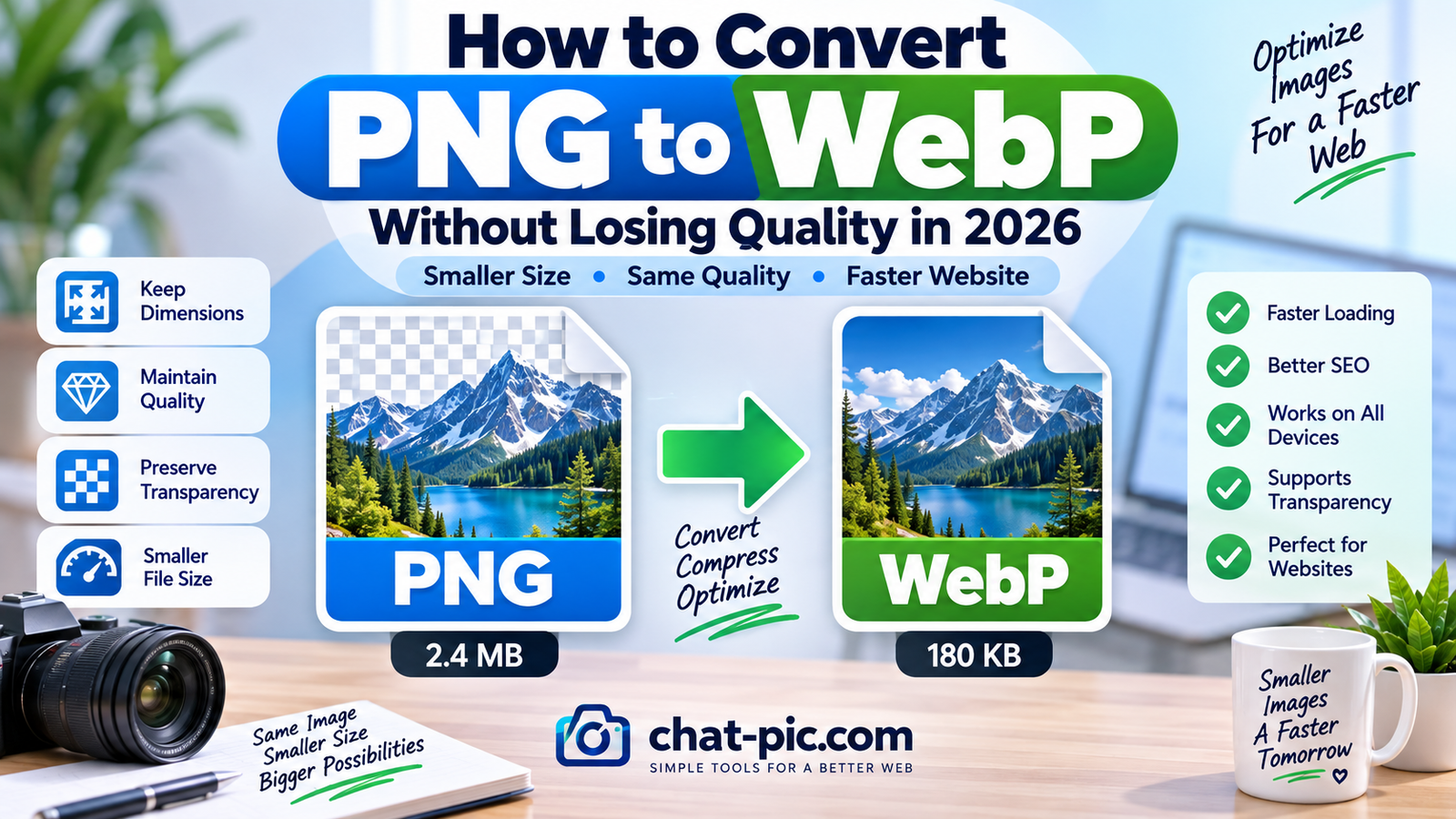
Want to convert PNG to WebP without losing quality? PNG images can look sharp and support transparent backgrounds, but they can also become unnecessarily large—especially when used on websites.
A logo, screenshot, graphic, or product image may look perfect as a PNG but still weigh hundreds of kilobytes or several megabytes. Converting the same image to WebP can often reduce file size while keeping the image visually clear.
The key is to choose suitable compression settings instead of simply converting every PNG at the strongest possible compression level.
For website owners, smaller images can improve loading times, reduce bandwidth, and make pages easier to use on mobile connections.
What Is a PNG Image?
PNG stands for Portable Network Graphics.
PNG is widely used for:
- Logos
- Screenshots
- Icons
- Illustrations
- Graphics containing text
- Images with transparent backgrounds
- Interface elements
One of PNG’s biggest strengths is its ability to preserve sharp details and transparency.
However, PNG files can be much larger than necessary when used for complex photographs or high-resolution graphics.
For example:
1200 × 800 PNG — 1.8MB
may be much heavier than an optimized WebP version of the same dimensions.
What Is WebP?
WebP is a modern image format designed for efficient web delivery.
It can support:
- Lossy compression
- Lossless compression
- Transparency
- Photographic images
- Graphics
- Animation
That makes WebP useful for many of the situations where JPEG and PNG were traditionally used.
For WordPress websites, WebP can be especially useful because it allows you to keep good visual quality while reducing the amount of image data visitors need to download.
Why Convert PNG to WebP?
The biggest reason is usually file size.
A smaller image can provide several benefits:
- Faster website loading
- Lower bandwidth usage
- Smaller page weight
- Faster mobile browsing
- Reduced storage requirements
- Faster image uploads
- Smaller backups
You can keep the same pixel dimensions while changing only the image format and compression.
For example:
| Version | Dimensions | File Size |
|---|---|---|
| PNG | 1200 × 800 | 1.6MB |
| WebP | 1200 × 800 | 240KB |
The exact result varies depending on the image.
Can You Convert PNG to WebP Without Losing Quality?
Yes, depending on what you mean by “losing quality.”
WebP can use lossless compression, which is appropriate when preserving exact image information is important.
It can also use lossy compression, which removes some information to achieve a smaller file.
With sensible lossy settings, the visual difference may be very difficult to notice at normal viewing size.
This means the practical goal is usually:
Keep the image visually clear while reducing unnecessary file size.
Do not chase the smallest possible file if the result starts looking blurry or damaged.
PNG to WebP Without Changing Dimensions
Converting the file format does not require changing image dimensions.
For example:
Original:
1600 × 900 PNG
Converted:
1600 × 900 WebP
The width and height remain exactly the same.
Only the way the image information is stored changes.
This makes format conversion useful when you already have the correct dimensions.
Step 1: Check Whether PNG Is Actually Needed
Before converting, consider why the image is PNG.
If it contains:
- Transparency
- Sharp text
- Interface graphics
- Logos
- Icons
PNG may have been chosen for a good reason.
However, WebP can also support transparency, so in many cases you can still convert the file while preserving the visual design.
For photographic PNG files, WebP is often especially worth testing.
Step 2: Keep the Original PNG
Always keep the original image.
Do not overwrite your only copy.
A better workflow is:
Original PNG → WebP copy → Compare → Use optimized version
This gives you a high-quality source file if you later need another size or format.
Step 3: Keep the Same Dimensions
If your PNG is already the correct size, do not resize it unnecessarily.
For example:
Original: 1200 × 800 PNG
Keep:
Converted: 1200 × 800 WebP
This is especially useful when your website layout requires exact dimensions.
If the image is much larger than your website actually displays, resize it first.
You can use Chat Pic’s Image Resizer:
Step 4: Choose Lossless or Lossy WebP
This is the most important decision.
Lossless WebP
Use lossless WebP when exact image detail matters.
It can be useful for:
- Logos
- Screenshots
- Graphics
- Text-heavy images
- Interface elements
The resulting file may still be smaller than PNG, although the reduction may not always be dramatic.
Lossy WebP
Lossy WebP is usually better for photographs and complex images where a small amount of invisible information can be discarded.
It can provide much smaller files.
Start with moderate quality and inspect the result.
Step 5: Compare Image Quality
Never judge optimization only by file size.
Compare:
- Text sharpness
- Logo edges
- Transparency
- Gradients
- Fine textures
- Faces
- Product details
View the image at the size visitors will actually see it.
If it looks good, there is little benefit in keeping a dramatically larger version.
Step 6: Compress Further If Needed
If the WebP file is still too large, you can apply additional compression.
Chat Pic’s Image Compressor can help reduce image size:
Use moderate compression first.
Avoid immediately choosing maximum compression.
PNG vs WebP File Size
PNG uses lossless compression.
For simple graphics, it can be efficient.
For complex images, the file may become large.
WebP gives you more flexibility because it can use both lossy and lossless compression.
Example:
PNG: 1800KB
Lossless WebP: 900KB
Lossy WebP: 220KB
These numbers are only examples.
Actual results depend on image complexity and encoder settings.
Does WebP Support Transparent Backgrounds?
Yes.
WebP can support transparency.
This is important for:
- Logos
- Product images
- Icons
- Graphics
- Website interface elements
A transparent PNG can often be converted into a transparent WebP.
Always inspect the converted file to confirm that the transparent areas remain correct.
PNG to WebP for WordPress
WordPress websites can contain hundreds or thousands of images.
Large PNG files can quickly increase page weight and storage usage.
For example, suppose a homepage contains four 1MB PNG graphics.
That is around 4MB of images before counting other page resources.
If each image is converted to a 150KB WebP:
4 × 150KB = approximately 600KB
This is a major reduction.
Your exact savings will depend on the images.
Best WebP Quality Setting
There is no single perfect quality setting.
Different images behave differently.
A simple illustration may look excellent at a lower quality setting.
A detailed product image may require a higher setting.
The best approach is to:
- Start with a relatively high quality.
- Check the result.
- Reduce gradually.
- Stop when further compression starts becoming visible.
This produces better results than using one aggressive setting for every image.
Should You Use Lossless WebP for Logos?
Often, yes.
Logos usually have:
- Sharp edges
- Flat colors
- Text
- Transparency
Lossless WebP can preserve these details.
However, compare it with the original PNG.
If the PNG is already only 10KB or 20KB, converting it may not provide a meaningful benefit.
Optimization should solve a real problem, not create extra work.
PNG to WebP for Screenshots
Screenshots often contain text and sharp interface elements.
Heavy lossy compression can make text look fuzzy.
For screenshots:
- Try lossless WebP first
- Or use a high-quality lossy WebP
- Check text carefully
If the screenshot contains mostly photographic content, lossy compression may work better.
PNG to WebP for Product Images
Product images need good visual detail.
Customers may want to inspect:
- Texture
- Color
- Material
- Small details
Use a high enough WebP quality to preserve those details.
File size matters, but product clarity matters too.
PNG to WebP for Blog Images
Blog images usually do not need extremely high file sizes.
If a PNG blog image is 1MB or more, WebP conversion may significantly reduce it.
For many normal blog images, the best workflow is:
Resize → Convert to WebP → Compress → Upload
This can create lightweight images without obvious visual degradation.
Should You Resize Before Converting to WebP?
If the image is larger than necessary, yes.
Suppose the PNG is:
4000 × 3000
but your blog only displays it at:
1200 × 900
Converting the full 4000-pixel image to WebP still leaves you with many unnecessary pixels.
Resize first.
Then convert.
A useful workflow is:
Original → Resize → WebP → Compress
Should You Compress Before or After Conversion?
In most cases, conversion and compression are part of the same export process.
But conceptually, the workflow is:
- Choose correct dimensions.
- Choose WebP format.
- Choose quality/compression.
- Export.
- Check final size and appearance.
If the final WebP is still too large, compress it further.
How Small Should a WebP Image Be?
There is no universal target.
A useful range for many website images may be:
- Small graphics: 10–80KB
- Thumbnails: 20–100KB
- Blog images: 50–200KB
- Hero images: 80–300KB
These are practical examples, not strict limits.
A detailed large image may legitimately require more.
Is WebP Better Than PNG?
Neither format is always better.
PNG is excellent when exact lossless preservation is important.
WebP is useful when you need smaller web files with more compression flexibility.
Use PNG when:
- File size is already small
- Exact lossless quality is important
- Your workflow specifically requires PNG
Use WebP when:
- PNG is unnecessarily large
- Website performance matters
- You want good transparency support with smaller files
- You need flexible compression
WebP vs JPEG
JPEG is still widely used for photos.
WebP can often provide similar visible quality at a smaller file size.
However, results vary by image.
Instead of assuming one format is always superior, compare the actual output.
For modern website workflows, WebP is often a practical option.
Does WebP Affect SEO?
Simply using WebP does not automatically improve rankings.
However, smaller optimized images can contribute to a faster, better user experience.
For image SEO, also focus on:
- Relevant content
- Descriptive alt text
- Appropriate file names
- Correct dimensions
- Fast loading
- Helpful surrounding text
Image format is only one piece of the optimization process.
PNG to WebP and Page Speed
Images can make up a large portion of a page’s downloaded data.
Reducing image size can make the page load faster.
This is especially useful for:
- Mobile users
- Slower connections
- Image-heavy blogs
- Online stores
- Landing pages
Converting large PNG files to optimized WebP can reduce unnecessary downloads.
Do Not Convert Every PNG Automatically
Some PNG files are already tiny.
For example:
PNG logo: 14KB
Converting it to WebP might produce:
WebP logo: 12KB
The 2KB saving may not be worth changing your workflow.
Focus first on large files.
A 1.5MB PNG converted to 150KB WebP offers a much more meaningful improvement.
Check Transparency After Conversion
Transparent images should be inspected carefully.
Check:
- Edges
- Shadows
- Transparent background
- Semi-transparent areas
Poor conversion settings can sometimes make edges look different.
Always preview the final image against both light and dark backgrounds if transparency is important.
Remove Unnecessary Metadata
Image files may also contain metadata.
This can include:
- Camera details
- Editing software
- Date information
- GPS location in some cases
If privacy matters, you can create a cleaned sharing version using Chat Pic’s EXIF Metadata Remover:
Metadata usually represents only a small part of file size, but removing unnecessary information can still be useful.
Avoid Repeated Image Conversion
Repeatedly converting lossy images can reduce quality.
Avoid workflows such as:
PNG → WebP → JPEG → WebP → JPEG
Keep the original.
Create the final optimized version from that original whenever possible.
Common PNG to WebP Mistakes
Using Maximum Compression
This can create visible artifacts.
Ignoring Transparency
Always check transparent areas after conversion.
Converting Tiny PNGs
Focus on files where conversion provides meaningful savings.
Keeping Huge Dimensions
Format conversion alone does not solve oversized pixel dimensions.
Deleting the Original
Keep a high-quality source copy.
Ignoring Mobile Performance
Large images can be especially expensive on slower mobile connections.
Example: Convert a Large PNG to WebP
Original:
Dimensions: 1600 × 900
Format: PNG
File size: 1.9MB
Converted:
Dimensions: 1600 × 900
Format: WebP
File size: 230KB
The dimensions stay identical.
If the visual quality looks nearly the same, the WebP version is much more efficient for web use.
Example: Transparent Logo
Original:
800 × 250 PNG
180KB
Converted:
800 × 250 lossless WebP
80KB
Transparency remains intact.
The site can display the same logo while downloading less data.
Example: Screenshot
Original:
1400 × 900 PNG
1.2MB
Converted:
1400 × 900 WebP
190KB
If text remains sharp, the optimized file may be a better choice for a tutorial article.
When PNG Is Still the Better Choice
Do not assume WebP must replace every PNG.
PNG can still make sense when:
- You need guaranteed lossless preservation
- The PNG is already small
- Your publishing workflow requires PNG
- The image is being exchanged with software that expects PNG
Choose the format based on the actual use case.
Recommended Workflow for Website Images
A practical image workflow is:
Keep original → Check dimensions → Resize if needed → Convert to WebP → Compress carefully → Check transparency → Check visual quality → Remove unnecessary metadata → Upload
This gives you control over both quality and performance.
Frequently Asked Questions
How do I convert PNG to WebP without losing quality?
Use lossless WebP or a high-quality lossy setting, keep the original dimensions, and compare the converted image with the PNG before publishing.
Does converting PNG to WebP reduce quality?
It depends on the compression method. Lossless WebP can preserve image information, while lossy WebP removes some data to create smaller files.
Does WebP support transparent backgrounds?
Yes. WebP supports transparency and can often replace transparent PNG files.
Will converting PNG to WebP change dimensions?
No, not unless you also resize the image. A 1200 × 800 PNG can remain 1200 × 800 after conversion.
Is WebP smaller than PNG?
Often, especially for complex images, but results depend on the image and compression settings.
Should I use WebP for WordPress?
WebP can be useful for WordPress because smaller image files can reduce page weight.
Is WebP good for screenshots?
Yes, but use lossless or relatively high-quality settings when text needs to stay sharp.
Is PNG better for logos?
PNG is still excellent for logos, but lossless WebP may provide similar quality with a smaller file.
Should I resize PNG before converting to WebP?
If the original dimensions are larger than your website needs, resize first.
Can WebP improve website speed?
Smaller image files can reduce the amount of data visitors download, which can help pages load faster.
Final Thoughts
Learning how to convert PNG to WebP without losing quality can help reduce website image sizes without sacrificing the appearance of your graphics, screenshots, logos, and photos.
The most important thing is not simply changing the file extension.
Use the correct dimensions, choose an appropriate lossless or lossy setting, preserve transparency when necessary, and check the final result before publishing.
For large PNG images, WebP can often provide substantial file-size savings.
For tiny PNG graphics that are already optimized, conversion may not be necessary.
The best workflow is to keep the original, create an optimized WebP copy, compare visual quality, and then use the smaller version where it makes sense.
With Chat Pic’s Image Resizer, Image Compressor, and EXIF Metadata Remover, you can prepare lighter website images before uploading them to WordPress or sharing them online.
1 thought on “How to Convert PNG to WebP Without Losing Quality in 2026”