
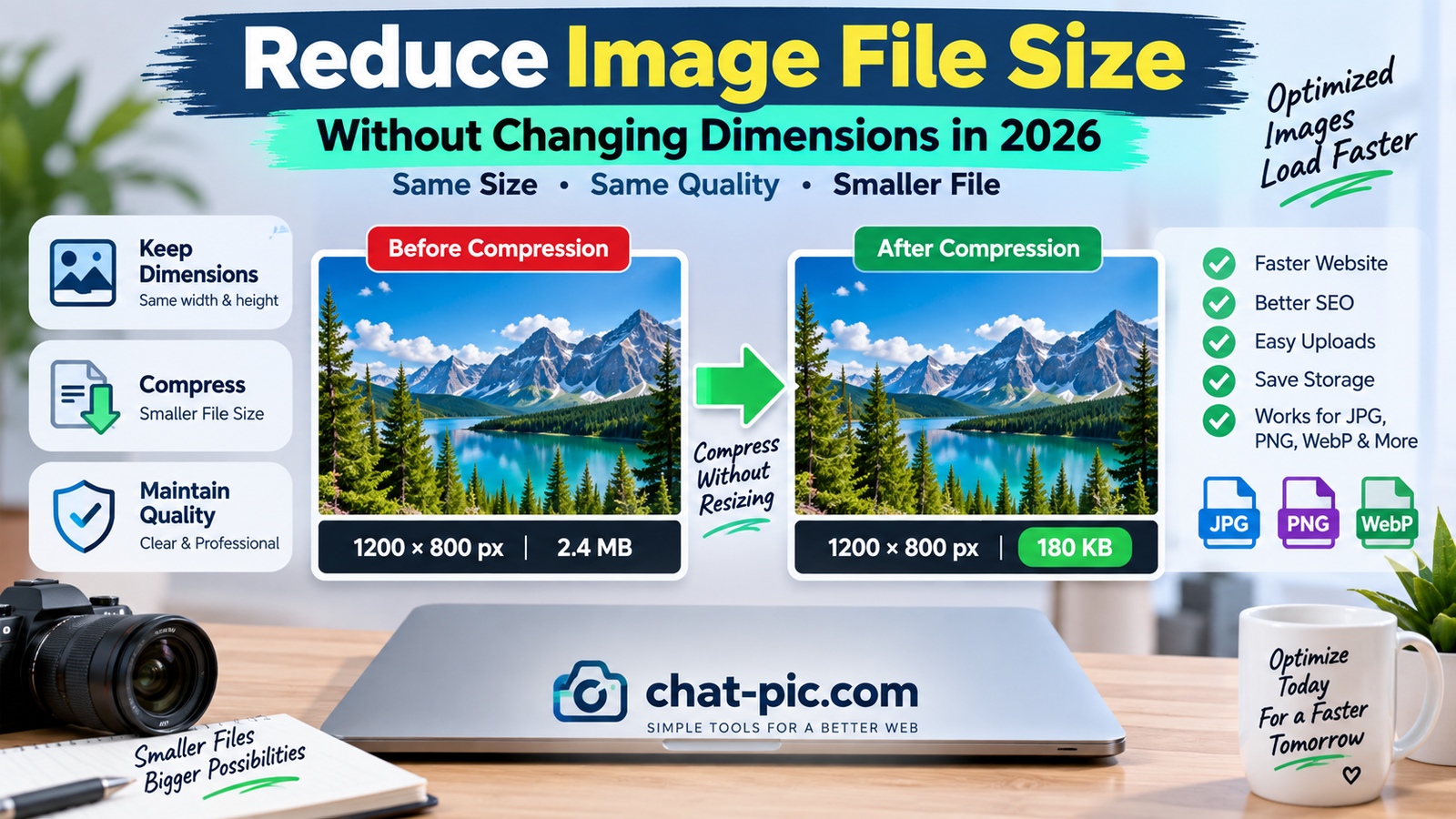
Need to reduce image file size without changing dimensions? This is a common problem when an image already has the correct width and height, but the file is still too large for a website, online form, email, or social media upload.
For example, your image may already be exactly 1200 × 800 pixels, but the file size could still be 2MB or 3MB. In this situation, resizing the image is not necessary because the dimensions are already correct.
Instead, you need to reduce the amount of data stored inside the image.
This can usually be done through better compression, choosing a more efficient image format, removing unnecessary metadata, and using improved export settings.
Chat Pic provides a browser-based Image Compressor that can help reduce image file size while keeping the original dimensions.
What Does “Without Changing Dimensions” Mean?
Image dimensions refer to the number of pixels in an image.
For example:
1200 × 800 pixels
means the image is 1200 pixels wide and 800 pixels high.
If you reduce the file from 2MB to 150KB but it remains 1200 × 800, then the dimensions have not changed.
Only the amount of stored image data has changed.
This is different from resizing.
Resizing might change:
1200 × 800 → 800 × 533
Compression can keep:
1200 × 800 → 1200 × 800
while reducing the number of kilobytes or megabytes.
Why Can Two Images With the Same Dimensions Have Different File Sizes?
Pixel dimensions alone do not determine file size.
Two images that are both 1200 × 800 can have very different file sizes.
For example:
| Image | Dimensions | Format | File Size |
|---|---|---|---|
| Photo A | 1200 × 800 | PNG | 1.8MB |
| Photo B | 1200 × 800 | JPEG | 320KB |
| Photo C | 1200 × 800 | WebP | 180KB |
All three images have the same dimensions.
The difference comes from:
Image format, compression level, image complexity, metadata, color information, and export settings.
A photograph with grass, hair, trees, crowds, or detailed textures may require more data than an image with a simple background.
How to Reduce Image File Size Without Changing Dimensions
The easiest method is to compress the image while keeping the same width and height.
You can use Chat Pic’s free Image Compressor.
Internal link:
The basic process is simple:
Choose the image, keep its existing dimensions, apply moderate compression, compare the result with the original, and download the smaller copy.
If the image is still too large, slightly increase the compression instead of immediately changing the dimensions.
Compression vs Resizing
Compression and resizing are often confused.
Resizing changes the pixel dimensions.
Compression changes how efficiently the image information is stored.
Suppose your original image is:
1600 × 900 — 2.5MB
After resizing:
1200 × 675 — 900KB
After compression without resizing:
1600 × 900 — 250KB
In the second example, the dimensions remain exactly the same.
This is useful when a website, client, or application requires a specific width and height.
Lossless vs Lossy Compression
There are two important types of image compression.
Lossless Compression
Lossless compression attempts to reduce file size without permanently removing visible image information.
The image can often be reconstructed from the compressed data without losing the original information.
Lossless compression is useful for:
Logos, graphics, screenshots, illustrations, and images where exact detail matters.
However, lossless compression normally cannot reduce file size as dramatically as lossy compression.
Lossy Compression
Lossy compression removes some image information to create a smaller file.
JPEG is a common example.
When used carefully, the visual difference may be extremely small.
When used too aggressively, the image can develop:
Blurry details, blocky areas, color banding, damaged text, and unnatural edges.
For most website photographs, moderate lossy compression provides a good balance.
Use the Correct Image Format
Changing the file format can dramatically reduce image size without changing dimensions.
JPEG
JPEG is efficient for photographs.
A large photographic PNG can often become much smaller when saved as JPEG.
JPEG works well for:
Photos, gradients, people, landscapes, products, and travel images.
However, JPEG does not support transparency.
PNG
PNG is useful for:
Logos, screenshots, transparent graphics, interface elements, and illustrations with sharp edges.
But large PNG photographs can be unnecessarily heavy.
If your 1200 × 800 photograph is 2MB in PNG format, converting it to WebP or JPEG may greatly reduce the file size while keeping the same dimensions.
WebP
WebP is a modern format commonly used on websites.
It can offer good visual quality with relatively small file sizes.
For example:
1200 × 800 PNG → 1.5MB
may become:
1200 × 800 WebP → 150KB
The exact result depends on the image.
AVIF
AVIF can offer very efficient compression for many images.
However, your website, editing software, and upload destination should support the format.
For many WordPress users, WebP remains a simple and practical choice.
Can You Reduce Image Size Without Losing Quality?
It depends on what you mean by “quality.”
Lossless optimization can reduce some file size without changing the visible image.
However, if you need a very large reduction, some lossy compression may be required.
For example:
Original: 4MB
Target: 3.5MB
This may be possible with very little or no visible change.
But:
Original: 4MB
Target: 100KB
will usually require much stronger optimization.
The goal should be to reduce the file while keeping the image visually clear enough for its intended purpose.
Start With Moderate Compression
Do not immediately choose the strongest compression level.
Begin with moderate compression.
Then check:
Image clarity, text readability, facial details, product details, gradients, and fine textures.
If the file is still too large, increase compression gradually.
This normally gives better results than applying maximum compression in one step.
Why Image Complexity Matters
Some images compress more easily than others.
A photo with a plain blue sky may become very small.
A photo containing:
Grass, hair, crowds, leaves, buildings, fabric textures, or detailed patterns
may remain larger.
This happens because complex images contain more visual variation.
The compressor needs more data to preserve those details.
That is why the same compression setting can create different file sizes for different photographs.
Remove Unnecessary Metadata
Images can contain metadata such as:
Camera information, capture date, editing software, orientation, GPS location, and technical settings.
This metadata is usually much smaller than the image itself, but removing unnecessary metadata can still reduce file size slightly.
It can also improve privacy.
You can use Chat Pic’s EXIF Metadata Remover.
Internal link:
Removing metadata alone will not turn a 5MB image into a 100KB image, but it can be part of a complete optimization workflow.
Keep the Same Width and Height During Export
Some image editors automatically resize images when exporting them.
If you need to keep the exact dimensions, confirm that the width and height remain unchanged.
For example:
Original:
1920 × 1080
Export:
1920 × 1080
Only change the quality, format, compression, or metadata settings.
This is especially important when uploading images to systems with exact dimension requirements.
Reduce JPEG File Size Without Changing Dimensions
JPEG images are easy to compress without resizing.
Suppose you have:
1600 × 1200 JPEG — 1.6MB
You can keep:
1600 × 1200
but reduce the quality setting slightly.
The new file might become:
1600 × 1200 JPEG — 350KB
The exact result depends on the image.
For photographs, a moderate JPEG quality setting can often create a much smaller file with very little visible difference.
Reduce PNG File Size Without Changing Dimensions
PNG is different from JPEG.
PNG usually uses lossless compression.
This is excellent for graphics but can produce large files.
To reduce a PNG while keeping the same dimensions, you can:
Optimize the PNG compression, remove unnecessary metadata, reduce unnecessary color information, or convert the image to WebP when appropriate.
If transparency is not required and the image is a photograph, JPEG or WebP may be much smaller.
Reduce WebP File Size Without Changing Dimensions
WebP is already efficient, but it can still be optimized.
You can reduce WebP file size by adjusting quality settings.
For example:
1600 × 900 WebP — 500KB
might become:
1600 × 900 WebP — 150KB
while keeping the same dimensions.
Always compare the optimized version with the original.
What Is a Good File Size for Website Images?
There is no single perfect file size.
For many website images, keeping normal content images below 200KB when practical can be useful.
Some images can be much smaller.
Examples:
Logo: 10–50KB
Thumbnail: 20–100KB
Blog image: 50–200KB
Hero image: 80–300KB
These are general targets, not strict rules.
A complex photograph may need more data to look good.
Reduce Image File Size for WordPress
WordPress websites often become heavier because users upload large images directly from phones and cameras.
Imagine uploading:
1200 × 800 — 1.8MB
The dimensions may already be correct.
Instead of resizing, simply compress the image.
A 150KB version at the same dimensions can look almost identical on the page while requiring much less data.
This helps with:
Page loading, storage, backups, and mobile data usage.
Reduce Image Size for Online Forms
Some online forms require both:
Exact dimensions and a maximum file size.
For example:
Dimensions: 600 × 600
Maximum file size: 100KB
If your photo is already exactly 600 × 600 but is 450KB, do not resize it.
Instead, compress it while keeping the same dimensions.
This is one of the most common reasons people need to reduce image file size without changing dimensions.
Reduce Photo Size for Email
Large attachments can make email slower.
If your image dimensions are already appropriate, compression can reduce the file size without changing the shape or resolution.
For example:
1600 × 1200 — 2MB
may become:
1600 × 1200 — 300KB
This can make sharing faster.
Reduce File Size for Social Media
Social platforms often recompress images after upload.
You can still optimize the file beforehand.
However, avoid excessive compression because the platform may compress the photo again.
Double compression can reduce visual quality.
Use a moderate setting and let the platform handle its own final processing.
Reduce Image Size for Website Speed
A page with several large images can become heavy very quickly.
For example:
Five images × 2MB each = 10MB
If each image is compressed to 150KB:
Five images × 150KB = 750KB
That is a major difference.
Even though the dimensions remain the same, visitors download much less data.
Image Compression and Core Web Vitals
Images shown near the top of a page can affect loading performance.
A large hero or featured image may delay the main visible content.
Reducing the file size while preserving appropriate dimensions can improve loading speed.
For important above-the-fold images, also make sure the loading strategy is appropriate.
A correctly sized but heavily compressed image can load much faster than a multi-megabyte version.
Does Removing Colors Reduce File Size?
In some graphics, yes.
Images with fewer colors can sometimes be stored more efficiently.
This is especially useful for:
Icons, simple graphics, illustrations, and screenshots.
However, reducing colors in photographs may make them look unnatural.
Use this technique carefully.
Does Lowering DPI Reduce Image File Size?
DPI is often misunderstood.
For normal website display, pixel dimensions matter much more than print DPI values.
Changing DPI metadata alone may not significantly reduce file size.
For example:
An image that remains 1200 × 800 pixels will still contain the same number of pixels even if the DPI value changes.
For web optimization, focus more on:
Compression, file format, pixel dimensions, and metadata.
Can You Reduce File Size by Renaming the Image?
No.
Changing:
IMG_1234.jpg
to:
small-photo.jpg
does not reduce the image file size.
The file name has almost no meaningful effect on the image data itself.
A descriptive file name is useful for organization and SEO context, but it is not compression.
Does Zipping an Image Reduce Its Size?
Usually not by much.
Formats such as JPEG, PNG, WebP, and AVIF already use compression.
Putting them inside a ZIP file often provides only a small additional reduction.
If your goal is to upload an image below a specific limit, compress the image itself instead.
Compression Quality vs Visual Quality
Compression quality settings do not always match what the human eye sees.
A photo saved at a lower technical quality setting may still look excellent on a website.
Always judge the final image based on how it actually appears at its intended display size.
Zooming to 500% may reveal compression details that no normal visitor will ever notice.
At the same time, do not ignore visible artifacts.
Check the image at realistic viewing sizes.
Keep the Original Image
Never overwrite your only high-quality original simply to save storage.
Keep the original.
Then create:
Original: full-quality archive
Optimized copy: website/email/upload version
This gives you flexibility.
If you later need another format or compression level, you can return to the original rather than recompressing an already compressed file.
Avoid Repeated JPEG Compression
Repeatedly saving JPEG images can gradually reduce quality.
Imagine this workflow:
Original → compressed → edited → compressed again → edited → compressed again.
Each lossy save can remove more information.
Instead, edit the original or a high-quality working copy and create the final compressed version once.
Best Workflow to Reduce Image File Size Without Changing Dimensions
A practical workflow is:
Keep original → Confirm dimensions → Choose efficient format → Apply moderate compression → Remove unnecessary metadata → Check quality → Confirm dimensions again → Save optimized copy
This preserves the required width and height while reducing unnecessary file weight.
When Should You Resize Instead?
Sometimes compression alone is not enough.
Suppose your image is:
6000 × 4000 — 8MB
and your website only displays it at:
1200 × 800
Keeping the original dimensions makes little sense.
In this situation, resize first.
You can use Chat Pic’s Image Resizer:
We also have a detailed guide about resizing while preserving quality:
If the dimensions are genuinely required, then keep them and use compression instead.
Compression vs Conversion
Compression reduces the amount of image data.
Conversion changes the file format.
Sometimes conversion itself creates a large reduction.
For example:
PNG → WebP
can dramatically reduce a photographic image while keeping exactly the same dimensions.
This means the best solution may involve both:
Format conversion + compression
rather than resizing.
Common Mistakes
The most common problems are using maximum compression immediately, converting screenshots to heavily compressed JPEGs, assuming smaller always means better, overwriting the original file, ignoring metadata, repeatedly recompressing the same JPEG, and compressing a huge image when resizing would make more sense.
Avoid these mistakes and image optimization becomes much easier.
Example: Reduce a 2MB Image Without Resizing
Suppose your image is:
1200 × 800 JPEG
2MB
The website requires:
1200 × 800
So you cannot resize it.
You reduce the JPEG quality moderately.
Result:
1200 × 800 JPEG
280KB
The dimensions are identical.
Only the stored image data changed.
Example: PNG to WebP
Original:
1200 × 800 PNG
1.7MB
Converted and compressed:
1200 × 800 WebP
140KB
The dimensions remain the same.
This can be especially useful for web publishing.
Example: Online Form
Requirements:
600 × 600 pixels
Maximum 100KB
Your image:
600 × 600
340KB
Because the dimensions are already correct, resizing is unnecessary.
Apply compression until the file is below the limit.
Aim slightly under the maximum, such as 90–98KB, to avoid upload problems.
Frequently Asked Questions
How do I reduce image file size without changing dimensions?
Use image compression, a more efficient image format, and metadata removal while keeping the same width and height.
Does compression change image dimensions?
No. Compression can reduce file size while keeping the pixel dimensions exactly the same.
Can I reduce a JPEG without resizing it?
Yes. Lower the JPEG compression quality moderately while keeping the same width and height.
Can I reduce PNG size without changing dimensions?
Yes. Optimize the PNG or consider converting it to WebP if transparency and compatibility requirements allow.
Will changing an image to WebP change its dimensions?
Not necessarily. A 1200 × 800 JPEG can be converted to a 1200 × 800 WebP.
Can I reduce image size without losing quality?
Small reductions may be possible with little or no visible change. Larger reductions usually require some lossy compression.
Does removing EXIF metadata make an image smaller?
Usually slightly. Metadata is normally much smaller than the pixel data.
Should I resize or compress first?
If the image dimensions are larger than needed, resize first. If the dimensions are already correct, compress without resizing.
Is 100KB enough for a website image?
For many images, yes. However, complex photographs may need more than 100KB to maintain good visual quality.
Why is my image still large after compression?
The image may contain complex visual detail, use an inefficient format, or require stronger compression. If the dimensions are unnecessarily large, resizing may also be needed.
Final Thoughts
Learning how to reduce image file size without changing dimensions is useful when an image already has the correct width and height but is too large to upload or use efficiently.
You do not always need to resize.
Instead, focus on:
Compression, efficient image formats, sensible export quality, and unnecessary metadata.
For photographs, JPEG and WebP can often provide significant savings.
For graphics and transparency, PNG or WebP may be more appropriate.
Keep the original image safely stored and create a separate optimized copy for websites, forms, email, or social sharing.
With Chat Pic’s browser-based Image Compressor, Image Resizer, and EXIF Metadata Remover, you can prepare images for online use while keeping control over dimensions, file size, and privacy.
1 thought on “How to Reduce Image File Size Without Changing Dimensions in 2026”