
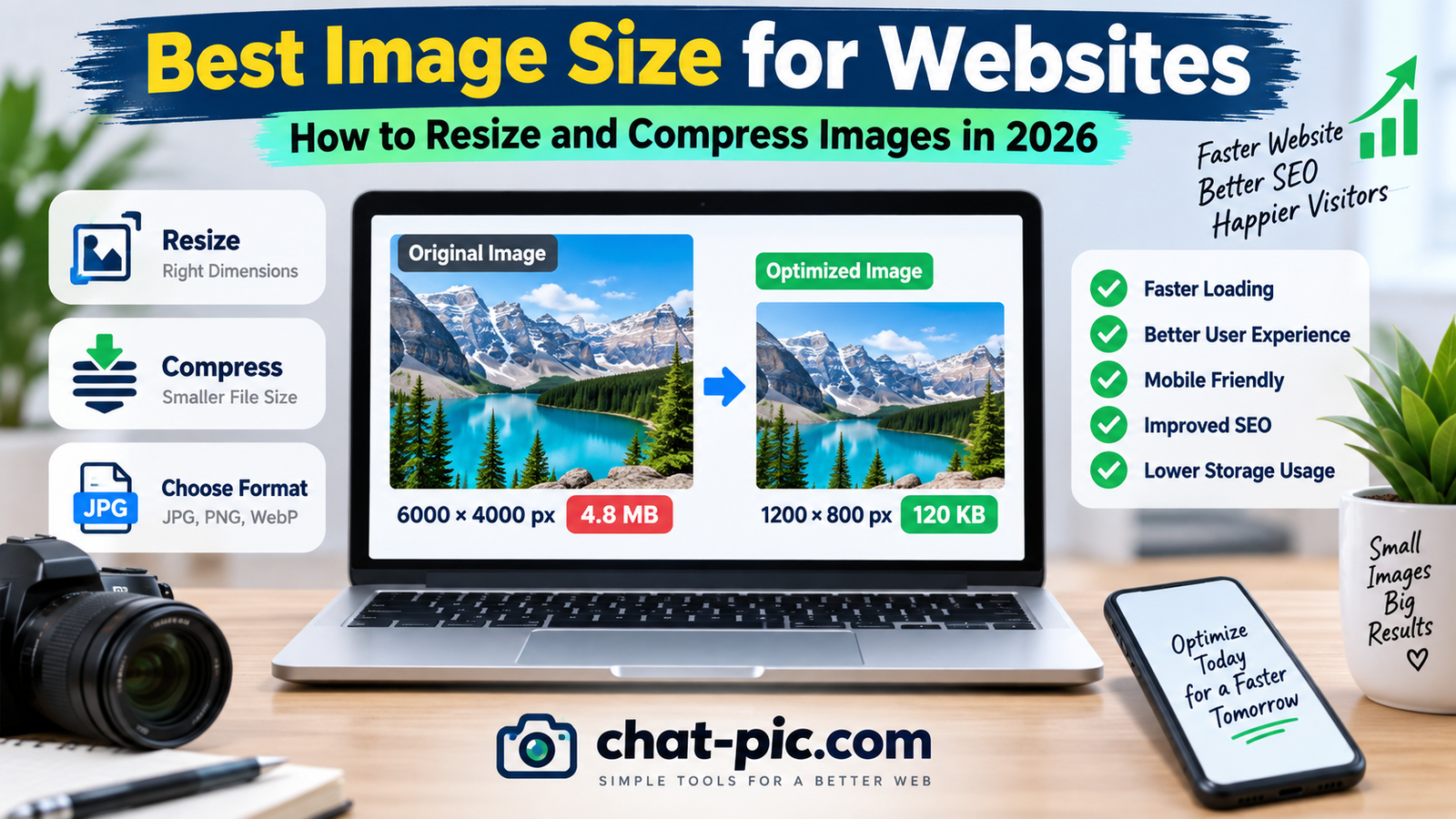
Choosing the best image size for websites is important for page speed, visual quality, mobile usability, and overall website performance.
Modern phones and cameras can create photos that are several thousand pixels wide and several megabytes in size. These large images may look excellent, but uploading them directly to a website is often unnecessary.
A website may display an image at only 800, 1200, or 1600 pixels wide. If you upload a 6000-pixel-wide photo, visitors may download much more image data than they actually need.
The better approach is to resize images to suitable dimensions and then compress them before uploading.
Chat Pic provides browser-based tools that can help you prepare website images without complicated editing software.
What Is the Best Image Size for Websites?
There is no single perfect image size for every website.
The correct dimensions depend on:
- Where the image appears
- Your website layout
- Desktop and mobile design
- Whether the image is a thumbnail, blog image, banner, or hero image
- The image’s aspect ratio
- The visual detail required
- The device resolution
For many normal website images, a width between 1000 and 1600 pixels can provide a good balance between visual quality and file size.
However, this is a general range rather than a fixed rule.
A small thumbnail may only need a few hundred pixels, while a large full-width hero image may need more.
The main principle is simple:
Do not upload an image much larger than the size at which your website actually displays it.
Why Image Size Matters for Website Performance
Images are often among the largest files on a web page.
A single high-resolution photo can sometimes be larger than the rest of the page combined.
Large images can cause:
- Slower page loading
- Higher mobile data usage
- Longer upload times
- Larger backups
- More storage usage
- Slower WordPress media management
- Poorer experience on slower connections
Optimizing image dimensions before upload can reduce these problems.
Image Dimensions vs File Size
Image dimensions and file size are different.
Dimensions describe the width and height in pixels.
Example:
1600 × 900 pixels
File size describes how much storage the image uses.
Example:
180 KB
Two images can have the same dimensions but very different file sizes depending on:
- Image format
- Compression level
- Visual complexity
- Metadata
- Color information
That is why website image optimization usually requires both resizing and compression.
Recommended Website Image Sizes
The following sizes are useful starting points rather than strict requirements.
| Website Image Type | Suggested Width |
|---|---|
| Small thumbnail | 300–500 px |
| Medium content image | 800–1200 px |
| Blog featured image | 1200–1600 px |
| Large content image | 1200–1600 px |
| Hero/banner image | 1600–2000 px |
| Small logo | 200–500 px |
| Product thumbnail | 500–800 px |
| Larger product image | 1000–1600 px |
Your actual design may require different dimensions.
Always check how large the image appears on your website.
Best Image Size for Blog Posts
Blog images usually do not need full camera resolution.
Suppose your blog content area is approximately 900 pixels wide.
Uploading a 5000-pixel-wide image gives the browser much more information than the visible layout requires.
For many blog posts, images around 1200 pixels wide can provide enough quality for desktop and mobile displays.
Some layouts may benefit from 1400 or 1600 pixels.
The right size depends on your theme and content width.
Best Size for Featured Images
Featured images often appear:
- At the top of an article
- On blog archive pages
- In related-post sections
- On social previews
- In homepage article cards
A common practical size is around:
1200 × 675 pixels
This uses a 16:9 ratio.
However, your WordPress theme may use a different crop.
Before designing every featured image at one size, check how your theme displays them.
For Chat Pic-style blog cards, a consistent aspect ratio can make the website look cleaner and more professional.
Best Image Size for Hero Sections
Hero images are large images shown near the top of a page.
Because they are visually important and often load immediately, they should be optimized carefully.
A hero image may need to be around:
1600–2000 pixels wide on desktop
But the correct size depends on:
- Container width
- Full-width vs boxed layout
- Retina/high-density displays
- Mobile layout
- Image cropping
If your hero illustration is displayed much smaller than the original file, resize it before uploading.
For example:
Original: 3000 × 2000, 1.5MB
Optimized: 1200 × 800, 100KB
The optimized image may look nearly identical at the displayed size while loading much faster.
Best Image Size for Mobile Websites
Mobile screens are narrower than desktop screens.
That means mobile visitors often do not need extremely wide images.
However, modern phones have high-density displays, so using images that are slightly larger than the CSS display size can help maintain sharpness.
The best solution is responsive images.
WordPress can generate multiple image sizes and browsers can select an appropriate version using responsive image markup.
Still, starting with a sensibly sized original image is important.
Do not upload a 7000-pixel photo just because WordPress can create smaller versions.
How to Resize Images for Websites
Resizing should usually happen before compression.
You can use Chat Pic’s free Image Resizer to reduce image dimensions.
Internal link:
For example:
Original:
5000 × 3333 pixels
Resized:
1500 × 1000 pixels
This removes a large amount of unnecessary pixel data.
After resizing, you can compress the image further.
Why Resize Before Compressing?
Imagine compressing a 6000-pixel-wide photo.
Even after compression, the file still contains millions of pixels.
If your website only displays the image at 1200 pixels wide, those extra pixels provide little benefit.
A better workflow is:
Original → Resize → Compress → Upload
This often produces a smaller file with better visible quality than applying extreme compression to an oversized image.
How to Compress Website Images
After resizing, reduce the file size using image compression.
Chat Pic’s Image Compressor can help with this process.
Internal link:
The goal is not to create the smallest possible file.
The goal is:
Good visual quality + appropriately small file size
Strong compression may create:
- Blocky details
- Blurry edges
- Color banding
- Loss of texture
- Unclear text
Start with moderate compression and inspect the image.
What File Size Should Website Images Be?
There is no fixed file-size limit that works for every image.
A complex photo may require more data than a simple graphic.
However, a useful target for many normal website images is:
Under 200KB when practical
Some images can be much smaller.
For example:
- Logo: 10–50KB
- Thumbnail: 20–80KB
- Blog image: 50–200KB
- Large hero image: 80–300KB
These are general optimization targets, not strict rules.
A detailed photograph may need a larger file to maintain acceptable quality.
Is 100KB Good for Website Images?
Yes, 100KB can be an excellent target for many website images.
But you should not force every image to exactly 100KB.
A detailed hero image may look better at 180KB.
A simple icon may only require 10KB.
The right file size depends on the visual content and display size.
We already have a detailed guide about reducing files to 100KB.
Internal link:
Suggested anchor:
compress an image to 100KB
Best Image Format for Websites
The file format can have a major impact on image size.
JPEG
JPEG is still useful for photographs.
Advantages include:
- Broad compatibility
- Good compression
- Suitable for photos
The main disadvantage is that repeated compression can reduce quality.
PNG
PNG is useful for:
- Logos
- Graphics
- Screenshots
- Transparency
- Sharp interface elements
But PNG photos can become unnecessarily large.
WebP
WebP is widely used for modern websites.
It can provide good visual quality with relatively small file sizes.
WebP supports both:
- Photographic images
- Transparency
This makes it useful for many website assets.
AVIF
AVIF can provide very efficient compression for many images.
However, your publishing workflow, browser support requirements, CMS setup, and image-processing tools should be considered.
For a simple WordPress workflow, WebP is often an easy modern choice.
WebP vs JPEG for Websites
For many photographs, WebP can reduce file size compared with JPEG while maintaining good visual quality.
However, results depend on:
- Image content
- Compression quality
- Encoder
- Dimensions
Do not convert images simply because WebP is newer.
Compare the actual file size and appearance.
If a JPEG is already small and clear, conversion may provide only a minor benefit.
When Should You Use PNG?
Use PNG when transparency or very sharp graphical detail is important.
Examples include:
- Logos
- Interface screenshots
- Charts
- Icons
- Graphics with text
However, if a PNG photo is 2MB and WebP produces a 150KB version that looks the same, the smaller format may be better for the website.
Best Logo Size for Websites
A common mistake is uploading a huge logo.
A header may display a logo only 200–300 pixels wide, yet the uploaded file may be 2000 pixels wide.
That wastes bandwidth.
For many websites, a logo around 300–500 pixels wide is more than enough.
If the logo is displayed at 250 pixels wide, a 500-pixel source can remain sharp on many high-density screens.
Also optimize the file itself.
A logo that is 400KB can often be reduced dramatically.
Best Thumbnail Size for Websites
Thumbnails are displayed small.
There is usually no reason to serve a 2000-pixel image inside a card that appears only 350 pixels wide.
A thumbnail source around 500–800 pixels wide can often be enough, depending on the layout and screen density.
Using properly sized thumbnails can make:
- Homepage grids faster
- Blog archives lighter
- Related-post sections faster
- Mobile pages more efficient
Best Product Image Size
Product images need enough detail for users to inspect the item.
A useful range may be:
1000–1600 pixels wide
However, stores that offer detailed zoom functionality may require larger originals.
The displayed image and zoom feature should determine the appropriate size.
Product thumbnails should use smaller versions rather than loading the full original image.
Keep the Correct Aspect Ratio
Aspect ratio determines the shape of an image.
Common ratios include:
- 1:1
- 4:3
- 3:2
- 16:9
When resizing, keep the aspect ratio locked unless you intentionally want to crop.
For example:
Original:
1600 × 900
Correct half-size resize:
800 × 450
Incorrect resize:
800 × 800
The incorrect version would stretch the image unless it was cropped.
Resize vs Crop
Resizing and cropping are different.
Resizing changes the overall dimensions.
Cropping removes part of the image.
If your website requires a square image, but the original image is rectangular, cropping may be better than stretching.
Example:
Original:
1600 × 1000
Crop:
1000 × 1000
Resize:
600 × 600
This preserves natural proportions.
Avoid Upscaling Small Images
Upscaling means making an image larger than its original dimensions.
For example:
Original:
600 × 400
Upscaled:
2400 × 1600
This does not create real new detail.
The result may become:
- Blurry
- Soft
- Pixelated
Whenever possible, start with an image that is at least as large as the required display size.
Best Image Size for WordPress
WordPress automatically creates multiple versions of uploaded images.
These can include:
- Thumbnail
- Medium
- Large
- Custom theme sizes
Responsive image markup can help browsers select a suitable version.
However, uploading unnecessarily huge originals can still increase:
- Storage
- Backup size
- Image processing
- Media library weight
A good practice is to optimize the original before upload.
Image Sizes and Core Web Vitals
Large above-the-fold images can affect page loading performance.
This is especially important for hero images and featured images shown near the top of a page.
A heavy image may delay the time when the main visible content becomes fully rendered.
Optimizing:
- Dimensions
- File size
- Format
- Loading behavior
can improve the user experience.
Avoid lazy-loading an image if it is the main above-the-fold hero and needs to load immediately.
Lower-page images are better candidates for lazy loading.
Use Responsive Images
Responsive images allow the browser to select a file size based on the visitor’s screen.
For example:
Desktop visitor → larger image
Mobile visitor → smaller image
WordPress often handles responsive image markup automatically.
This can reduce unnecessary downloads.
Still, responsive images work best when your source images are sensibly optimized.
Should You Use Lazy Loading?
Lazy loading delays off-screen images until they are needed.
This can be helpful for:
- Long blog posts
- Image galleries
- Product listings
- Related-post grids
However, avoid lazy loading the primary image that appears immediately at the top of the page if doing so delays important visible content.
Use lazy loading mainly for images farther down the page.
Image File Names Matter Too
Before uploading, use a descriptive file name.
Instead of:
IMG_92873.jpg
use something like:
best-image-size-for-websites.webp
This makes your media library easier to understand.
It also gives search engines and accessibility workflows better context when combined with good surrounding content and alt text.
Avoid stuffing many keywords into file names.
Keep them short and descriptive.
Use Helpful Alt Text
Alt text describes an image for users who cannot see it and can provide context when an image fails to load.
Good alt text should describe what the image actually shows.
Example:
Good:
Comparison of a large website image and an optimized WebP image
Avoid:
best image size websites SEO image size best image size
Alt text is not a place for keyword stuffing.
Do Images Need EXIF Metadata on Websites?
Most normal website images do not need camera EXIF data.
Metadata may include:
- Camera model
- Date taken
- Exposure settings
- Software
- GPS location
If privacy matters, remove unnecessary metadata before uploading.
Chat Pic’s EXIF Metadata Remover can help create a cleaner web copy:
Recommended Website Image Workflow
A simple process is:
1. Start with the original
Keep the highest-quality original safely stored.
2. Decide where the image will appear
Hero, thumbnail, article, product page, etc.
3. Choose suitable dimensions
Avoid unnecessary pixels.
4. Resize the image
Use the Image Resizer.
5. Choose the best format
JPEG, PNG, WebP, or another suitable option.
6. Compress the image
Reduce file size without excessive visible quality loss.
7. Check metadata
Remove unnecessary private information.
8. Add descriptive file name and alt text
Make the asset easy to manage and accessible.
9. Upload to the website
Check desktop and mobile display.
Common Website Image Optimization Mistakes
Uploading Camera Originals
A 6000 × 4000 image is rarely necessary for a normal blog post.
Compressing Without Resizing
You may be compressing millions of pixels your website never displays.
Using PNG for Every Photo
Large PNG photographs can be inefficient.
Making Every Image 100KB
Different images have different requirements.
Overcompressing
Tiny file size is not useful if the image looks bad.
Stretching Images
Always maintain the correct aspect ratio.
Ignoring Mobile Visitors
A desktop image may be unnecessarily large for mobile screens.
Uploading Huge Logos
Header logos should be optimized too.
Example: Optimizing a Large Blog Image
Imagine you have this original:
Dimensions: 5000 × 3333
Format: JPEG
File size: 4.8MB
Your blog content area is around 1000 pixels wide.
You resize it to:
1500 × 1000
Then convert/compress it to WebP.
Final version:
1500 × 1000
120KB
The final file is dramatically smaller while still being large enough for the page layout.
The exact numbers will vary for every image.
Example: Optimizing a Hero Image
Original:
2400 × 1600
1.2MB PNG
Website displays it at approximately:
900 × 600
You resize it to:
1200 × 800
Then save it as optimized WebP:
70KB
This can reduce the amount of image data visitors need to download.
Example: Optimizing a Site Logo
Original logo:
2000 × 600 PNG
400KB
Displayed size:
250 × 75
Optimized source:
500 × 150 WebP
15KB
The header can look almost identical while using much less data.
How Many Images Should a Web Page Have?
There is no universal ideal number.
Use enough images to improve the content.
Do not add images only to make the article longer.
Every image should have a purpose, such as:
- Explaining something
- Showing an example
- Breaking up dense content
- Demonstrating a process
- Comparing results
Five optimized images may perform better than one huge unoptimized image.
Frequently Asked Questions
What is the best image size for websites?
The best size depends on where the image is displayed. For many content images, approximately 1000–1600 pixels wide can be a useful starting range.
Is 1200 pixels wide enough for a website?
For many blog and content images, yes. Full-width hero images or specialized layouts may require larger dimensions.
What file size should website images be?
There is no fixed limit, but keeping normal web images under approximately 200KB when practical can be a useful goal. Some images can be much smaller.
Is WebP better for websites?
WebP can provide good visual quality with relatively small file sizes and is useful for many modern websites.
Should I resize images before compressing them?
Usually yes. Removing unnecessary pixel dimensions first can make compression more efficient.
Is PNG bad for websites?
No. PNG is excellent for graphics, screenshots, and transparency. It can simply be inefficient for large photographic images.
What size should a website logo be?
A logo around 300–500 pixels wide is often sufficient for a header that displays it at a smaller size.
Should hero images be lazy loaded?
Usually the main above-the-fold hero image should load promptly rather than being delayed unnecessarily. Images farther down the page are better candidates for lazy loading.
Does image size affect website speed?
Yes. Larger files require more data to download and can make pages load more slowly, especially on mobile or slower connections.
Should I remove image metadata before uploading?
If metadata such as GPS information is unnecessary or sensitive, creating a cleaned sharing copy can be a useful privacy step.
Final Thoughts
Finding the best image size for websites is not about choosing one exact width or forcing every file below the same number of kilobytes.
The best image is one that is large enough to look clear at its intended display size but not significantly larger than necessary.
For most website owners, a good workflow is:
Resize → choose the right format → compress → check quality → remove unnecessary metadata → upload
This approach can reduce page weight while keeping images visually clear.
Use appropriately sized thumbnails for cards, optimized featured images for blog posts, and carefully prepared hero images for important above-the-fold sections.
With Chat Pic’s browser-based Image Resizer, Image Compressor, and EXIF Metadata Remover, you can prepare cleaner, lighter website images before uploading them to WordPress or other publishing platforms.