
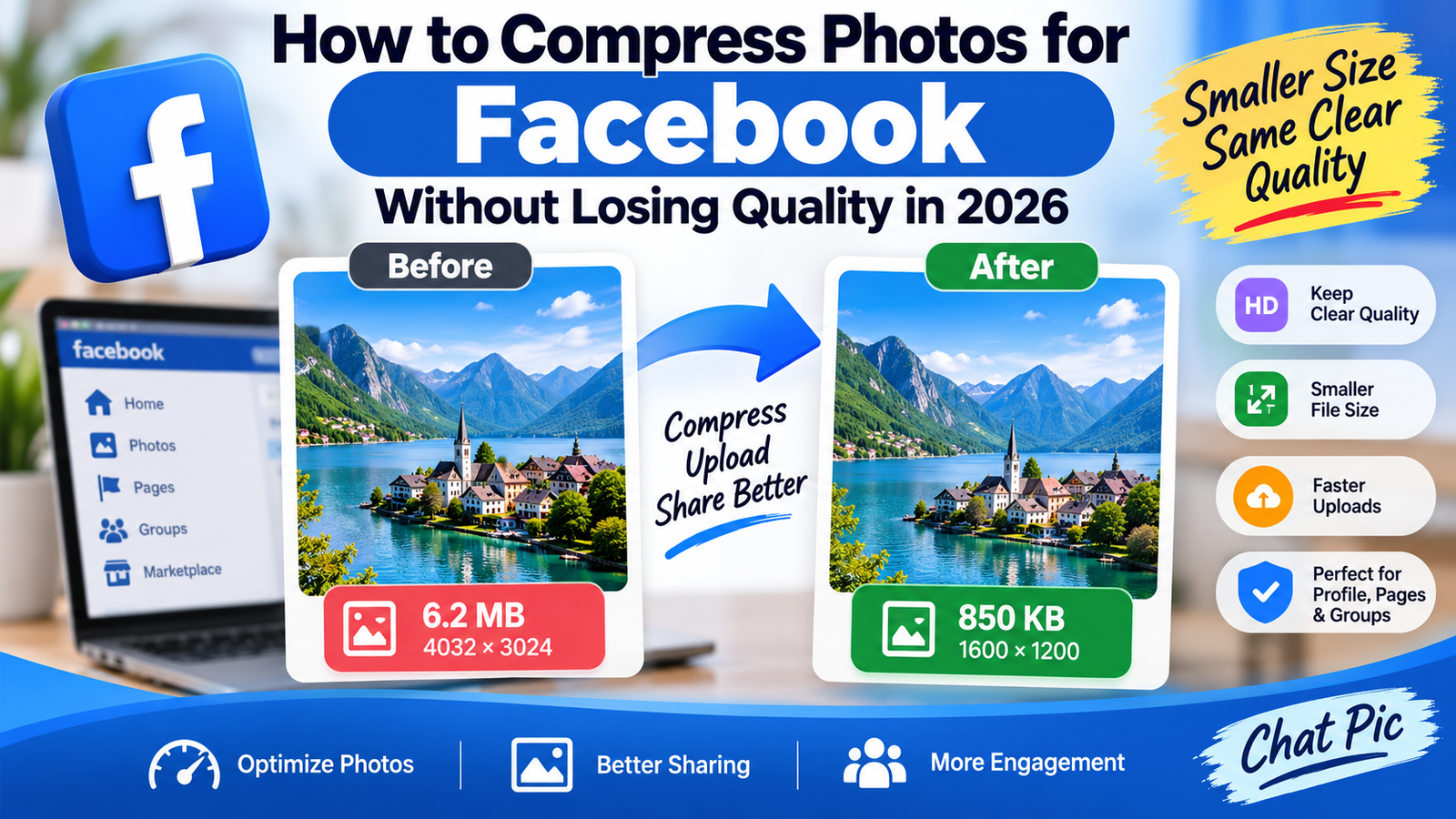
Want to compress photos for Facebook without losing quality before uploading them to your profile, Page, group, or photo album?
Modern phones and cameras can create extremely large images. A single photo may be 5 MB, 10 MB, or even larger, with dimensions of several thousand pixels.
That level of detail can be useful for printing or professional editing, but it is often unnecessary for everyday social media sharing.
When an oversized image is uploaded to an online platform, the platform may process the file to make delivery faster across different devices and internet connections.
If the original image is already poorly compressed, repeatedly edited, or unnecessarily large, the final Facebook photo may not look as sharp as expected.
A better approach is to prepare a clean, optimized copy before uploading.
You can resize oversized images, reduce unnecessary file weight, preserve visible details, and keep the original high-resolution photo stored safely.
Chat Pic provides browser-based tools that can help with this workflow.
Why Facebook Photos Can Look Blurry After Uploading
There are several reasons why a photo may appear softer after it is uploaded.
The original image may have been:
- Very large
- Already heavily compressed
- Saved multiple times
- Captured at low resolution
- Exported with a poor quality setting
- Enlarged beyond its original dimensions
Online platforms may also create processed versions of uploaded media.
This helps pages and feeds load efficiently, but it means you should start with a clean source image.
If you upload an image that already contains visible compression artifacts, further processing can make those problems easier to notice.
What Does Image Compression Mean?
Image compression reduces the amount of data needed to store an image.
For example:
Original photo:
4032 × 3024 pixels
6.2 MB
Optimized photo:
1800 × 1350 pixels
850 KB
The optimized image is much smaller, but it may still look very clear when viewed on a phone, tablet, or computer screen.
The goal is not to create the smallest possible file.
The goal is to remove unnecessary data while keeping the image visually strong.
Resize and Compression Are Different
Many people use the words resizing and compression as if they mean the same thing.
They are different.
Image Resizing
Resizing changes the pixel dimensions.
For example:
4000 × 3000 pixels
to
1800 × 1350 pixels
Image Compression
Compression reduces the amount of data stored inside the file.
For example:
2.8 MB
to
700 KB
For large camera photos, a combination of moderate resizing and moderate compression often works better than extreme compression alone.
How to Compress Photos for Facebook Without Losing Quality
A simple workflow is:
Original → Resize if necessary → Compress carefully → Preview → Upload
Always keep your original photo separately.
Do not replace your only full-quality image with a heavily optimized social media copy.
Create a dedicated Facebook version instead.
Step 1: Check the Original Photo
Before changing anything, check the image’s:
- Width
- Height
- File size
- Format
- Visual quality
A smartphone image may be:
4032 × 3024 pixels
6.5 MB
JPEG
If your goal is simply to display the photo in a Facebook feed, you may not need all of those pixels.
Step 2: Resize an Oversized Image
If the photo is extremely large, reduce its dimensions before compression.
You can use Chat Pic’s Image Resizer:
Suggested anchor:
Image Resizer
Do not reduce dimensions more than necessary.
You want enough detail for the image to remain crisp on normal screens.
Step 3: Compress the Photo
Next, use Chat Pic’s Image Compressor:
Suggested anchor:
Image Compressor
Apply moderate compression rather than trying to achieve an extremely tiny file.
After compression, inspect:
- Faces
- Hair
- Text
- Trees
- Buildings
- Product labels
- Fine textures
- Edges
If these areas remain clean, your compression level is probably reasonable.
What Is a Good File Size for Facebook Photos?
There is no single ideal file size for every Facebook photo.
A good target depends on:
- Pixel dimensions
- Image complexity
- Format
- Number of colors
- Detail
- Intended use
A simple portrait may compress very efficiently.
A detailed landscape containing trees, grass, water, buildings, and clouds may require a larger file to preserve detail.
Do not force every image into the same KB target.
Should You Compress Facebook Photos to 100KB?
Usually, there is no need to make every Facebook image exactly 100KB.
An extremely small target can be useful when:
- Internet speed is limited
- You need a strict file size
- You are preparing many small images
- The image contains little detail
But detailed photos may lose visible quality if pushed too far.
If you specifically need a small image, see:
Suggested anchor:
compress an image to 100KB without losing quality
For Facebook, visual quality should normally matter more than achieving a particular KB number.
Why Resizing Before Compression Can Help
Imagine you have a 6000-pixel-wide photograph.
If you try to force that enormous image into a very small file, the compressor must remove a large amount of data.
That can create:
- Blockiness
- Soft details
- Color banding
- Rough edges
Instead, resize it first to dimensions appropriate for online viewing.
Then apply compression.
The compressor now has less unnecessary information to process.
Best Format for Facebook Photos
JPEG is a practical format for normal photographs.
It is well suited for:
- Portraits
- Travel photos
- Food photos
- Product photos
- Event photos
PNG is often better for:
- Graphics
- Logos
- Screenshots
- Images containing sharp text
- Certain transparent graphics
WebP is highly efficient for web use, but whether it fits your Facebook workflow depends on how you create and upload your images.
The best format is the one that preserves the content clearly while remaining compatible with your workflow.
Compress Portrait Photos for Facebook
Portrait images require careful compression.
People notice facial details quickly.
Check:
- Eyes
- Hair
- Eyebrows
- Skin
- Clothing
- Jewelry
Over-compression may make hair and skin look unnatural.
Start with a good original, resize moderately, and avoid extremely low JPEG quality settings.
Compress Facebook Profile Photos
Profile photos are displayed relatively small in many parts of Facebook.
However, that does not mean you should upload a tiny, low-quality image.
A very small original may look soft when Facebook displays it at different sizes.
Use a clean, properly sized source image with:
- Sharp facial detail
- Good lighting
- Clear edges
- Enough resolution
Avoid enlarging a tiny photo because enlargement does not restore lost detail.
Compress Facebook Cover Photos
Cover images are wide and contain more horizontal information.
Before uploading:
- Use an appropriately wide image
- Avoid unnecessary giant dimensions
- Check important text
- Keep key subjects away from awkward crop areas
- Preview on both desktop and mobile when possible
Facebook interfaces can display cover images differently depending on device and layout.
Keep important visual content near the central safe area.
Compress Photos for Facebook Pages
Business Pages often upload:
- Product images
- Promotions
- Event photos
- Staff photos
- Store pictures
- Menu graphics
Image quality can influence how professional a Page looks.
Do not over-compress business images just to save a few kilobytes.
A product photo should clearly show:
- Color
- Texture
- Details
- Labels
- Features
Use moderate optimization.
Compress Product Photos for Facebook Marketplace
Marketplace photos often contain important product details.
Buyers may zoom into images to inspect:
- Scratches
- Condition
- Labels
- Packaging
- Model numbers
- Materials
Aggressive compression can hide useful details.
A better workflow is:
Crop unnecessary background → Resize moderately → Compress carefully → Preview
This reduces size without destroying the information buyers need.
Compress Food Photos for Facebook
Food images often contain fine detail.
Textures in:
- Meat
- Bread
- Vegetables
- Sauces
- Desserts
can become muddy with heavy compression.
Preserve:
- Color
- Texture
- Highlights
- Edges
A slightly larger, clear image is usually better than an extremely small, poor-quality one.
Compress Travel Photos for Facebook
Travel photographs often include complex scenes.
Examples:
- Mountain landscapes
- Beaches
- Cities
- Forests
- Architecture
- Night scenes
These images can contain thousands of small details.
Extreme compression can make trees, buildings, and water look artificial.
Resize first and use moderate compression.
Compress Event Photos
Events may produce dozens or hundreds of large images.
Uploading every original at several megabytes each may be unnecessary.
For social sharing, create separate optimized copies.
Keep the original files in your archive.
This is useful for:
- Weddings
- Birthdays
- Conferences
- School events
- Sports
- Community events
Compress Photos Before Creating Facebook Albums
If you are uploading many photos into one album, optimization can save significant data.
For example:
50 original photos × 6 MB = 300 MB
If optimized versions average 900 KB:
50 × 900 KB = about 45 MB
The exact saving depends on the images, but the difference can be substantial.
It can make uploading easier on slower connections.
How to Avoid Blurry Facebook Photos
Several simple habits can protect image quality.
Start With the Original
Do not use screenshots or repeatedly downloaded copies if the original is available.
Avoid Repeated JPEG Saving
Every additional lossy save can remove more image data.
Do Not Enlarge Small Images
Increasing dimensions cannot recreate lost detail.
Resize Proportionally
Maintain the original aspect ratio unless intentional cropping is required.
Use Moderate Compression
Do not automatically choose the strongest compression setting.
Preview Before Uploading
Zoom in and inspect the final file.
Why Repeated Compression Is Bad
Consider this workflow:
Original JPEG → compressed → edited → compressed again → downloaded → uploaded again.
Each lossy compression step may introduce additional degradation.
Instead:
Keep one master original.
Create new sharing versions directly from that original whenever possible.
Can Cropping Reduce File Size?
Yes.
Cropping removes pixels you do not need.
For example, a product photo may contain a large empty background.
Cropping closer to the product can:
- Improve composition
- Reduce dimensions
- Reduce file size
- Make the subject easier to see
Crop before applying extreme compression.
Facebook Photos With Text
Graphics containing text need special care.
Examples:
- Quotes
- Posters
- Menus
- Infographics
- Price lists
- Advertisements
Text can become fuzzy quickly when compression is too aggressive.
Check:
- Small letters
- Thin fonts
- Numbers
- Prices
- Contact information
For text-heavy graphics, format choice and clean export settings are especially important.
Compress Screenshots for Facebook
Screenshots often contain:
- Text
- Icons
- Interface elements
- Charts
These require sharp edges.
Rather than heavily compressing a full-screen screenshot, first crop away unnecessary areas.
This can reduce file size without damaging readability.
Image Quality for Facebook Ads and Promotional Graphics
If you are creating graphics for a business campaign, start with a clean master file.
Do not repeatedly edit a compressed social-media copy.
Save your editable master separately.
Export a new upload version whenever changes are required.
This helps preserve:
- Brand logos
- Text
- Product images
- Colors
- Fine edges
Should You Sharpen Photos Before Facebook Upload?
A small amount of sharpening after resizing can sometimes improve appearance.
But excessive sharpening can create:
- Halos
- Noise
- Harsh edges
- Unnatural skin
Sharpening cannot repair a poor-quality original.
Correct resizing and compression are more important.
Does Facebook Automatically Compress Photos?
Social platforms process uploaded media to deliver it efficiently across different devices and network conditions.
The exact behavior can change as Facebook updates its apps and infrastructure.
Because you cannot control every processing step after upload, your best approach is to provide a clean, good-quality source file.
Do not intentionally destroy image quality before upload because you expect the platform to fix it later.
Facebook High-Quality Upload Settings
Depending on your current Facebook app version and device, media-upload options may be available that affect how photos or videos are uploaded.
Interface names and locations can change over time.
If image quality matters, check your current Facebook media settings rather than relying on an old tutorial.
Even when higher-quality upload options are available, preparing an unnecessarily huge image is not always useful.
Image optimization and upload quality settings solve different problems.
Does Faster Internet Improve Photo Quality?
Internet speed mainly affects transfer time and reliability.
It does not repair a low-quality photo.
However, on weak connections, smaller optimized files can be easier to upload.
This is one reason compression is useful when:
- Traveling
- Using mobile data
- Using weak Wi-Fi
- Uploading many images
Does Compression Save Mobile Data?
Yes, smaller files generally require less data to upload.
If you regularly upload many photographs, optimized files can reduce data usage substantially.
This can be helpful for:
- Mobile users
- Travelers
- Limited data plans
- Slow networks
Remove Metadata Before Uploading to Facebook
Photos can contain metadata such as:
- Camera model
- Capture date
- Camera settings
- GPS information
If privacy matters, consider creating a clean sharing copy.
Use Chat Pic’s EXIF Metadata Remover:
Suggested anchor:
EXIF Metadata Remover
Do not assume compression automatically removes every metadata field.
Compression and metadata cleaning are separate processes.
Check Location Data Before Posting
Some camera photos may contain location-related metadata.
If you want to inspect an image first, read:
Suggested anchor:
check EXIF data on a photo
For sensitive images, also inspect what is visually visible.
A photo can reveal location through:
- House numbers
- Street signs
- School uniforms
- Store names
- Landmarks
- Vehicle plates
Removing metadata does not hide visible information.
Facebook Privacy and Family Photos
Before sharing family photos publicly, consider both quality and privacy.
Check for:
- Location information
- Home address clues
- School names
- Personal documents
- Children’s information
Create a separate public copy if necessary.
Keep the full-resolution original privately.
Compressing Photos Does Not Automatically Improve Them
Compression cannot fix:
- Motion blur
- Bad focus
- Poor lighting
- Low original resolution
- Heavy noise
Compression only reduces file data.
Always start with the strongest source image available.
When Not to Compress Aggressively
Use a higher-quality copy if the recipient may need the image for:
- Printing
- Professional editing
- Graphic design
- Publication
- Archiving
- Detailed inspection
Facebook copies should not replace your master originals.
Best Facebook Photo Workflow
A practical workflow is:
1. Keep the original
Store the highest-quality file safely.
2. Crop if necessary
Remove unnecessary areas.
3. Check dimensions
Decide whether the original is oversized.
4. Resize
Use Chat Pic’s Image Resizer.
5. Compress
Use the Image Compressor.
6. Preview
Inspect important details.
7. Check metadata
Remove unnecessary information if privacy matters.
8. Upload
Send the optimized version to Facebook.
Example 1: Smartphone Portrait
Original:
4032 × 3024
6.4 MB
Optimized copy:
1800 × 1350
780 KB
The optimized version may remain sharp for normal social viewing while being much smaller.
Example 2: Marketplace Product Image
Original:
4000 × 4000
8 MB
Optimized:
2000 × 2000
1.1 MB
The smaller version can still preserve enough detail for buyers while making uploads easier.
Example 3: Travel Photo
Original:
6000 × 4000
11 MB
Optimized:
2400 × 1600
1.8 MB
Because landscapes contain many details, keeping a slightly larger file may produce a better result.
Example 4: Facebook Graphic
Original:
Large promotional PNG
Before compressing heavily:
- Crop unused space
- Check text size
- Check logo clarity
- Export cleanly
Text and logos should remain sharp.
Common Facebook Image Compression Mistakes
Making Every Photo Extremely Small
Different images need different file sizes.
Resizing Too Much
Very small dimensions can make images look soft.
Compressing Repeatedly
Always create new copies from the original.
Using the Wrong Format
Photos, screenshots, and graphics have different needs.
Ignoring Text
Small text can become unreadable.
Uploading Already-Blurry Images
Compression cannot restore missing detail.
Deleting the Original
Always keep your master photo.
Frequently Asked Questions
How do I compress photos for Facebook without losing quality?
Resize oversized photos first, apply moderate compression, and preview the final image before uploading.
Why does Facebook reduce photo quality?
Online platforms may process uploaded images for efficient delivery. Starting with a clean, appropriately prepared file can help preserve visible quality.
Should I compress photos before Facebook?
It can be useful for very large photos, slow internet connections, multiple uploads, or when you want control over the final file.
How small should a Facebook photo be?
There is no universal file size for every photo. Use enough data to preserve visible quality without keeping unnecessary file weight.
Is 100KB enough for Facebook?
Some simple images may look fine at 100KB, while detailed photos may require significantly more.
Should I resize or compress first?
For extremely large camera images, resizing first is often the better approach.
Does JPEG work well for Facebook?
JPEG is commonly suitable for normal photographs because it provides efficient file sizes with adjustable quality.
Is PNG better than JPEG?
PNG is often useful for graphics and screenshots, while JPEG is generally more efficient for photographs.
Does Facebook remove photo metadata?
Platform processing can change over time. If privacy matters, remove unnecessary metadata yourself before uploading rather than relying entirely on a third-party platform.
Can compression remove GPS data?
Not necessarily. Use a metadata-removal tool when you specifically want to clean GPS or EXIF information.
Why does text look blurry after uploading?
The graphic may have been resized too aggressively, compressed too heavily, or exported from an already low-quality source.
Should I keep the original photo?
Yes. Always keep the highest-quality original separately from social-media copies.
Final Thoughts
Learning how to compress photos for Facebook without losing quality is not about making every image as tiny as possible.
The best approach is to remove unnecessary file weight while protecting the visible details people care about.
Use this simple workflow:
Keep original → Crop → Resize → Compress → Preview → Check privacy → Upload
For large smartphone photos, resizing before compression can reduce file size significantly without requiring extreme compression.
For text-heavy graphics, screenshots, products, and detailed landscapes, prioritize clarity instead of chasing the smallest possible KB number.
Chat Pic’s Image Resizer, Image Compressor, and EXIF Metadata Remover can help you create lighter, cleaner sharing copies while keeping your original photos untouched.
Meta’s interfaces and upload behavior can change, so for any Facebook-specific upload-quality setting, check the current Facebook app or Help Center rather than relying on an old fixed setting.