
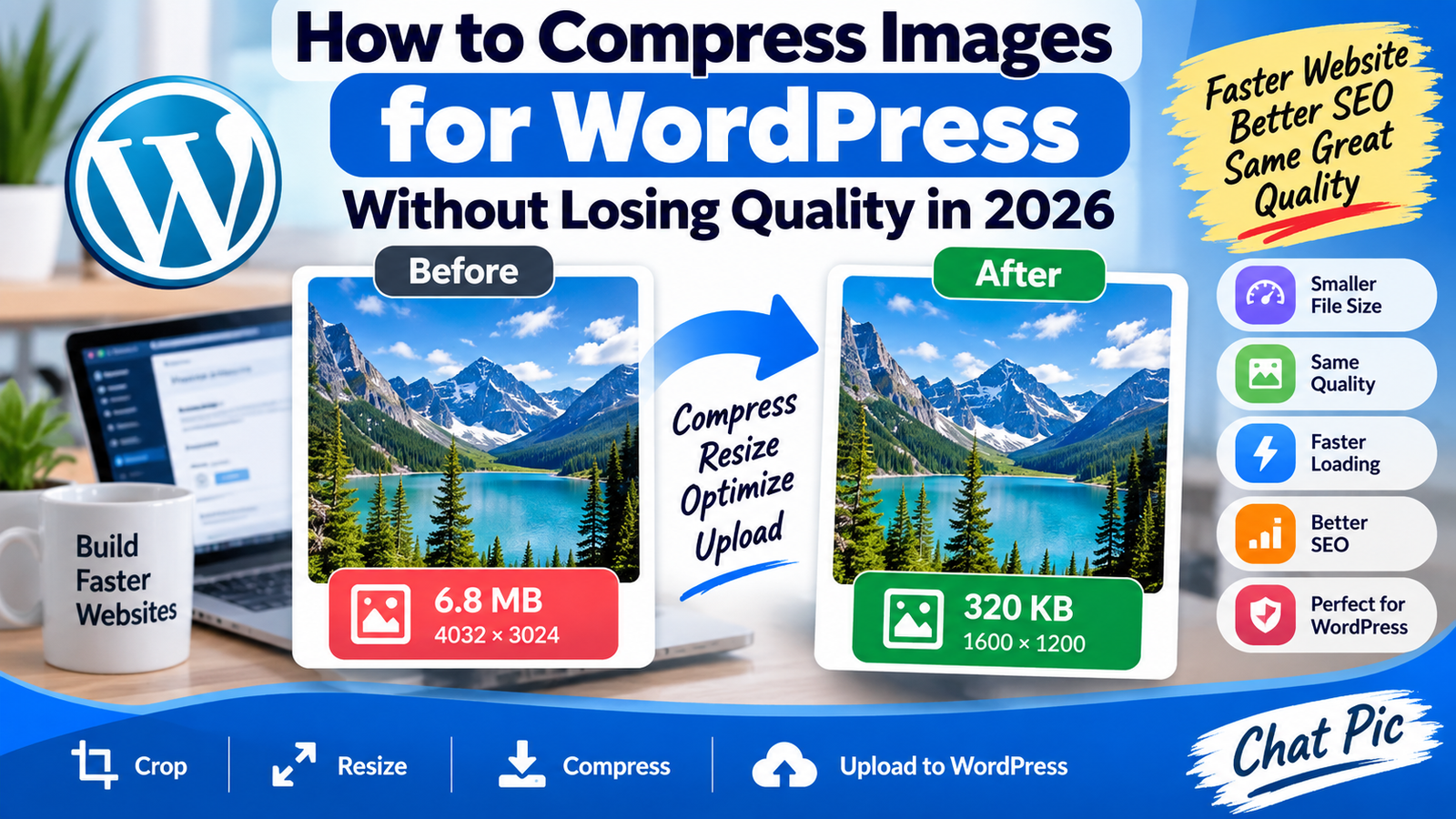
Want to compress images for WordPress without losing quality before uploading them to your website?
Large images are one of the easiest ways to make a WordPress page unnecessarily heavy. A modern phone or camera can create a single photo that is several megabytes in size and thousands of pixels wide.
That may be useful for printing, editing, or archiving, but your website usually does not need the full original file.
Uploading huge images can increase page weight, use more storage, consume more bandwidth, and make visitors wait longer for visual content to appear.
The better approach is not to destroy image quality.
It is to remove image data your webpage does not need.
A strong WordPress image workflow usually involves choosing appropriate dimensions, applying sensible compression, selecting the right format, checking the final image visually, and keeping the original stored separately.
In 2026, WordPress itself has continued improving media processing. WordPress 7.1 introduced browser-based processing for supported images, including resizing, compression, cropping, format conversion, and thumbnail generation in supported situations.
Even with those improvements, preparing clean images before upload remains useful because it gives you more control over your site’s media library and page weight.
Why WordPress Images Become Too Large
A common mistake is uploading images directly from a phone or camera without checking their dimensions or file size.
For example, an original image may be:
4032 × 3024 pixels
6.8 MB
JPEG
But the area where it appears on your website may only need an image around 1200 or 1600 pixels wide.
The extra pixels still have to be stored and may contribute to unnecessary processing or file weight.
Website owners often upload large images because they worry resizing will make them blurry.
Correct resizing normally does the opposite.
If an image is prepared for the size at which it will actually be displayed, you can significantly reduce file size while keeping it visually sharp.
What Image Compression Does
Image compression reduces the amount of data required to store an image.
The process may remove unnecessary information or encode the image more efficiently.
Compression can be broadly described as lossless or lossy.
Lossless compression attempts to reduce file size without discarding visible image information.
Lossy compression can achieve much greater reductions by discarding some image data.
For website photography, moderate lossy compression is often practical because a large reduction in file size may be possible before a normal visitor notices a meaningful visual difference.
The objective is not maximum compression.
The objective is efficient compression.
How to Compress Images for WordPress Without Losing Quality
A practical workflow is:
Original image → Crop → Resize → Compress → Preview → Clean metadata if needed → Upload to WordPress
Each step solves a different problem.
Cropping removes areas you do not need.
Resizing removes unnecessary pixel dimensions.
Compression reduces file weight.
Metadata cleaning can remove information that is not needed in a public website image.
WordPress then handles the optimized upload and creates the image sizes required by your theme or plugins.
Start With the Best Original
Always begin with the highest-quality source image available.
Avoid starting with an image that has already been:
Downloaded from social media, repeatedly compressed, enlarged from a small copy, saved multiple times as JPEG, or captured from a screenshot when the original is available.
You cannot recover detail that is already gone.
A clean original gives you much more freedom to reduce file size while maintaining excellent visual quality.
Keep Your Original Image
Do not overwrite your only full-resolution copy.
Store the master version somewhere safe and create a separate WordPress version.
Your original may later be useful for printing, redesigning your website, creating advertisements, making social-media graphics, or producing a larger crop.
Think of the WordPress file as a delivery copy rather than your master file.
Check Image Dimensions Before Upload
Dimensions and file size are different.
A photo can have dimensions such as:
4000 × 3000 pixels
while its file size may be:
7 MB
Another image with the same dimensions may be only 2 MB depending on its content, format, and compression.
Before uploading an image to WordPress, ask where it will actually appear.
A full-width hero image needs different dimensions from a small blog thumbnail.
Avoid uploading a 5000-pixel image into an area that displays it at a fraction of that width.
Resize WordPress Images Before Compression
For very large photos, resizing should usually happen before aggressive compression.
You can use Chat Pic’s Image Resizer:
Suppose your original is:
5000 × 3333 pixels
9 MB
If the website only needs a 1600-pixel-wide copy, reducing the dimensions first removes millions of unnecessary pixels.
The resulting file may already become much smaller.
Compression can then reduce it further without needing an extreme quality setting.
Compress the Resized Image
After dimensions are appropriate, use Chat Pic’s Image Compressor:
Apply compression gradually.
Do not judge success only by the KB number.
Open the result and inspect it at normal viewing size.
Look closely at important areas such as faces, text, hair, product edges, leaves, architecture, and gradients.
If the optimized image looks almost identical to the original during normal viewing, you have achieved the goal.
What Is a Good WordPress Image File Size?
There is no single file size that every WordPress image should use.
A simple illustration may compress to a very small file.
A detailed photograph may need substantially more data.
A large hero image may reasonably be larger than a small article thumbnail.
Instead of setting one universal limit, evaluate the image based on its purpose.
The correct question is not:
“How many KB should every WordPress image be?”
A better question is:
“How small can this specific image become while still looking good at the dimensions where it will be displayed?”
Should Every WordPress Image Be Under 100KB?
No.
A 100KB target can be useful for some images, but forcing every website image to exactly 100KB can damage quality.
Simple images, logos, thumbnails, or illustrations may easily fall below 100KB.
Large photographs with fine detail may need more.
If you specifically need a very small image, use our guide:
Suggested anchor:
compress an image to 100KB without losing quality
Treat 100KB as a possible target, not a universal rule.
WordPress Featured Images
Featured images are often displayed in several places.
The same image may appear on:
Your article page, homepage, category archive, search results, related-post sections, or social previews depending on your setup.
Because featured images are reused, they should be clean and reasonably optimized.
Do not upload an enormous original simply because WordPress can generate smaller versions.
Preparing a sensible source file helps keep your media library more efficient.
Hero Images Need Special Attention
Hero images can strongly affect how quickly the visible top section of a page appears.
They are usually among the largest visual elements on a page.
A large hero image should be:
Properly sized, efficiently compressed, visually sharp, and delivered in an appropriate format.
Do not reduce it so aggressively that the first thing visitors see looks poor.
At the same time, avoid using a multi-megabyte camera original when the visible hero area does not require that much data.
Blog Post Images
Normal in-content blog images often do not require the same dimensions as a full-width hero.
Before uploading a blog image, consider the maximum width of your article content.
If the content column is much narrower than the source photo, resize accordingly.
This can make a large difference when an article contains several images.
Ten unnecessarily large files can add far more page weight than one optimized image.
Product Images on WordPress
Product images require a careful balance.
Customers may want to zoom in and examine:
Texture, colors, packaging, model numbers, stitching, labels, or product condition.
Do not reduce product images until important details disappear.
Create a clean, moderately compressed source with enough resolution for the product viewer used by your site.
Screenshots Need Different Compression
Screenshots contain sharp text, icons, and interface elements.
They often respond differently to compression than photographs.
For screenshots, start by cropping away empty or irrelevant areas.
A smaller crop can reduce file size without damaging the content.
Then check whether text remains readable after optimization.
If letters become fuzzy, the compression is too aggressive.
PNG Images in WordPress
PNG is useful for certain graphics, screenshots, and transparency.
However, using PNG for ordinary photographs can produce very large files.
A photograph that weighs several megabytes as PNG may be dramatically smaller in a photographic format.
Do not choose an image format just because you recognize the extension.
Choose it based on the content.
JPEG Images in WordPress
JPEG remains practical for photographs.
It provides adjustable compression and wide compatibility.
JPEG works well for:
Portrait photography, food photos, travel images, property images, and many product photos.
The important part is using an appropriate quality level.
Saving a JPEG at unnecessarily high quality may result in a much larger file with little visible benefit on a webpage.
Saving it too low can create obvious artifacts.
WebP for WordPress
WebP can provide efficient image files for websites.
WordPress has supported WebP uploads for years, and modern WordPress media workflows can work with WebP alongside traditional formats.
If you want a dedicated conversion workflow, see:
Suggested anchor:
convert PNG to WebP without losing quality
Do not convert every image automatically without checking the result.
Compare the output visually and choose the format that works best for that specific image.
AVIF and WordPress in 2026
AVIF is another modern image format.
WordPress has supported AVIF uploads since earlier releases, and WordPress 7.1’s newer client-side media work includes AVIF processing in supported workflows.
AVIF can be useful, but your complete setup matters.
Hosting, image plugins, caching systems, CDN configuration, editing workflows, and browser delivery can all influence which format is most practical.
WebP remains a straightforward option for many website owners, while AVIF can be worth testing where the full stack supports it properly.
WordPress 7.1 Image Processing
WordPress 7.1 added significant media-processing improvements.
Its browser-based media processing can handle tasks including compression, resizing, cropping, format conversion, EXIF rotation, and generation of registered image sub-sizes when the feature applies. It also includes newer handling for formats such as HEIC and AVIF.
This is useful because some image work can be completed in the browser rather than depending entirely on server-side processing.
However, this does not mean website owners should upload every original without preparation.
Starting with an appropriately sized source remains a clean workflow.
WordPress Creates Multiple Image Sizes
When an image is uploaded, WordPress and your active theme or plugins may generate different image sizes.
These sizes help WordPress deliver versions appropriate for different placements.
That is useful.
However, it does not mean the size of your original upload never matters.
If your original is unnecessarily huge, you may still use more storage and require more processing than necessary.
Prepare a sensible source file first.
Do Not Resize an Image Upward
Suppose you have a 600 × 400 image.
Increasing it to 1800 × 1200 does not create real new detail.
It simply spreads the available pixels over a larger area.
The result may appear soft or blurry.
Always start with a source that is large enough for the intended display size.
Optimization should generally reduce unnecessary dimensions rather than artificially enlarge small originals.
Preserve the Aspect Ratio
The aspect ratio describes the relationship between width and height.
If you change width and height independently without preserving the correct ratio, people and objects may look stretched.
A 4:3 photo should remain proportional unless you intentionally crop it into another shape.
Resizing should not distort the subject.
Use cropping when you need a different aspect ratio.
Compress WordPress Images for Mobile Visitors
Mobile users can be particularly sensitive to heavy pages when their network connection is limited.
Smaller images can require less data to transfer.
This can improve the browsing experience for visitors using:
Mobile networks, slower Wi-Fi, limited data plans, or older devices.
Do not interpret this as a reason to upload blurry images.
The goal is efficient delivery, not low quality.
Image Compression and Page Speed
Images are often among the heaviest assets on content-heavy websites.
Reducing unnecessary image bytes can therefore reduce page weight.
However, image compression is only one part of website performance.
Page speed can also depend on:
Hosting, caching, scripts, CSS, fonts, ads, third-party services, CDN configuration, and theme design.
Treat image optimization as one important part of a larger performance strategy.
Image Compression and Core Web Vitals
Large visible images can affect loading performance, particularly when an important above-the-fold image takes too long to become available.
Compressing and correctly sizing those images can help reduce the data the browser must download.
But do not focus only on file size.
Delivery behavior, caching, responsive image markup, lazy loading, server response, and other factors also matter.
Do Not Lazy Load the Wrong Hero Image
Lazy loading can be useful for images far down a page.
However, the main image visible immediately when a page loads may need different treatment.
If an important above-the-fold image is delayed unnecessarily, the user may see blank space while waiting.
Performance optimization is about prioritizing the right resources, not applying the same setting to every image.
Compressing Images and SEO
Image compression itself is not a magic ranking method.
Its value comes from improving the experience around the page.
Efficient images can contribute to a site that uses less data and displays visual content faster.
Image SEO also includes:
Descriptive filenames, meaningful ALT text, relevant surrounding content, correct dimensions, and accessible markup.
Do not stuff keywords into every image ALT field.
ALT text should describe the image naturally.
WordPress Image Filenames
Before uploading, consider using a clear filename.
Instead of:
IMG_729183.JPG
a descriptive filename may be:
wordpress-image-compression-example.jpg
Keep filenames simple and relevant.
Avoid extremely long filenames packed with keywords.
Image ALT Text
ALT text helps describe an image when appropriate.
For a meaningful article illustration, write useful descriptive text.
For purely decorative images, the accessibility approach may differ.
Do not copy the same keyword-filled ALT text onto every image on your website.
That does not improve the user experience.
Remove Unnecessary Metadata
Camera photos can contain metadata such as:
Camera model, capture date, camera settings, and sometimes GPS information.
Public website images usually do not need every camera metadata field.
If you want to create a cleaner copy, use Chat Pic’s EXIF Metadata Remover:
Compression and metadata removal are different tasks.
A compressed image is not automatically free from all metadata.
Does Removing EXIF Reduce Image Quality?
Metadata is separate from the visible pixels.
Removing EXIF information itself should not make a photograph look blurrier.
However, if a tool also re-encodes the image while exporting it, the export settings can influence quality.
Always inspect the final file after processing.
Image Plugins vs Manual Optimization
WordPress has many image optimization plugins.
They can be convenient when managing large media libraries.
But plugins also add another part to your site configuration.
Manual pre-upload optimization gives you control before the file ever reaches WordPress.
A combination can also work.
For example:
Prepare sensible dimensions yourself, then allow your existing WordPress media or optimization system to handle responsive sizes and delivery.
Avoid stacking several plugins that all attempt to optimize, convert, and rewrite the same images unless you clearly understand how they interact.
CDN Image Optimization
Some CDN and hosting platforms can resize, convert, or compress images automatically.
This may be useful, especially for sites with large amounts of traffic.
But automatic optimization should not become an excuse for uploading massive files unnecessarily.
Clean inputs make automated workflows easier to manage.
Understand whether your CDN serves WebP, AVIF, or original formats and how caching is handled.
Avoid Uploading the Same Image Repeatedly
Media libraries can become cluttered when editors repeatedly upload nearly identical images.
Before uploading another copy, check whether a suitable optimized version already exists.
A clean library is easier to manage and can reduce unnecessary storage use.
Use clear filenames so you can recognize files later.
Should You Compress Old WordPress Images?
If an existing site has years of large images, optimization may help.
But do not immediately bulk-process thousands of files without a backup.
Old images may be referenced by:
Posts, custom fields, page builders, galleries, WooCommerce products, theme settings, and social previews.
Large-scale image changes should be tested carefully.
For a new site or new content, preventing oversized uploads is much easier than cleaning everything later.
How to Find Oversized Images
You can identify large files by checking your WordPress Media Library, hosting storage, page-performance reports, or individual image properties.
Look especially at:
Homepage hero images, featured images, landing pages, portfolio galleries, product images, and older posts.
These areas often contain the largest media assets.
Compress Images Before Uploading or After?
For new content, pre-upload optimization is simple and predictable.
You know exactly what file is entering the Media Library.
Post-upload optimization can be useful for existing sites or automated workflows.
Neither method is universally correct.
The important part is ensuring the final image delivered to visitors is not dramatically larger than necessary.
Example: WordPress Blog Featured Image
Original:
5000 × 3333 pixels
8.4 MB
Prepared version:
1600 × 1067 pixels
420 KB
If both look effectively identical at the actual display size, the smaller version is much more appropriate for the page.
These numbers are only an example, not a universal target.
Example: WordPress Hero Image
Original:
6000 × 4000 pixels
12 MB
Optimized:
2400 × 1600 pixels
900 KB
A hero may need more detail than a small thumbnail, so using a larger optimized version can make sense.
The final size depends on the layout and photograph.
Example: Blog Screenshot
Original screenshot:
2560 × 1600 pixels
1.7 MB
After cropping unnecessary browser chrome:
1800 × 900 pixels
650 KB
After careful format optimization:
Potentially much smaller while keeping text sharp.
Cropping can sometimes give you a bigger improvement than aggressive compression.
Example: Product Image
Original:
4500 × 4500 pixels
9 MB
Prepared website copy:
2000 × 2000 pixels
1 MB
If the product zoom remains sharp enough, the smaller copy may be more suitable for the website.
Always test with the actual product gallery.
Common WordPress Image Compression Mistakes
The most common problems are uploading full camera originals, chasing an arbitrary 100KB target, compressing the same JPEG repeatedly, using PNG for large photographs without a reason, deleting original files, enlarging small images, ignoring mobile users, and installing multiple optimization plugins that perform overlapping jobs.
Another common mistake is optimizing everything except the largest image at the top of the homepage.
Start with the images that matter most.
Best WordPress Image Optimization Workflow
Use this checklist when preparing new images:
- Keep the original file.
- Crop unnecessary areas.
- Determine the approximate display dimensions.
- Resize oversized images.
- Compress at a moderate quality level.
- Compare the optimized version with the original.
- Choose JPEG, PNG, WebP, or another suitable supported format.
- Remove unnecessary metadata when appropriate.
- Give the image a sensible filename and ALT text.
- Upload it to WordPress and check the live page on desktop and mobile.
This gives you a repeatable process instead of guessing each time.
Frequently Asked Questions
How do I compress images for WordPress without losing quality?
Start with the original image, resize it to dimensions appropriate for your page, apply moderate compression, and preview the result before uploading.
Should I compress images before uploading to WordPress?
For new content, doing so can give you more control over dimensions and file weight before the image reaches your Media Library.
What is the best WordPress image size?
There is no single size for every placement. A hero, blog image, thumbnail, and product image all have different requirements. Read our guide:
Suggested anchor:
Should WordPress images be under 100KB?
Not necessarily. Some images can easily be under 100KB, while detailed or large images may need more data to remain clear.
Should I resize or compress first?
For very large source images, resizing first usually makes sense because it removes unnecessary pixels before compression.
Is WebP good for WordPress?
Yes, WebP is supported by WordPress and can be an efficient format for many website images.
Does WordPress support AVIF?
Yes. Modern WordPress supports AVIF, and WordPress 7.1 expanded modern client-side media processing around supported image formats.
Does WordPress automatically resize images?
WordPress can create multiple generated image sizes for different uses. Current WordPress media processing has also continued evolving, but it is still useful to upload a sensibly prepared source image.
Does compression hurt SEO?
Compression itself is not harmful when used correctly. The important goal is preserving sufficient visual quality while reducing unnecessary file weight.
Does compression remove EXIF metadata?
Not necessarily. Use a dedicated metadata-removal process when you specifically want to remove metadata.
Should I use an image optimization plugin?
It depends on your workflow. Plugins can automate optimization, while pre-upload tools give you direct control. Avoid unnecessary overlapping plugins.
Can I compress WordPress images without changing dimensions?
Yes. If your dimensions are already appropriate, you can reduce file size through compression alone. See:
Suggested anchor:
reduce image file size without changing dimensions
Final Thoughts
Learning how to compress images for WordPress without losing quality is not about making every file extremely small.
It is about matching the image to its real purpose.
A huge camera original does not automatically create a better website.
A carefully resized and compressed image can look just as sharp to visitors while using far less data.
Use a consistent workflow:
Keep the original → Crop → Resize → Compress → Preview → Check metadata → Upload
Your hero images may need more detail than thumbnails.
Product images may need more detail than decorative graphics.
Screenshots may need sharper text than photographs.
There is no single compression number that works for everything.
Use Chat Pic’s Image Resizer, Image Compressor, and EXIF Metadata Remover to prepare clean image copies before uploading them to WordPress.
For WordPress 7.1 specifically, the platform now includes newer browser-side media processing capabilities, but careful source-image preparation remains a useful way to control your media workflow.