
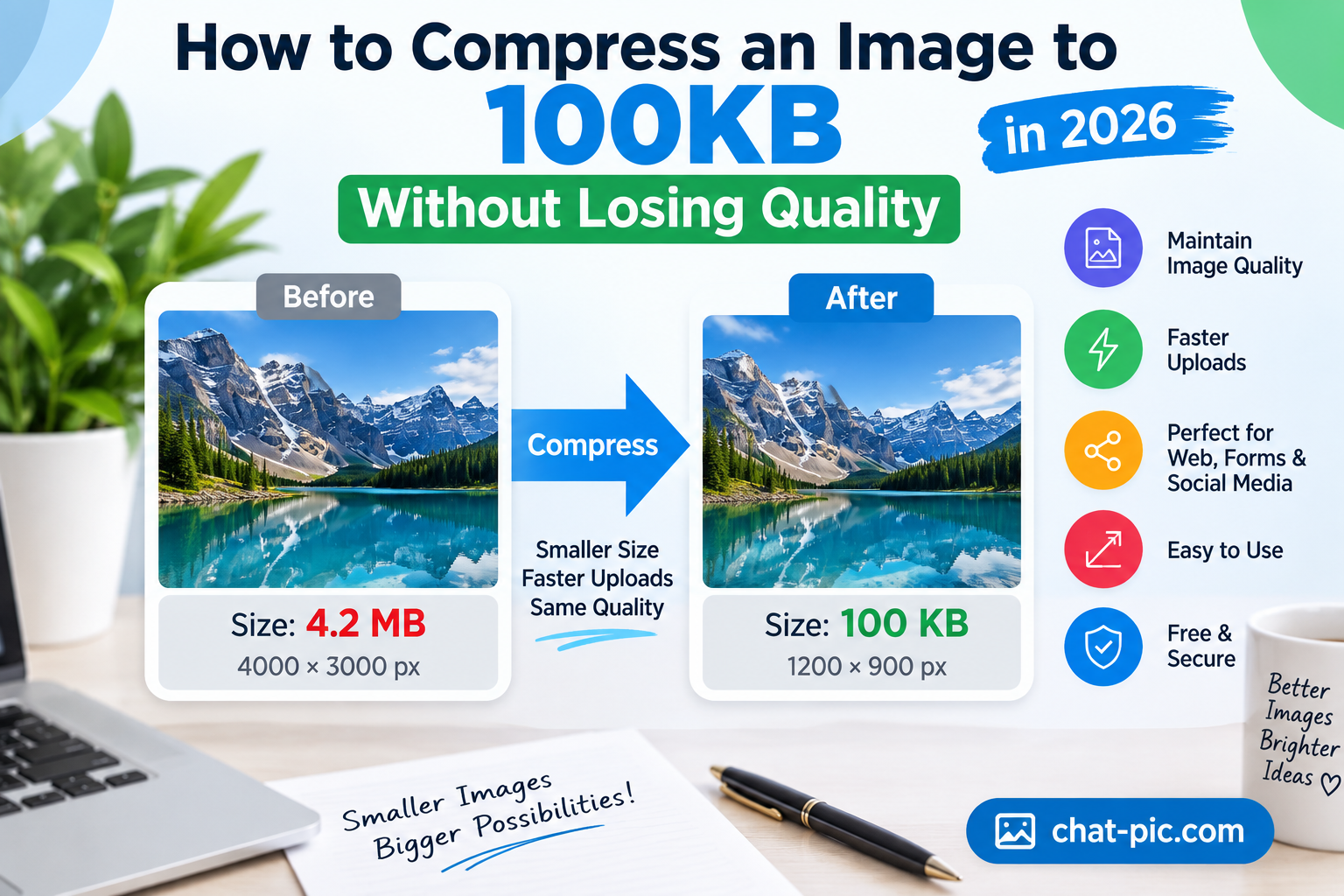
Need to compress image to 100KB without losing quality? This guide explains how to reduce image file size for websites, online forms, social media, email attachments and other uploads while keeping the image clear. Getting an image under 100KB can be useful when uploading photos to websites, online forms, job portals, social media platforms, email attachments, or other services that limit file size. The difficult part is reducing the file size without making the photo look blurry, pixelated, or badly compressed.
The good news is that you usually do not need to destroy image quality to reach a smaller file size. A combination of resizing, choosing the right image format, and applying moderate compression can often reduce an image to around 100KB while keeping it visually clear.
It is important to understand that completely lossless compression is not always possible when a large photo must be reduced dramatically. For example, a 6MB camera image may need some quality reduction to reach 100KB. However, with the right settings, the visible difference can be very small.
Chat Pic provides a simple browser-based Image Compressor that can help reduce image size before uploading or sharing it online.
Why Compress an Image to 100KB?
Many websites place limits on image uploads. Some forms may accept images only below 100KB, 200KB, 500KB, or another specific size. To compress image to 100KB effectively, start by reducing unnecessary dimensions before applying stronger compression.
Large photos can also create other problems. They take longer to upload, consume more mobile data, use more server storage, and may slow down websites when they are uploaded without optimization.
A smaller image can be useful for:
- Online application forms
- Profile photos
- Website images
- Email attachments
- Social media uploads
- Documents and presentations
- Online portfolios
- Product images
- Blog posts
- Mobile sharing
The goal should not simply be to make the smallest possible image. The better goal is to find a balance between file size, dimensions, format, and visual quality.
What Does 100KB Mean?
KB means kilobytes. An image that is 100KB is much smaller than a photo that is several megabytes.
A modern phone may create a photo that is 3MB, 5MB, 10MB, or even larger depending on the camera settings and image format.
That means reducing a large camera photo to 100KB may require a significant reduction.
Three things usually have the biggest effect on image size:
Image dimensions determine how many pixels are stored in the file.
Image format determines how efficiently those pixels are stored.
Compression level determines how much image information is removed or simplified.
Changing all three carefully usually gives better results than applying extremely strong compression alone.
How to Compress Image to 100KB Without Losing Quality
The most effective method is to resize the image first and compress it second.
Imagine you have a photo that is 5000 pixels wide, but you only need to display it at 1000 pixels wide. Uploading the 5000-pixel version wastes a large amount of data.
Reducing the dimensions before compression gives the compressor much less image data to process.
For many website and online-sharing uses, an image width between approximately 800 and 1600 pixels may be enough. The correct size depends on where the image will be displayed.
After resizing, compression can reduce the file even further.
For example:
| Original Image | Optimized Version |
|---|---|
| 4000 × 3000 pixels | 1200 × 900 pixels |
| 4.5MB JPEG | Around 100–250KB |
| Full camera resolution | Web-friendly resolution |
| Slow upload | Faster upload |
The exact result will depend on the photo.
Step 1: Resize the Image Before Compression
Resizing is often the most powerful way to reduce file size.
Suppose an image is 6000 × 4000 pixels. That image contains 24 million pixels.
If you resize it to 1200 × 800 pixels, it contains fewer than 1 million pixels.
That is a huge reduction in image data.
You can use Chat Pic’s Image Resizer before compression when the original photo is much larger than you actually need.
When resizing, keep the original aspect ratio whenever possible. This prevents the image from becoming stretched or distorted.
For websites, social media, and general sharing, you usually do not need the full resolution produced by a modern smartphone or digital camera.
Step 2: Choose the Right Image Format
Image format can make a major difference in file size.
JPEG, PNG, WebP, and AVIF are commonly used image formats, but they behave differently.
JPEG
JPEG is widely used for photographs.
It can produce small files while keeping good visual quality, especially for photos with many colors, gradients, and details.
JPEG is usually a good choice for regular photographs.
PNG
PNG works well for images that need transparency, logos, icons, screenshots, and graphics with sharp edges.
However, PNG photographs can become very large.
If you are trying to reduce a normal photo to 100KB, converting a large PNG photo to JPEG or WebP may reduce the size significantly.
WebP
WebP is designed to provide good image quality at relatively small file sizes.
It works well for photographs and web graphics and is commonly used on modern websites.
For many images, WebP can provide a smaller file than an equivalent JPEG or PNG while maintaining similar visible quality.
AVIF
AVIF can provide very efficient image compression, especially for web use.
However, the best format depends on where the image will be uploaded. Some older systems and online forms may still prefer JPEG or PNG.
If a website specifically requests JPG or PNG, use the format requested by that service.
Step 3: Apply Moderate Compression
After resizing and choosing the appropriate format, apply compression.
Avoid immediately using the strongest compression level.
Very aggressive compression may reduce file size quickly, but it can introduce visible problems such as blocky areas, blurry edges, loss of texture, and strange color transitions.
Start with moderate compression and check the resulting file size.
If the image is still above 100KB, reduce the quality slightly or reduce the dimensions a little more.
This gradual approach usually produces better results than applying maximum compression in one step.
How to Compress an Image to 100KB With Chat Pic
You can use the Chat Pic Image Compressor to reduce image file size directly in your browser.
Open the Image Compressor from Chat Pic and select the image you want to optimize.
Compress the image and check the new file size.
If the result is still larger than 100KB, resize the image slightly and compress it again.
For very large photos, resizing before compression will usually produce a cleaner result.
Internal link to add:
Anchor text: free Image Compressor
Link: https://chat-pic.com/image-compressor/
Place this link naturally near the beginning of this section.
Can You Really Compress an Image to Exactly 100KB?
Sometimes, but the final file size depends on the image.
Two photos with the same dimensions can have very different file sizes.
A simple photo with a plain background may compress easily.
A photo containing trees, hair, grass, crowds, text, or many small details can be harder to compress because there is more visual information.
Therefore, a compressor may produce an image that is 95KB, 103KB, 110KB, or another nearby size.
If a website requires a strict maximum of 100KB, aim slightly below the limit, such as 90–98KB.
That gives you some margin.
Why Image Dimensions Matter More Than Many People Think
People often focus only on compression quality, but dimensions can have an even larger effect.
Consider a photo that is 5000 pixels wide.
If the photo will only appear inside a small website content area, keeping the original width provides little benefit.
Reducing that image to 1200 or 1600 pixels wide can dramatically lower the amount of information that must be stored.
This allows you to use a higher compression quality while still producing a small file.
In other words, reducing dimensions can sometimes preserve visual quality better than heavily compressing an oversized image.
What Image Size Should You Use?
There is no single perfect dimension for every image.
For a small profile image, even 400–800 pixels may be enough.
For a blog image, 1000–1600 pixels may often be appropriate.
For a large website banner or photography portfolio, larger dimensions may be necessary.
The important principle is simple:
Do not upload significantly more pixels than the final display requires.
This can improve image loading speed and reduce unnecessary bandwidth.
How to Reduce Image Size Without Making It Blurry
Blurriness usually happens when an image is compressed too aggressively or resized incorrectly.
To maintain a clean appearance, resize proportionally, avoid repeated editing and saving, use a modern image format where appropriate, and compare the compressed version with the original.
If the photo contains important small text, fine product details, or facial details, inspect those areas carefully after compression.
A file that is slightly larger but still visually clear may be better than an extremely small image that looks damaged.
Compressing Images for Websites
Image compression is especially important for websites.
Large images may increase page download size and make pages slower on mobile connections.
Instead of uploading a 5MB photo directly into WordPress, it is usually better to resize and optimize the image first.
For many web images, WebP is a useful format because it can offer a good balance between quality and file size.
Also remember that WordPress themes may display images at different dimensions depending on the device.
Providing appropriately sized images can help browsers avoid downloading unnecessarily large files.
Compressing Images for Social Media
Social media platforms often compress uploaded images automatically.
Even so, uploading an enormous original photo is not always necessary.
Resizing the image before uploading may make the upload faster and give you more control over the image.
However, avoid making the file too small before uploading. Social platforms may apply additional compression, which can further reduce quality.
If there is no strict 100KB requirement, use a reasonable level of compression rather than forcing every photo below 100KB.
Compressing Images for Online Forms
Online forms are one of the most common reasons people need images under a specific size.
Government portals, job applications, school admissions, examination systems, and account verification services may set strict upload limits.
Always check the required:
File format, maximum file size, minimum dimensions, maximum dimensions, and orientation.
Do not reduce an image to 100KB if the website allows 500KB unless there is another reason to do so.
Using the full allowed size may preserve better image quality.
100KB vs 200KB vs 500KB Images
A higher file-size limit gives you more room to preserve detail. If you need to compress image to 100KB for an online form, aim slightly below the limit to avoid upload errors.
| File Size Target | Typical Use |
|---|---|
| Under 100KB | Forms, thumbnails, lightweight web images |
| 100–200KB | Blog images, general web use |
| 200–500KB | Larger web photos and detailed images |
| 500KB+ | High-detail web images or larger displays |
These are general examples rather than strict rules.
The best size depends on the purpose of the image.
Why Some Images Are Harder to Compress
A photo with a blue sky and a simple subject may compress very efficiently.
A photo of grass, trees, hair, crowds, fabric, or detailed architecture may require more data.
Screenshots containing text may also behave differently from photographs.
This is why one universal compression setting cannot guarantee a 100KB file for every image.
The compressor has to balance the amount of visual information against the requested file size.
Avoid Recompressing the Same Image Many Times
Repeatedly opening, editing, and saving a JPEG can gradually reduce quality.
Instead, keep the original image.
Create a separate optimized copy for uploading or sharing.
If you later need another size, return to the original file and create a new optimized version.
This helps preserve image quality over time.
Check Photo Metadata Before Sharing
File size is not the only thing to consider before sharing a photo.
Some images can contain EXIF metadata such as camera model, capture settings, date information, and sometimes GPS location data.
If privacy is important, consider checking or removing unnecessary metadata before uploading.
Chat Pic also provides an EXIF Metadata Remover for creating a cleaner sharing copy.
Internal link:https://chat-pic.com/exif-metadata-remover/
Resize, Compress, Then Check
A simple image optimization workflow is:
Original image → Resize → Compress → Check visual quality → Check file size → Share
This approach gives you more control over the final result.
If the file is still too large, reduce the dimensions slightly before dramatically lowering image quality.
Frequently Asked Questions
How do I compress an image to 100KB?
Resize the image to appropriate dimensions, choose an efficient format such as JPEG or WebP, and apply moderate compression. Check the final size and adjust gradually until the file is below 100KB.
Can I compress a 5MB photo to 100KB?
Yes, but a large reduction may require resizing the photo and applying lossy compression. The amount of visible quality loss depends on the image.
Which format is best for a 100KB image?
JPEG and WebP are usually good options for photographs. PNG is more suitable for transparency, logos, and certain graphics.
Does compression reduce image resolution?
Compression and resizing are different. Compression reduces stored data, while resizing changes pixel dimensions. Both can reduce file size.
Why is my PNG image so large?
PNG often stores photographs less efficiently than JPEG or WebP. Large PNG photos can therefore have much larger file sizes.
Is WebP better than JPEG?
WebP can often produce smaller files at comparable visual quality, but the correct choice depends on where the image will be used and which formats the destination accepts.
Can image compression remove metadata?
Some compression workflows may remove metadata, but this should not be assumed. If privacy matters, use a dedicated metadata-removal process.
The easiest way to compress image to 100KB is to resize first, then adjust compression gradually.
Final Thoughts
Compressing an image to 100KB does not have to mean ruining the photo.
The best results usually come from reducing unnecessary dimensions first, choosing the right file format, and then applying moderate compression.
For normal photographs, JPEG and WebP can provide good results. For logos and transparent graphics, PNG or WebP may be more suitable.
Instead of focusing only on the smallest possible number, aim for the smallest file that still looks good for its intended use.
With Chat Pic’s image tools, you can resize, compress, and prepare images before uploading them to websites, forms, social media, or other online services.
5 thoughts on “How to Compress an Image to 100KB Without Losing Quality in 2026”